Open Two Apps as a Pair
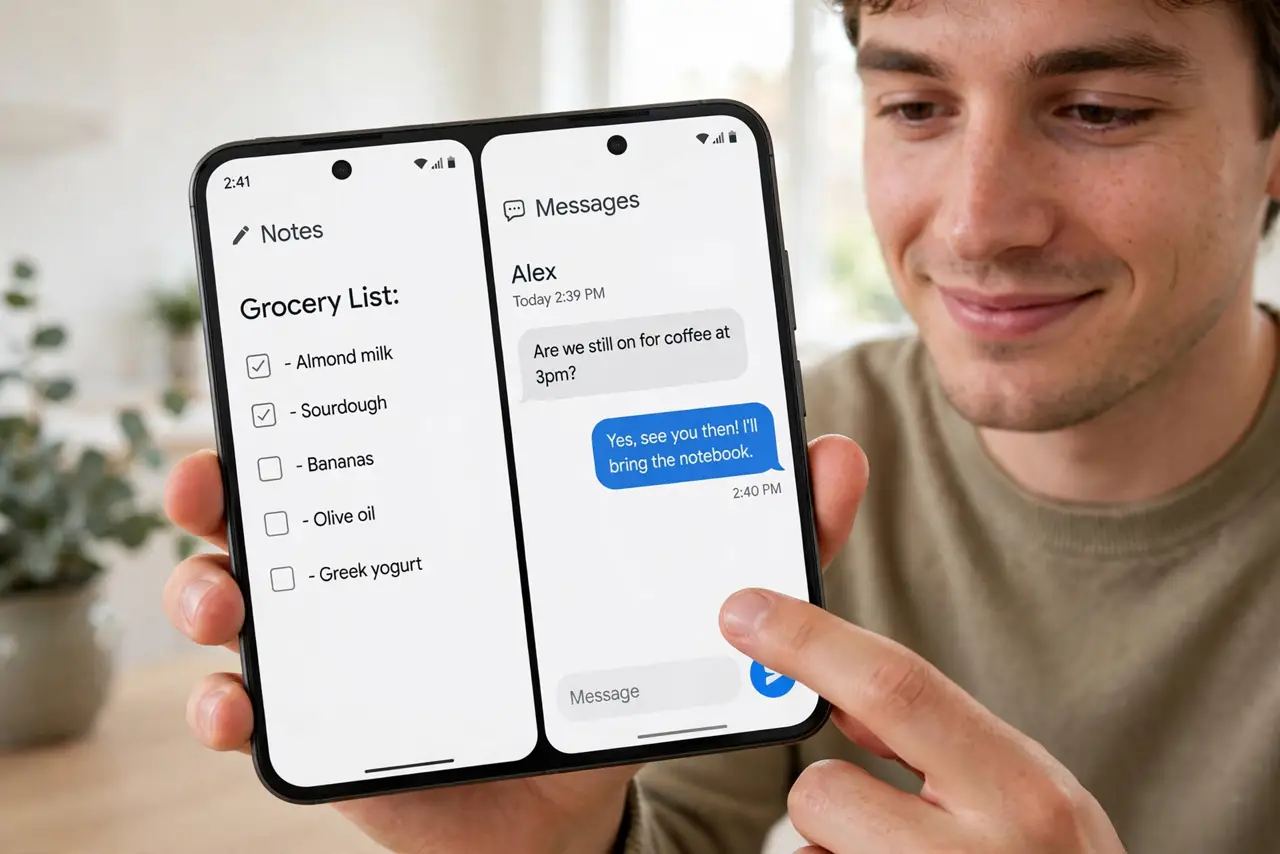
Every morning you open the same two apps side by side — calendar and notes, maps and music — and setting up split screen each time is a five-tap ritual that gets old fast. App Pairs save the combination as one shortcut: one tap, both apps, same layout. If your phone supports it, this is the most underused multitasking trick on Android.
TL;DR / Quick Fix
Quick fix: on supported Android phones, open two apps in split screen, then save the combination as an App Pair from the recent-apps menu — it lands on your home screen as one icon. One tap opens both apps in your layout.
Follow these steps
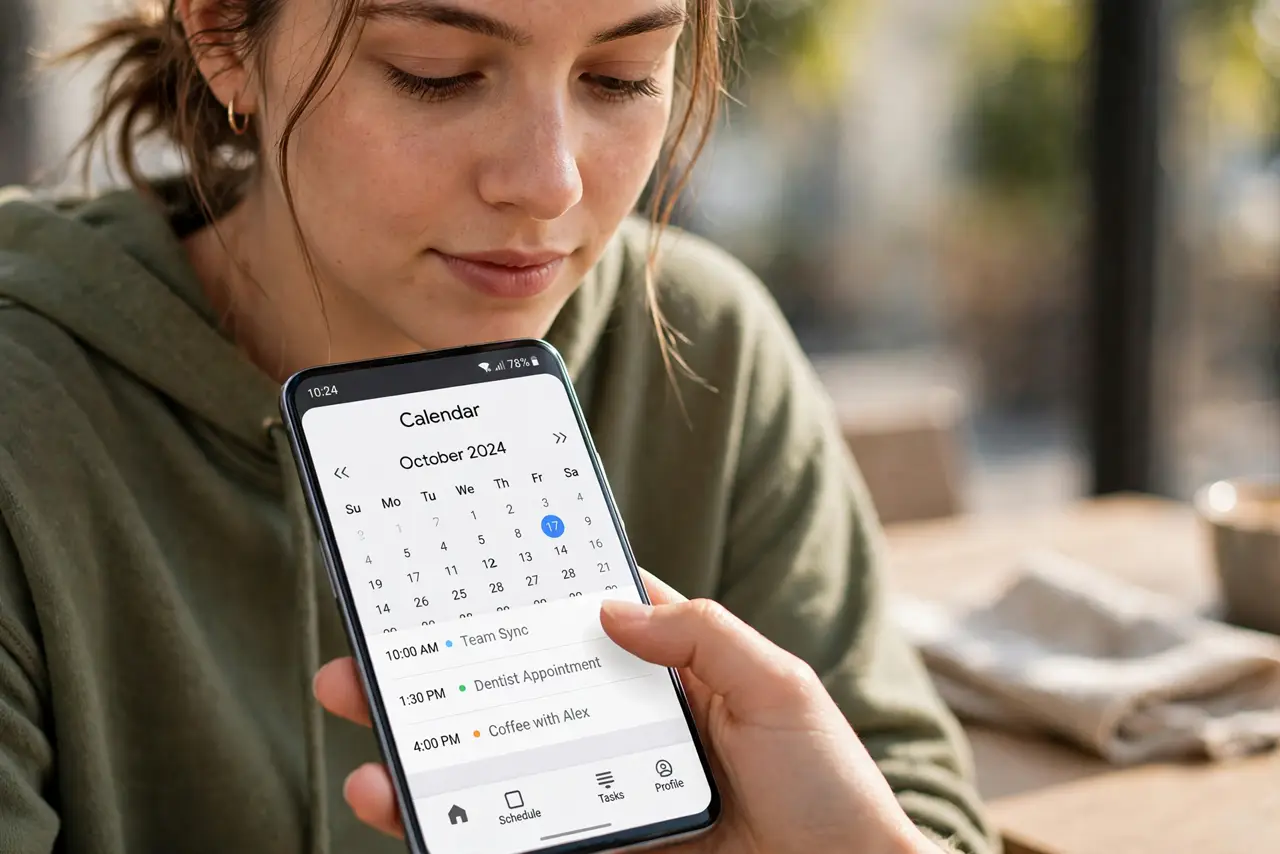
- Open the first app. Launch the app you want on top — say your calendar. This becomes the anchor of the pair.
- Enter split screen. Open the recent-apps view, tap the app's icon at the top, and choose Split screen. Then tap the second app — notes, for example — to fill the bottom half.
- Adjust the divider. Drag the divider to give each app the space it needs. Maps wants more room than a music player — set the ratio you will actually use.
- Save the pair. In the recent-apps view, tap the divider or the pair's menu and choose Save app pair. It appears as a single icon you can place on the home screen or in a folder.
- Launch with one tap. Tap the saved pair and both apps open in your exact layout. The morning ritual collapses from five taps to one.
- Know the limits. Not every app supports split screen — video and some banking apps refuse. And App Pairs are a Samsung and Pixel-style feature; other phones may offer only manual split screen.
What NOT to do
- Do not expect every app to cooperate. Apps that block split screen will simply refuse the bottom half — that is the developer's choice.
- Do not save the pair before adjusting the divider. The pair remembers your layout, so set the ratio first.
- Do not hunt for the feature on iPhone. iOS has no App Pairs — this is an Android trick; iPhone multitasking works differently.
- Do not keep pairs you stopped using. A stale pair icon is clutter — delete it like any other shortcut when the habit dies.
Frequently asked questions
Which phones support App Pairs?
Samsung Galaxy and Google Pixel phones have it built in. Other Android brands vary — check the recent-apps menu for a save-pair option.
Can I make a pair with three apps?
No — pairs are exactly two apps. For more, use pop-up view or a foldable's multi-window if your device supports it.
Do App Pairs drain more battery?
Only as much as running those two apps normally would. The pair itself is just a shortcut — no extra cost.