Android Stuck in a Boot Loop? Fix It
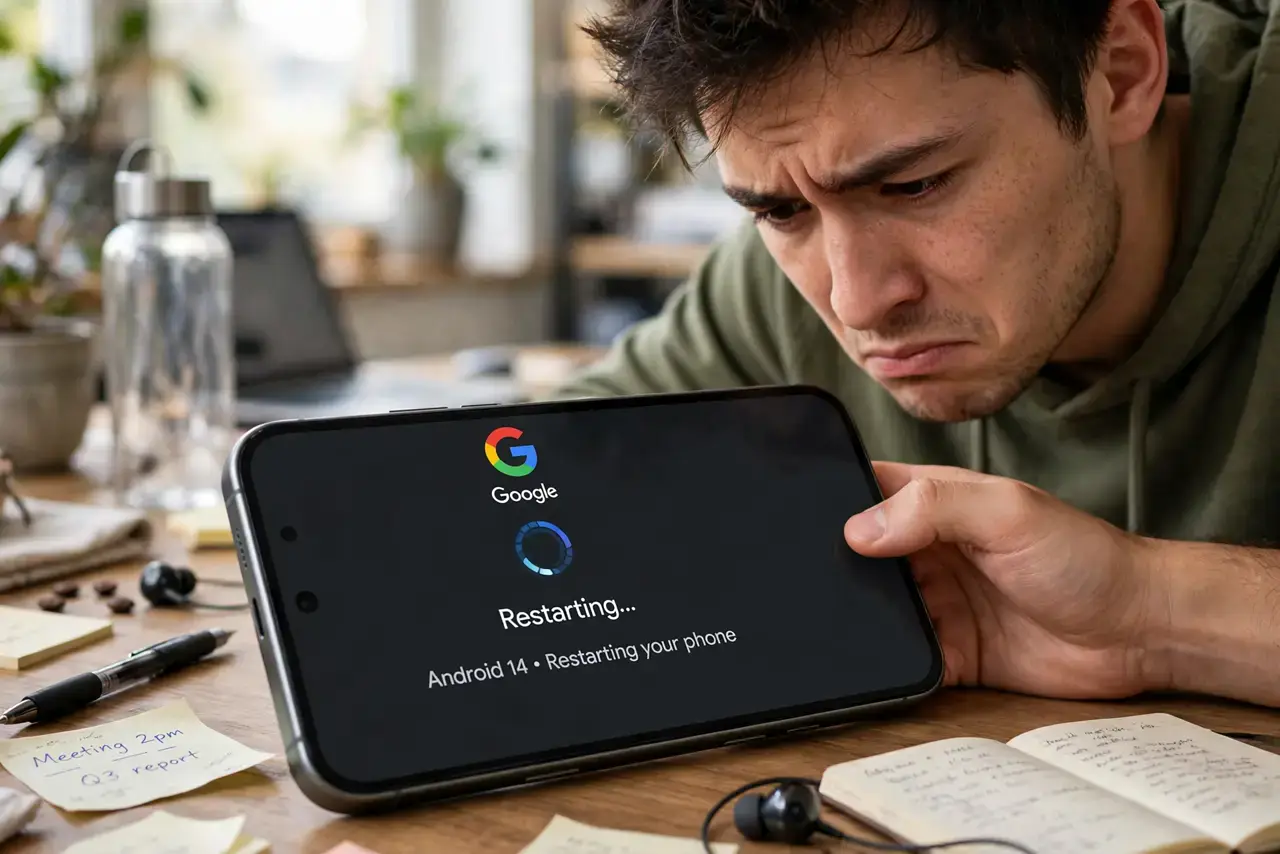
The logo appears, the phone restarts, the logo appears again — forever. A boot loop means the system starts loading and crashes at the same point every time, usually because an update left a bad file or a rogue app. There is a clear ladder from safe mode to factory reset.
TL;DR / Quick Fix
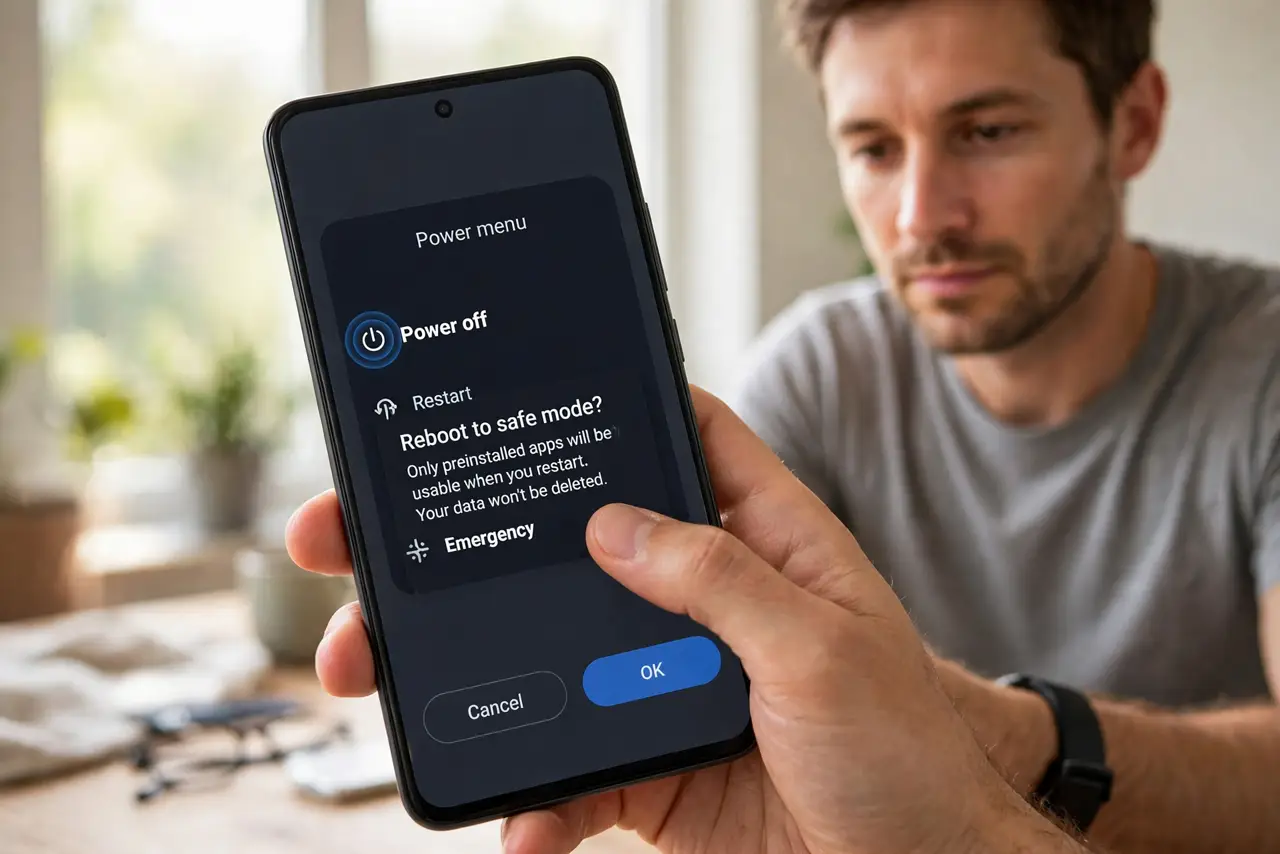
Quick fix: boot into safe mode — hold power, then long-press the power-off option and confirm. If the loop stops, a third-party app is the culprit; uninstall recent ones. If safe mode still loops, boot into recovery and wipe the cache partition, which keeps your data.
Follow these steps
- Boot into safe mode. Hold the power button, then long-press the Power off option until the safe-mode prompt appears. Confirm and wait for the boot.
- See if the loop stops in safe mode. If the phone boots fine in safe mode, a third-party app crashes the normal boot. Safe mode disables them all — that is the test.
- Uninstall recently updated apps. In safe mode, remove apps installed or updated right before the loop started. Launchers, cleaners, and antivirus apps are frequent offenders.
- Wipe the cache partition. Power off, then hold power plus volume up to reach recovery. Choose Wipe cache partition — this deletes temporary files, not your data.
- Check for a stuck power button. A physically stuck power button can fake a boot loop. Press it firmly a few times and feel for a normal click.
- Factory-reset only as the last step. In recovery, Factory reset erases everything. Use it only when safe mode and cache wipe both fail — and back up first if the phone boots at all.
What NOT to do
- Do not factory-reset before trying safe mode. A reset erases everything; safe mode takes two minutes and often reveals the culprit.
- Do not wipe data when you meant cache. In recovery mode the two options sit close together — read the highlight twice.
- Do not install a boot-loop fixer app from ads. They cannot run on a phone that will not boot, and many are scams.
- Do not ignore a stuck power button. Software fixes cannot help a button that is physically jammed.
Frequently asked questions
What is safe mode on Android?
A diagnostic boot that loads only system apps. If the phone works in safe mode, a downloaded app is causing the problem.
Does wiping the cache partition delete my photos?
No. It clears temporary system files only. Your photos, messages, and apps stay put.
Why did an update cause a boot loop?
Usually an app incompatible with the new system version crashes during boot, or the update itself was interrupted. Updating apps right after a system update prevents most repeats.