Lock Private Files Away
Someone asks to see one photo and starts swiping. We have all been there — the gallery is a diary, and it deserves a lock. Both Android and iPhone now offer built-in locked folders that pull sensitive items out of the main gallery behind your screen lock. For separating whole accounts rather than files, see work profiles.
TL;DR / Quick Fix
Quick fix: move sensitive photos into Google Photos' Locked Folder (or Samsung's Secure Folder) — they leave the main gallery and need your screen lock to open. On iPhone, hide photos and lock the Hidden album with Face ID. Remember: locked folders stay on the device.
Follow these steps
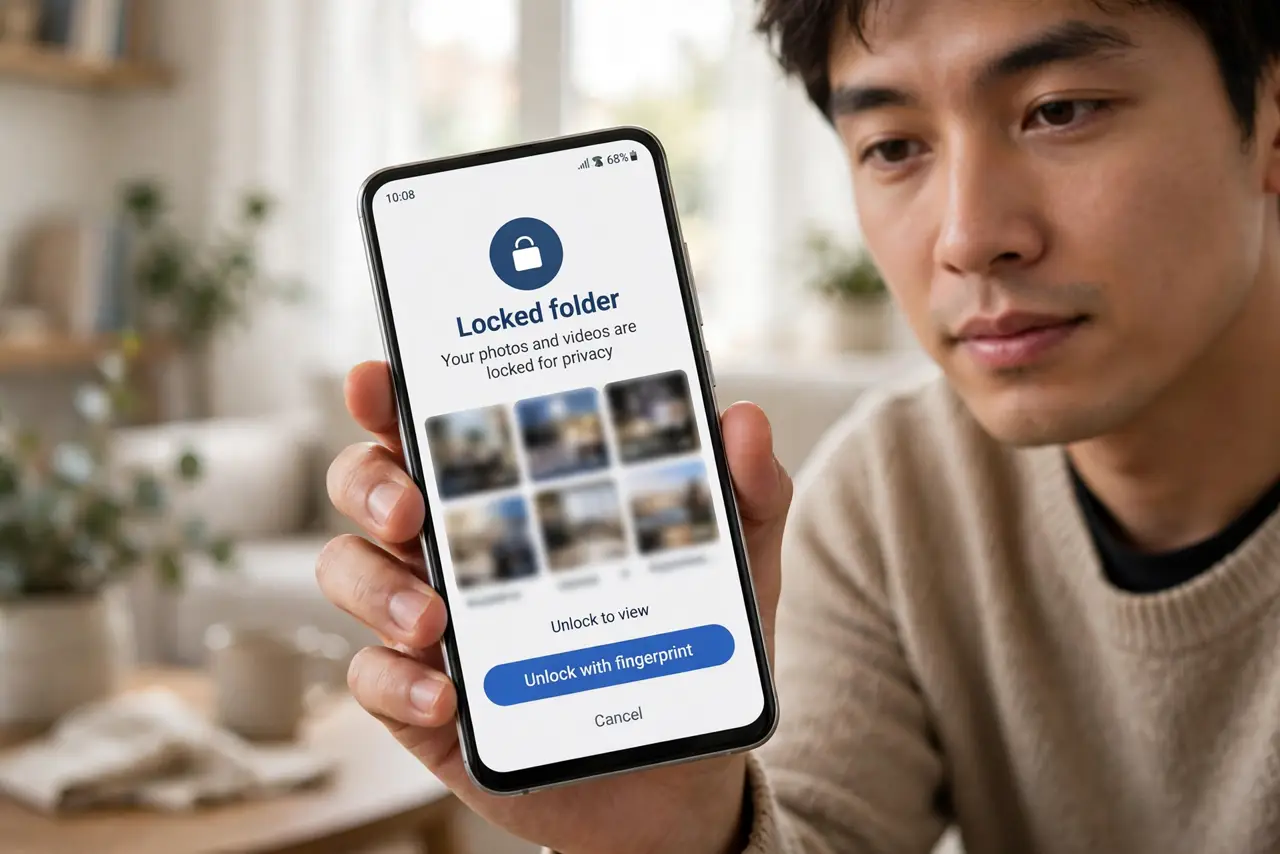
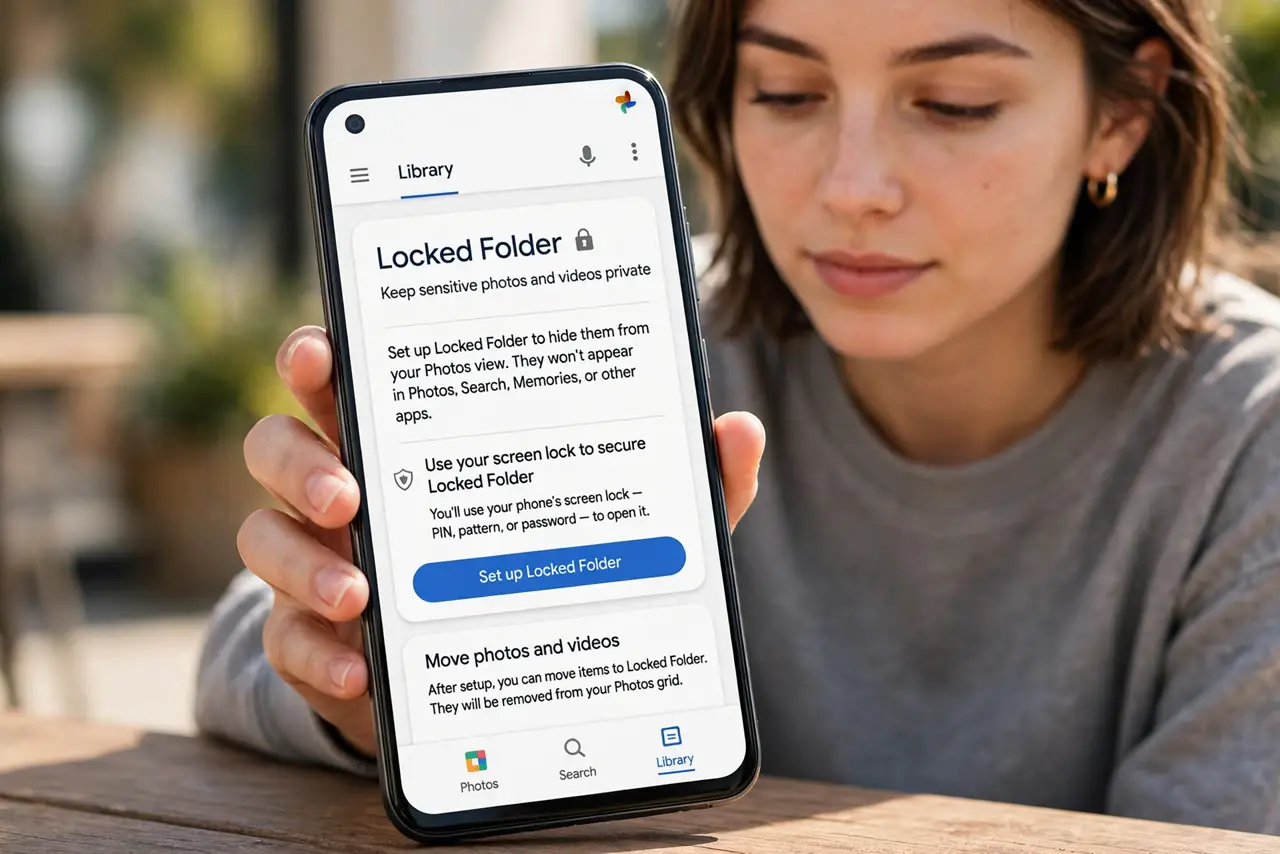
- Use Google Photos Locked Folder. Open Google Photos > Library > Locked Folder, set it up with your screen lock, and move sensitive photos and videos in. They vanish from the main gallery, search, and memories.
- Samsung users: try Secure Folder. Secure Folder is a separate encrypted space for apps and files — stronger isolation than a locked folder, with its own lock. Move items in via the Files app.
- On iPhone, hide and lock. Select photos, tap Hide, then make sure the Hidden album requires Face ID (Settings > Photos). Hidden items leave the main library and need biometrics to view.
- Lock the gallery app itself. On Android, use your phone's built-in app lock for the gallery; on iPhone, require Face ID for the Photos app. Two layers beat one.
- Use a Safe folder for documents. Files by Google offers a PIN-protected Safe folder for IDs, scans, and documents — photos are not the only things worth locking.
- Do not forget your PIN. Locked means locked: lose the PIN and even you may not get back in. Store it in your password manager, not on a sticky note.
What NOT to do
- Do not rely on renaming files or “hidden” dot-folders. Anyone with a file manager finds those in seconds.
- Do not forget the PIN or pattern. Recovery is deliberately hard — that is the point of a lock.
- Do not hand over an unlocked phone. No folder lock helps if the phone is already open — lock the screen first.
- Do not use shady free “vault” apps full of ads. Built-in locked folders are safer and will not hold your photos hostage.
Frequently asked questions
Does Locked Folder back up to the cloud?
No — items stay on the device only. That is a privacy feature, but keep your own backup of anything irreplaceable.
Can someone see that a locked folder exists?
They can see the folder entry, but not its contents without your lock. Secure Folder can be hidden from the app drawer entirely.
What about hiding whole apps?
For running two accounts in one app, app cloning is the tool — different job, different fix.