Set Up NFC Payments
Your Android has paid for coffee since before it was cool — the phone just needs a card in Google Wallet and NFC switched on. Then checkout is: unlock, hold near the reader, done. No app to open, no card to dig out. Here is the five-minute setup plus the fixes for declined taps.
TL;DR / Quick Fix
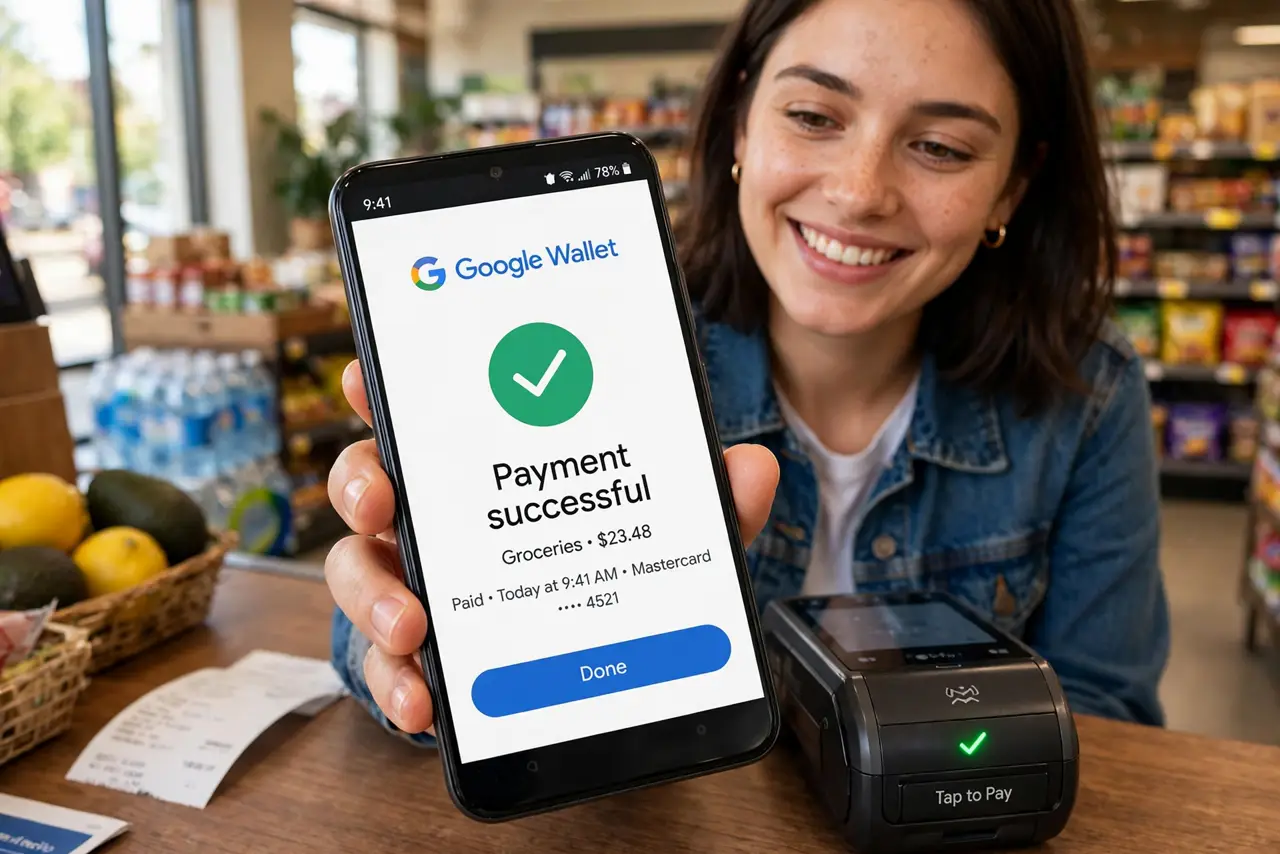
Quick fix: open Google Wallet, add a debit or credit card, and verify it with your bank. Then turn on NFC under Settings > Connected devices. At checkout, unlock the phone and hold it near the reader — no need to open Wallet. Set a default card for one-tap paying.
Follow these steps
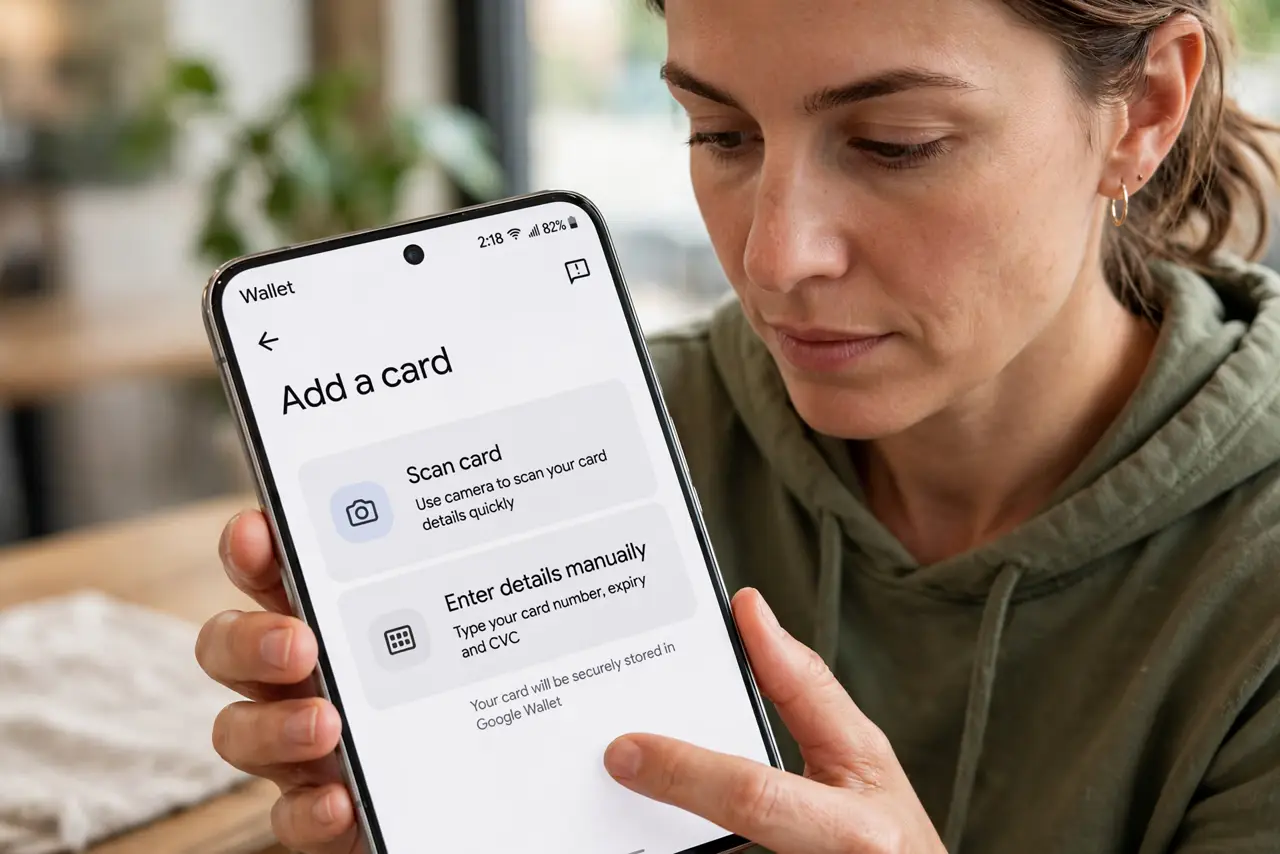
- Add a card to Google Wallet. Open Wallet > Add a card, scan or enter the details, and complete your bank's verification — usually a text code.
- Turn on NFC. Go to Settings > Connected devices > NFC and enable it. Without this, the phone is just a phone at the reader.
- Set a default card. In Wallet settings, choose the default payment card. One-tap checkout uses it; other cards are a tap away inside the app.
- Pay: unlock and hold. At the reader, unlock the phone and hold it near the terminal. The checkmark confirms — no need to open Wallet first.
- Fix declined taps. Hold the phone's NFC spot — usually upper back — flat against the reader for two seconds. Cases with metal or magnets block the signal.
- Know the verification limits. Small purchases go straight through; larger ones may ask for the phone's unlock again or the card PIN — normal security.
What NOT to do
- Do not add a card and skip bank verification. Unverified cards decline at the reader — the setup is not done until the bank confirms.
- Do not use a metal or magnetic case. They shield the NFC antenna — the number one cause of 'it worked yesterday' failures.
- Do not panic at a declined tap. Retry once, holding longer and flatter; then pay with the physical card and troubleshoot later.
- Do not leave NFC on with no lock screen. Payments need the phone unlocked — a lock screen is the actual security, keep it.
Frequently asked questions
Is paying by phone safe?
Yes — tokenized: the reader gets a one-time code, never your real card number. Safer than the physical card's magstripe.
Why did my tap decline?
Common causes: unverified card, metal case, wrong NFC spot, or the terminal's contactless limit. Work the list in order.
Can I pay with the screen off?
Usually the phone must be unlocked. Some transit setups allow locked taps — payments do not.