Android Notification Channels, Explained Simply
One app sends order updates, promotions, and chat messages through a dozen separate notification channels. Android lets you silence each channel alone — once you know where the list hides.
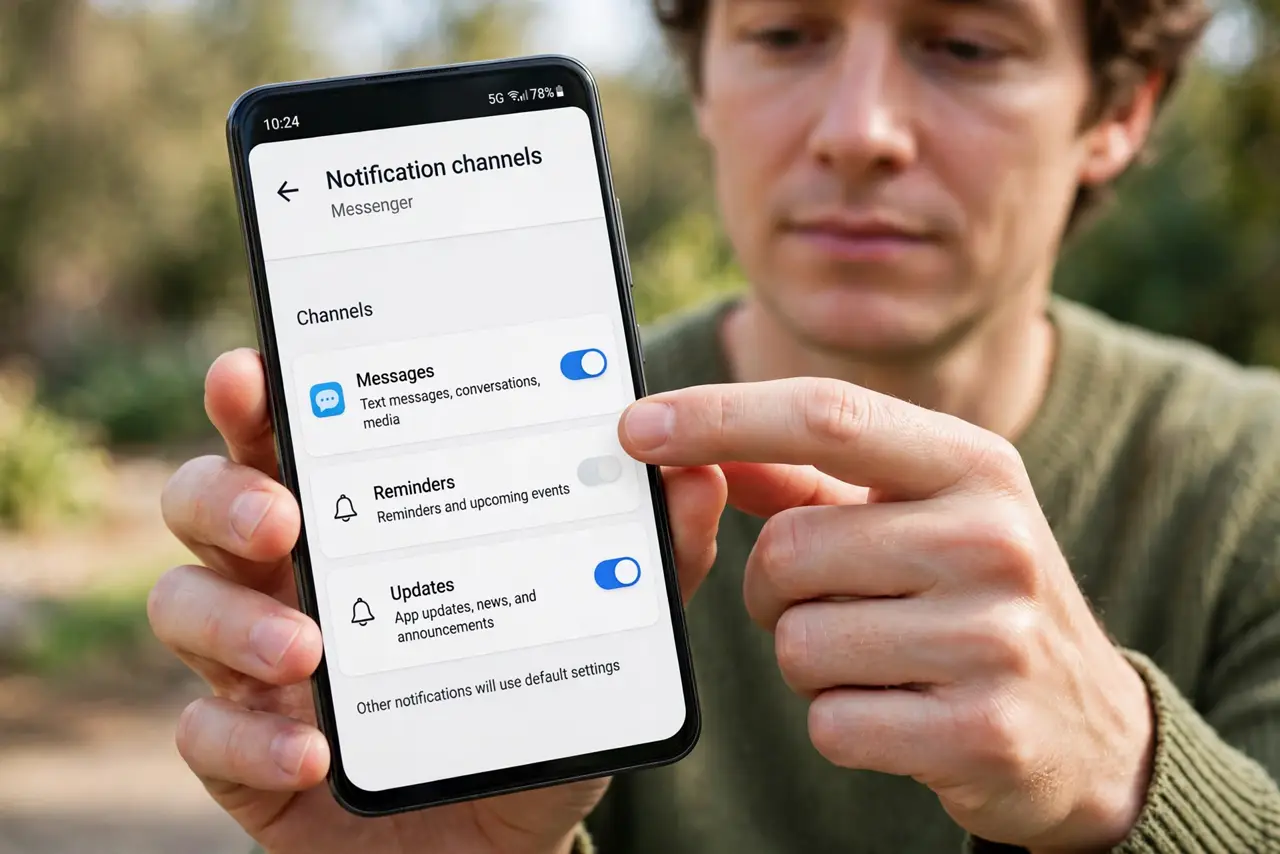
TL;DR / Quick Fix
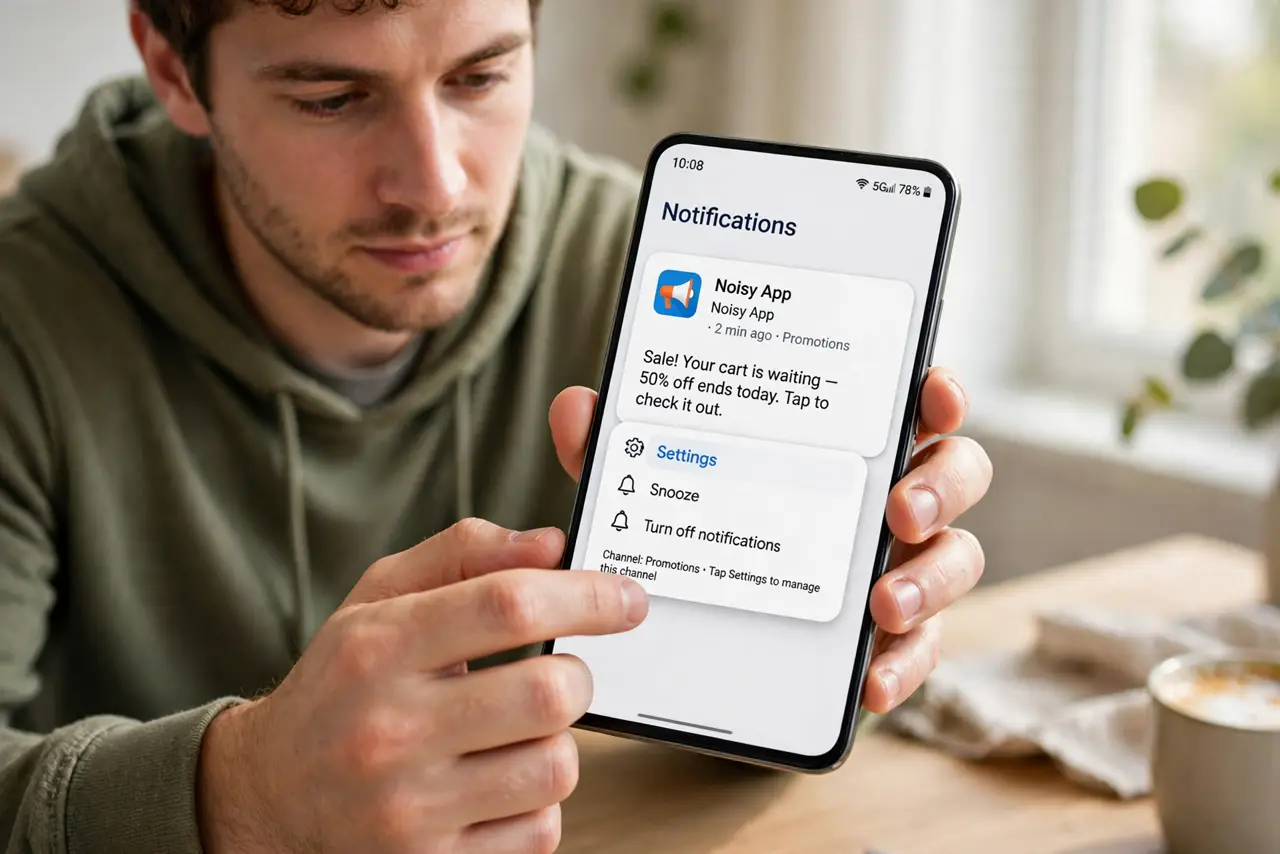
Quick fix: long-press any notification from the app and tap Settings to jump straight to its channels. Turn off the promo and marketing channels, keep the important ones. Do this per app once, and your notification shade calms down permanently.
Follow these steps
- Long-press a notification to find its channel. Press and hold any notification from the noisy app, then tap Settings. Android jumps directly to that exact channel — no hunting through menus.
- Learn the channel names. Channels have names like Promotions, Order updates, or Chat messages. The name tells you what you are silencing, so read before toggling.
- Turn off the marketing channels. Switch off Promotions, News, and Tips channels. These are the noise; order updates and security alerts are the signal worth keeping.
- Tune importance, not just on and off. Tap a channel to set its importance: silent, default, or urgent. A silent channel still appears in the shade without buzzing your pocket.
- Repeat for each noisy app. Channels are per-app, so quiet one app at a time. Ten minutes across your five noisiest apps transforms the whole notification experience.
- Check new channels after app updates. Apps add new channels in updates, and new channels default to noisy. Revisit the channel list when a quiet app suddenly gets loud.
What NOT to do
- Do not turn off all notifications for an app to kill one noisy channel. You will miss the important ones too — channels exist precisely to avoid that — they are Android's version of per-app notification control.
- Do not ignore the channel list because it looks technical. The names are plain English, and one long-press gets you there.
- Do not assume a silent channel is broken. Silent means it appears without sound or vibration — check the shade before declaring it dead.
- Do not expect channels on very old apps. Apps targeting ancient Android versions may offer a single switch; updating the app usually adds channels.
Frequently asked questions
What is a notification channel?
A category of notifications inside one app — like promotions versus order updates — each with its own sound, vibration, and on-off switch.
Why does one app have ten channels?
Because it sends ten kinds of notifications. Channels let you keep the two you want and silence the eight you do not.
Can I change a channel's sound?
Yes. Tap the channel to set its sound, vibration, and lock-screen visibility independently from the app's other channels.