Record Audio on Android? How To
Every Android phone can record audio — lectures, interviews, song ideas, snoring evidence — but the app's name changes by brand and the good settings hide. Whether it is Pixel's Recorder with free transcription or Samsung's Voice Recorder, the recipe is the same: quiet room, close mic, named file.
TL;DR / Quick Fix
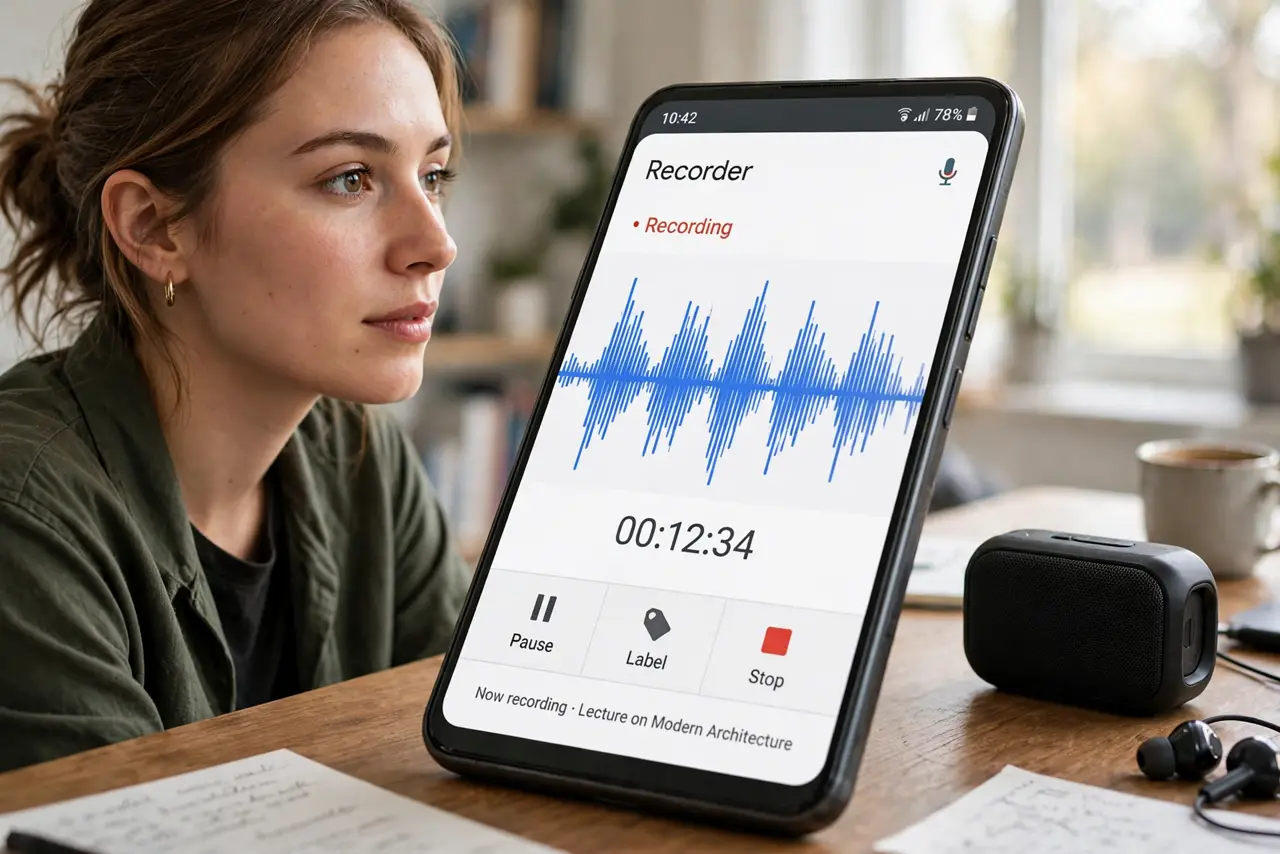
Quick fix: open the Recorder app — Google's on Pixels, Samsung Voice Recorder on Galaxy — and tap the red record button. Record in a quiet room with the phone close to the speaker. Name the file immediately after stopping; 'Recording 47' is unfindable later. Transcripts appear automatically on Pixels.
Follow these steps
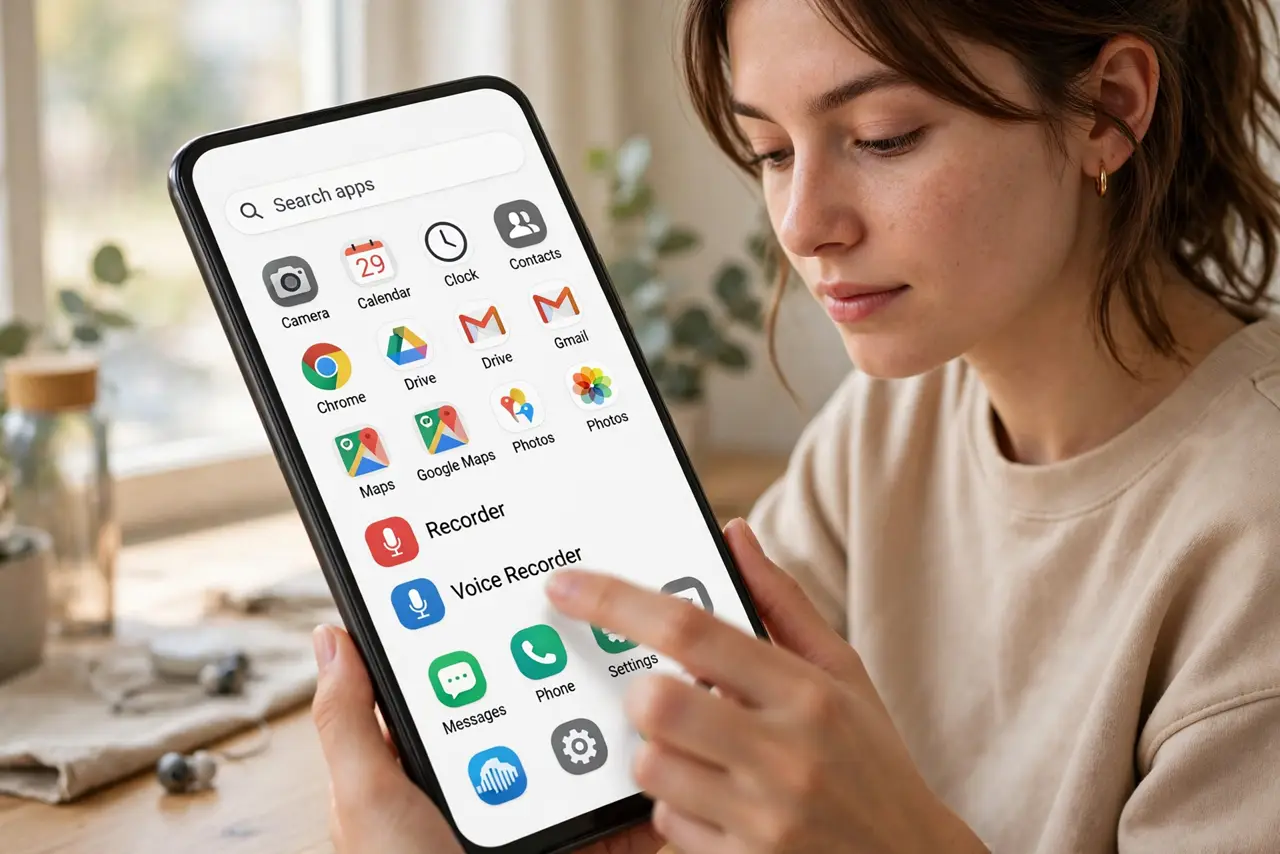
- Find your recorder app. Pixels have Recorder by Google; Galaxy phones have Samsung Voice Recorder; others include one in a Tools folder. The Play Store fills any gap.
- Grant the microphone permission. First launch asks for mic access — allow it, or every recording will be silence. Check it in Settings > Apps if recordings come out mute.
- Get close and get quiet. Set the phone near the speaker, screen down to avoid notification buzz. A quiet room beats any amount of post-processing.
- Name the file immediately. After stopping, rename it to the actual content — 'Biology lecture Oct 29'. Numbered defaults become a graveyard.
- Use the Pixel transcript. Pixel Recorder transcribes offline and free — search the text to find the moment instead of scrubbing audio.
- Share or back up the keepers. Recordings live only on the phone until you share them. Send important ones to cloud storage the same day.
What NOT to do
- Do not record people without consent. Many places require all-party consent — a great recording is worthless as legal trouble.
- Do not record from across the room. Distance plus room echo equals mush; closeness is the only real quality setting.
- Do not let notifications ruin a take. Do Not Disturb on, or every ping becomes part of the lecture.
- Do not leave keepers only on the phone. A lost phone with the only copy of the interview is a tragedy — back up same-day.
Frequently asked questions
Why is my recording silent?
Microphone permission denied is the top cause — check Settings > Apps > Recorder > Permissions. A connected Bluetooth earbud can also hijack the mic.
Which recorder app is best on Android?
Pixel's Recorder for transcription, Samsung's for simplicity. For interviews, a dedicated app with gain control beats both.
How long can I record?
Until storage runs out — hours. But long files corrupt more easily, so stop and start fresh each hour for anything critical.