Split Screen Says an Android App Is Unsupported
You try to open an app in split screen and Android says it is not supported. Some apps opt out of split screen — but many just need a nudge, and a few have workarounds.
TL;DR / Quick Fix
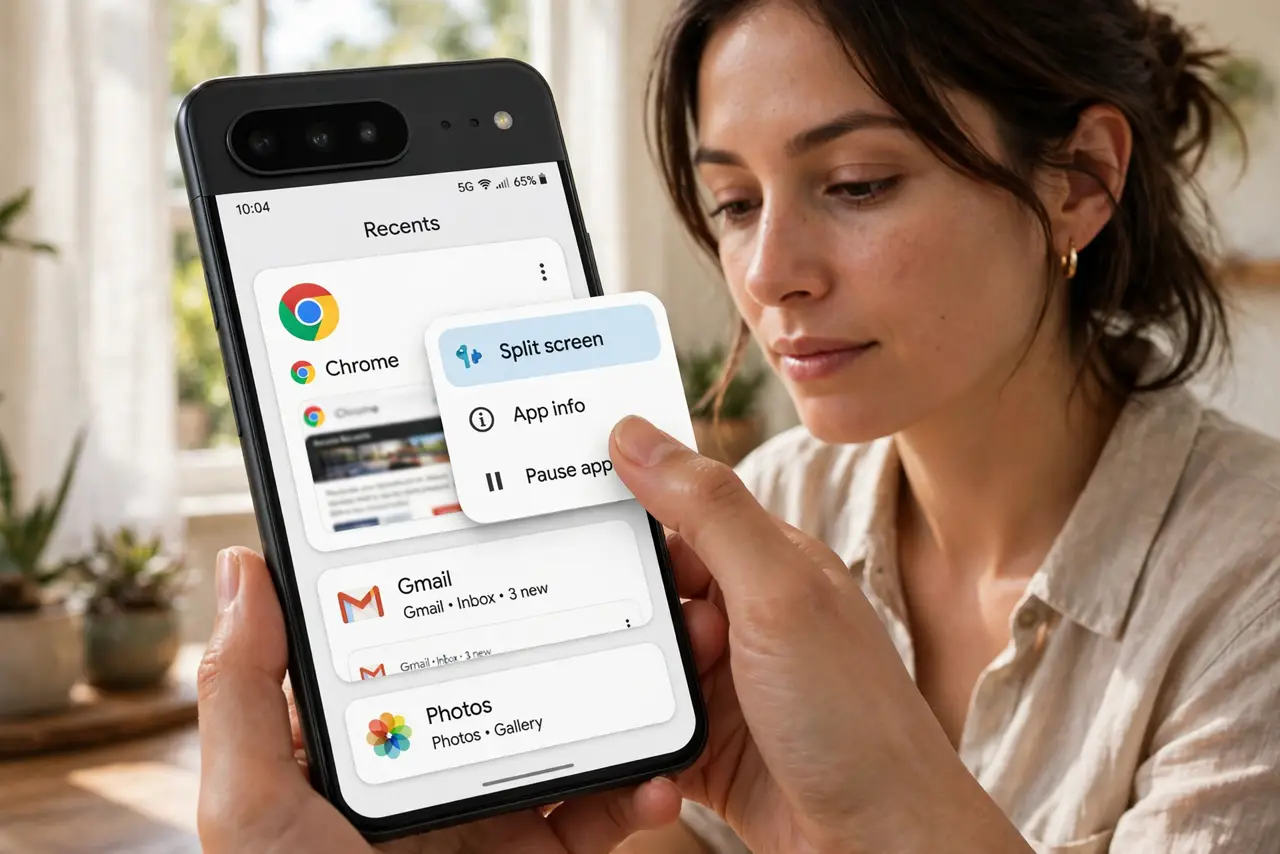
Quick fix: open the recent apps view, tap the app icon at the top of its card, and choose Split screen — some apps only fail from other methods. If the option is grayed out, the app truly opts out. Check the Play Store for an update that adds support.
Follow these steps
- Use the official split-screen entry point. Open recents, tap the app's icon above its preview, and choose Split screen. Launching it this way works for apps that fail from other shortcuts.
- Check whether the option is grayed out. If Split screen is grayed out in that menu, the app's developer disabled it. No setting on your phone overrides a developer opt-out.
- Update the app. Open the Play Store and update the app. Developers add split-screen support in updates, and an old version may lack what the new one allows.
- Try the app's own multi-window mode. Some video and document apps offer their own side-by-side or pop-up view inside the app. Check the app's settings for a built-in alternative.
- Restart the phone if a supported app fails. A glitch can wrongly flag an app as unsupported. Restart once and retry — the flag often clears and the option returns.
- Use two apps that do support it. Pair the stubborn app's task with a supported partner: keep the unsupported app full-screen and float a supported one over it with pop-up view if your phone offers it — and if the app misbehaves generally, see fix crashing apps.
What NOT to do
- Do not install a random 'force split screen' app from outside the Play Store. Shady apps asking for accessibility access to fix this are a classic malware trap.
- Do not enable developer options to force-resize every app. Forced resizing can crash apps and scramble their layouts, and it does not stick reliably.
- Do not assume your phone is broken. Split-screen support is per-app, so one unsupported app next to ten working ones is normal.
- Do not blame the Android version first. The opt-out lives in the app itself, and a system update cannot force an unwilling app into split screen.
Frequently asked questions
Why do some apps refuse split screen?
Their developers opted out, often because the layout breaks at half width. Only an app update can change that.
Can I force any app into split screen?
Not reliably. Developer opt-outs win, and force-resize tricks in developer options tend to crash apps.
Does split screen work on all Android phones?
Most modern ones support it, though the exact gesture varies by maker. The per-app support rule applies everywhere.