Match Icons to Wallpaper
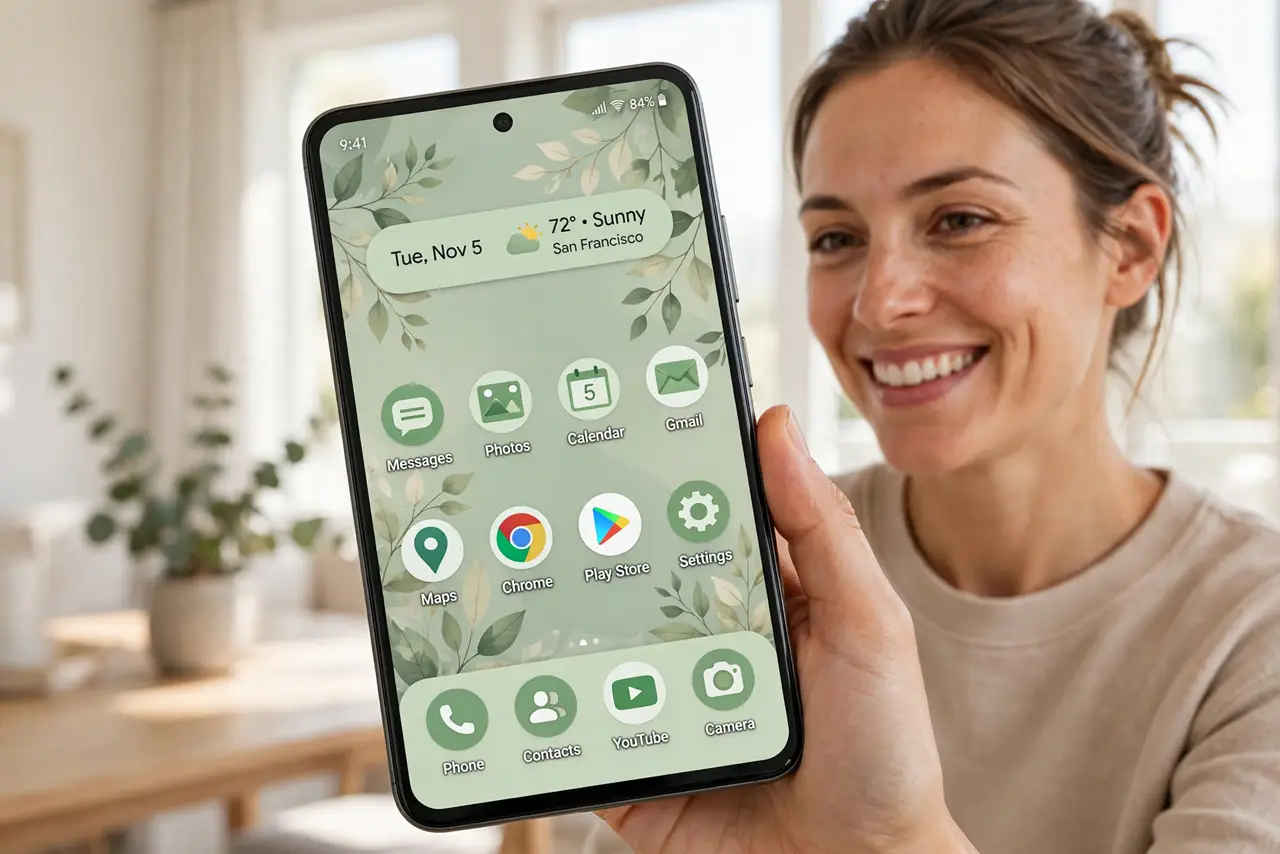
Your wallpaper is a sunset and your icons are a clashing rainbow — themed icons fix the visual chaos by tinting app icons to match your palette. This guide enables them, handles the holdouts, and pairs them with the full Material You theme.
TL;DR / Quick Fix
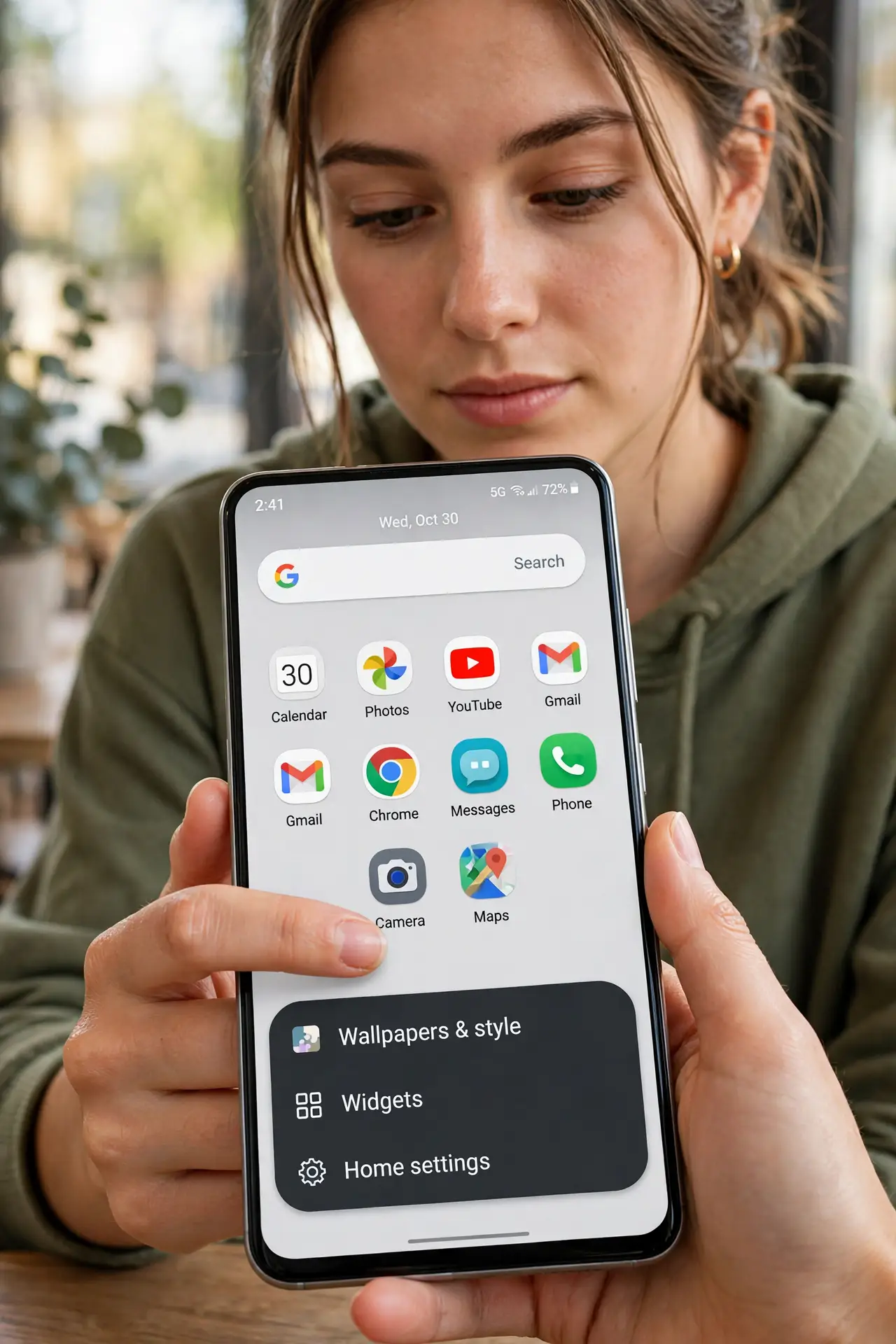
Quick fix: themed icons tint your app icons to match the wallpaper palette — long-press the home screen, open Wallpaper and Style, and turn on Themed Icons. Supported apps recolor fully while others keep brand colors. Change wallpapers to reshuffle the whole palette.
Follow these steps
- Long-press the home screen. Open Wallpaper and Style from the long-press menu. Themed icons live here, next to the palette picker.
- Turn on Themed Icons. Toggle it on. Supported apps immediately adopt the palette-derived tint — the home screen exhales visually.
- Accept the holdouts. Apps without themed-icon support keep brand colors. A few clashing icons among tinted ones is normal — perfection requires icon packs.
- Try an icon pack for full unity. Third-party launchers plus icon packs theme everything, including holdouts. More setup, total visual control — the enthusiast path.
- Match widgets and wallpaper. Themed icons plus matching widgets plus the source wallpaper is the complete look. Change one, revisit the others.
- Refresh when bored. New wallpaper reshuffles palette and icons together. Seasonal rethemes keep the phone feeling new for free.
What NOT to do
- Do not expect 100% coverage. Brand holdouts are the developer's choice — tinted majority still looks far better.
- Do not install sketchy icon packs. Icon packs request broad access — stick to well-reviewed ones from the Play Store.
- Do not forget dark mode. Themed icons adapt to dark mode palettes — preview both themes.
- Do not confuse with iOS. iPhone icon tinting is a different, newer system — this guide is Android's Material You path.
Frequently asked questions
Why do only some icons change?
Only apps with themed-icon assets participate. The rest need updates from their developers.
Can I pick the tint color manually?
Indirectly — the palette comes from the wallpaper. Change wallpaper to change the tint family.
Do themed icons affect folders?
Folders adapt too, following the same palette. The whole home screen harmonizes.