A Work Profile Mixes With Personal Apps
Work apps appear next to personal ones, work contacts pollute your dialer, and you cannot tell which is which. The work profile is supposed to keep a wall between them — check that the wall is actually up.
TL;DR / Quick Fix
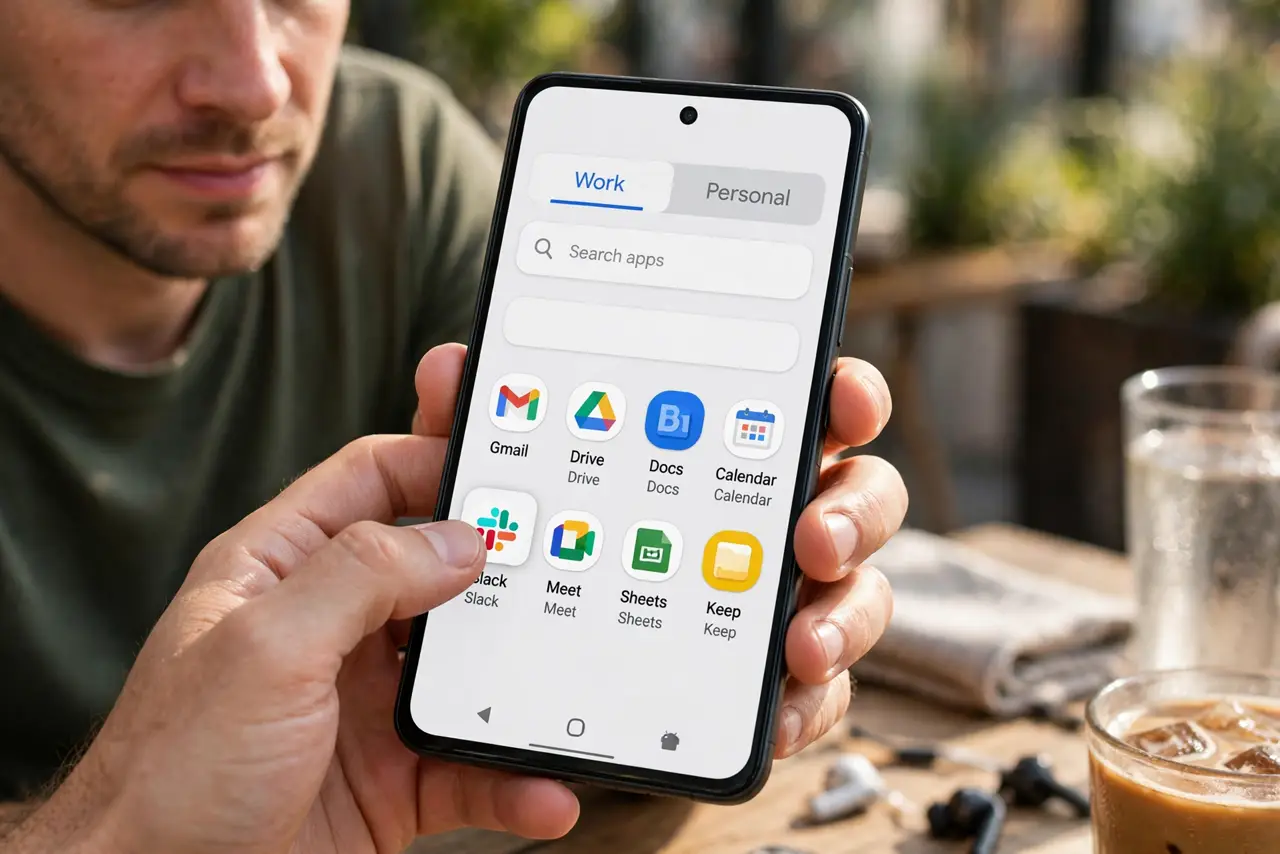
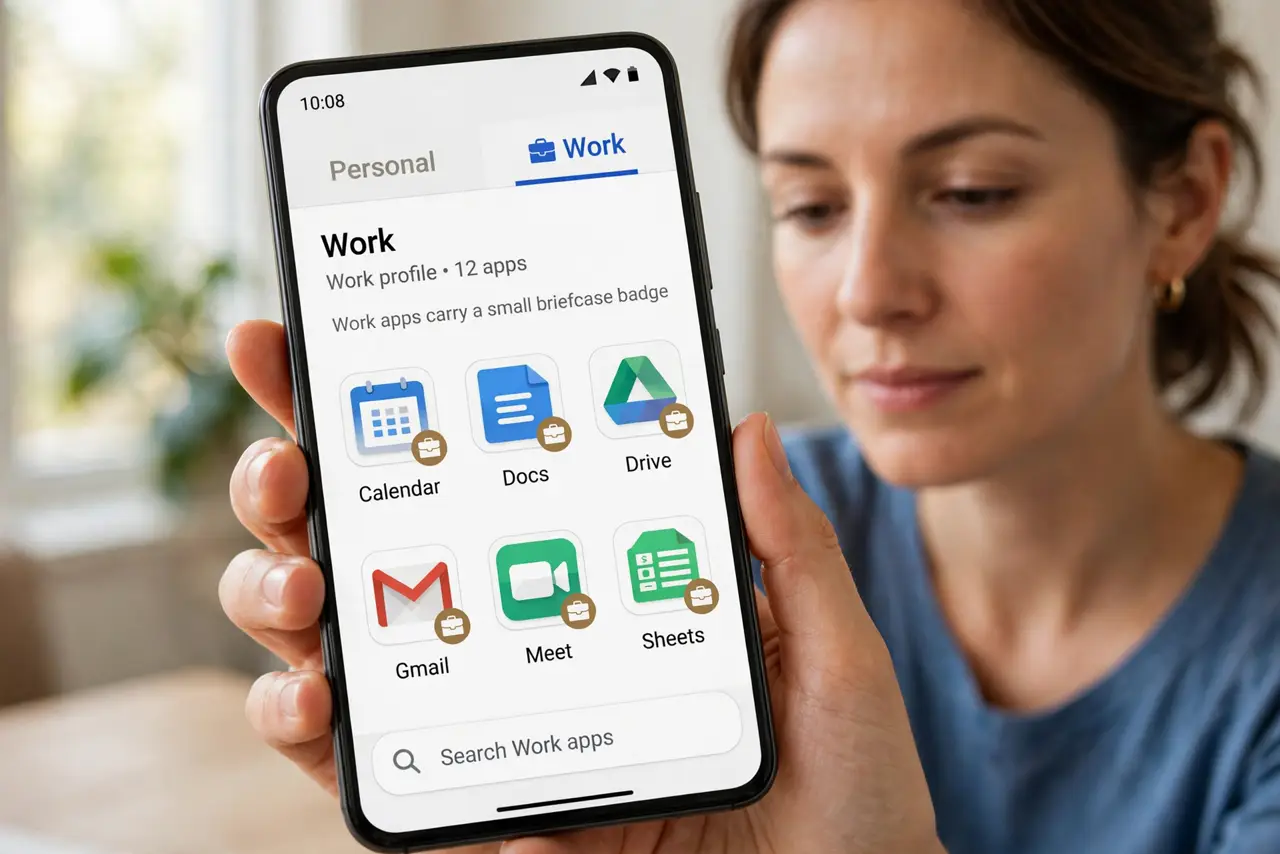
Quick fix: open the app drawer and use the Work tab — work apps live there with a briefcase badge. Turn the work profile off after hours with its quick toggle. If apps still mix, ask your IT admin to check the profile policy.
Follow these steps
- Find the Work tab in the app drawer. Swipe to the app drawer and look for Personal and Work tabs at the top. Work apps carry a small briefcase badge — that badge is the wall made visible.
- Use the work profile toggle after hours. Pull down Quick Settings and use the Work profile toggle. Switching it off pauses every work app at once — no notifications, no mixing, until morning.
- Keep contacts separated. In the Contacts or Phone app, filter to personal contacts. Work profile contacts can appear in search results if the filter is off, which is where the mixing usually shows.
- Check where new apps install. Apps you install personally land in the personal profile. If a work app appeared personally, it was installed from the wrong store tab — reinstall it from the Work tab.
- Review what IT can see. Your IT admin can manage work-profile apps and may wipe only the work side. Knowing the boundary helps you decide what belongs on each side.
- Ask IT about the profile policy. If separation still fails, the profile policy itself may allow mixing. Only your IT admin can change that policy — no phone setting overrides it.
What NOT to do
- Do not delete the work profile to declutter. Your IT admin owns that profile, and removing it can wipe work data and lock you out of company systems.
- Do not store personal passwords in work-profile apps. If IT ever wipes the work side, anything saved there goes with it.
- Do not assume the briefcase badge is decoration. It marks the boundary — treat badged apps as company-managed, not personal.
- Do not sideload work apps into the personal profile. Mixed installs confuse the boundary and can violate your company's device policy.
Frequently asked questions
Can my employer see my personal apps?
No. The work profile is a separate container — IT manages the work side and cannot see your personal apps or photos.
Why do work contacts appear in my dialer?
The contacts filter includes the work profile. Filtering to personal contacts hides them from everyday search.
What happens to the work profile if I leave the job?
IT removes the profile, which wipes work apps and data. Your personal side stays untouched — keep it safe with automatic backups before any IT change.