How to Back Up a Mac With Time Machine
A backup is only useful if it exists before you need it. Time Machine, built into macOS, copies your files automatically to an external drive, so a lost file or a broken Mac becomes an inconvenience instead of a disaster.
TL;DR / Quick Fix
Quick fix: Get an external drive with plenty of room. Connect the drive and open Time Machine settings. Let the first backup finish. Check that automatic backups stay on. Test a restore before you need one. Keep the backup drive somewhere sensible.
Follow these steps
- Get an external drive with plenty of room. Choose a drive at least as large as your Mac's storage, ideally larger, so Time Machine can keep older versions of files. A drive you leave plugged in, or plug in regularly, works best.
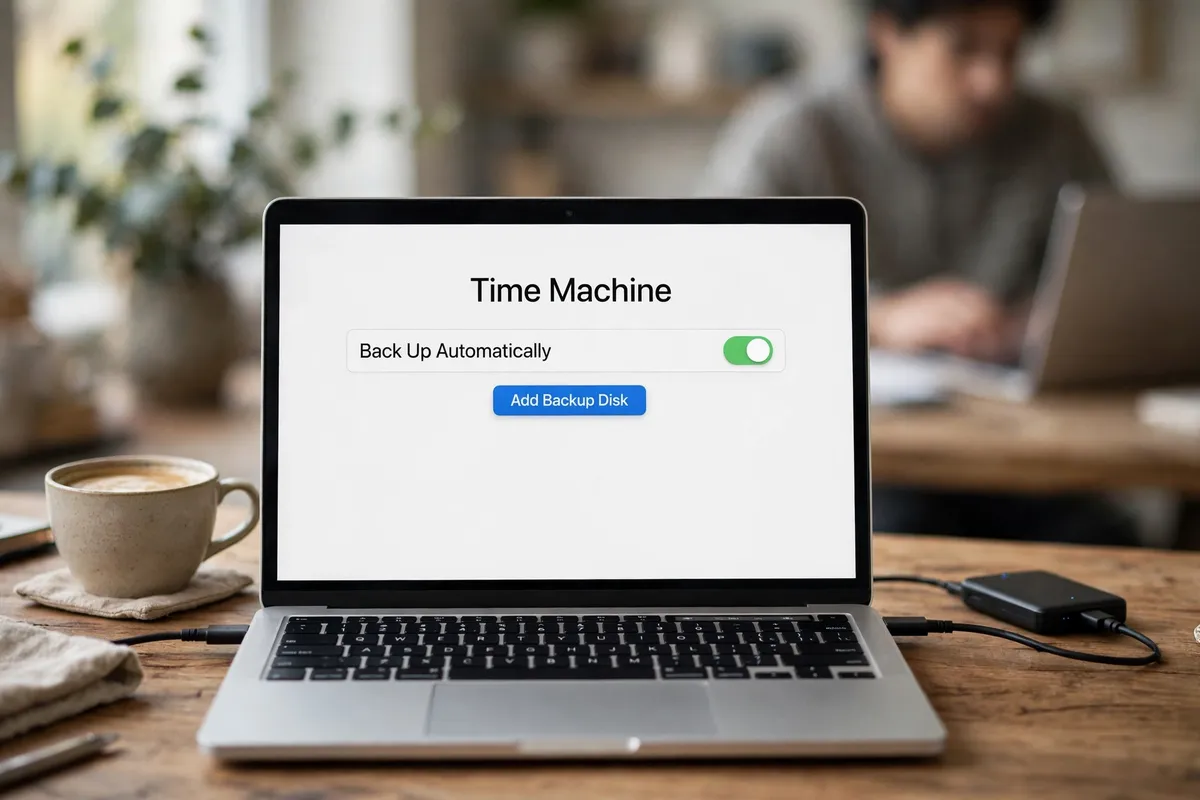
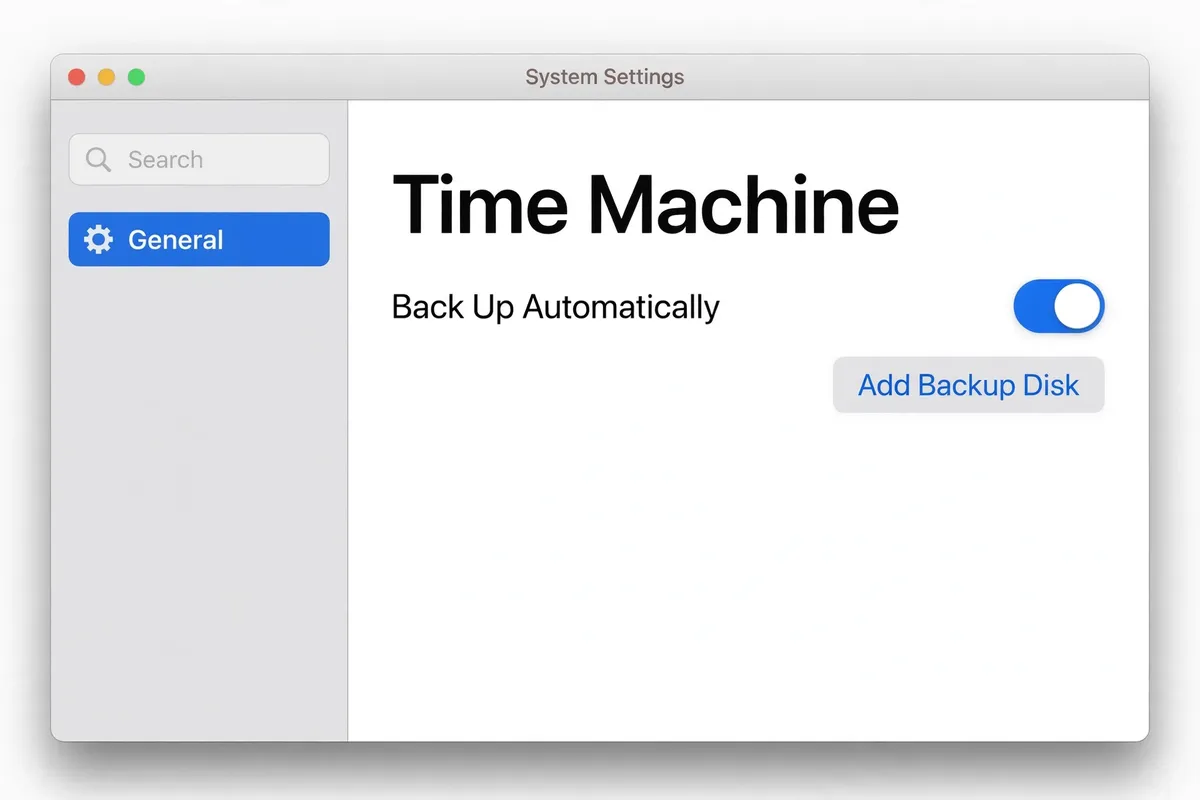
- Connect the drive and open Time Machine settings. Plug the drive in, then open System Settings, then General, then Time Machine. Click Add Backup Disk and select your drive. Time Machine may ask to erase the drive first, so use a drive with nothing on it you need, or move those files elsewhere first.
- Let the first backup finish. The first backup copies everything and takes the longest, so leave the Mac plugged in and connected until it completes. Later backups are automatic and much faster, copying only what changed.
- Check that automatic backups stay on. In Time Machine settings, confirm Back Up Automatically is on. If you unplug the drive often, Time Machine will back up the next time you connect it, but a drive that stays unplugged for weeks is not protecting you.
- Test a restore before you need one. Open Time Machine, go back in time to an earlier date, and restore a single unimportant file to a different location. If the restore works, you know the backup is real and not just a progress bar.
- Keep the backup drive somewhere sensible. Store the drive where it will not be knocked, spilled on, or stolen with the Mac. A backup sitting next to the Mac helps with accidental deletion, but not with theft or fire, so consider a second copy for truly important files.
What NOT to do
- Do not use your Time Machine drive as your everyday storage drive. If it fills with other files, there is less room for backups.
- Do not unplug the drive in the middle of a backup. Eject it properly, or wait until the backup finishes.
- Do not assume a backup worked because you plugged a drive in once. Check the latest backup date in Time Machine settings.
- Do not delete old backups by hand to free space. Time Machine manages old backups itself, removing the oldest when it needs room.
Once your first backup finishes and your test restore works, your Mac is protected. Plug the drive in regularly, and you will rarely have to think about backups again.
Frequently asked questions
What is the quickest fix in this guide?
Get an external drive with plenty of room.
What should I avoid doing?
Do not use your Time Machine drive as your everyday storage drive.
What do I check after I finish?
Keep the backup drive somewhere sensible.