Backup Drive Is Full? Free Space Without Losing Backups
Your backup drive is full, so new backups fail, even though the drive once had room. Old backup versions pile up quietly, and the fix is to prune old versions, not to delete your only good backup.
TL;DR / Quick Fix
Quick fix: open the backup drive and check which backup folders take the most space, then remove only old versions through your backup tool settings. Always confirm one recent, complete backup remains before you delete anything else from the drive.
Follow these steps
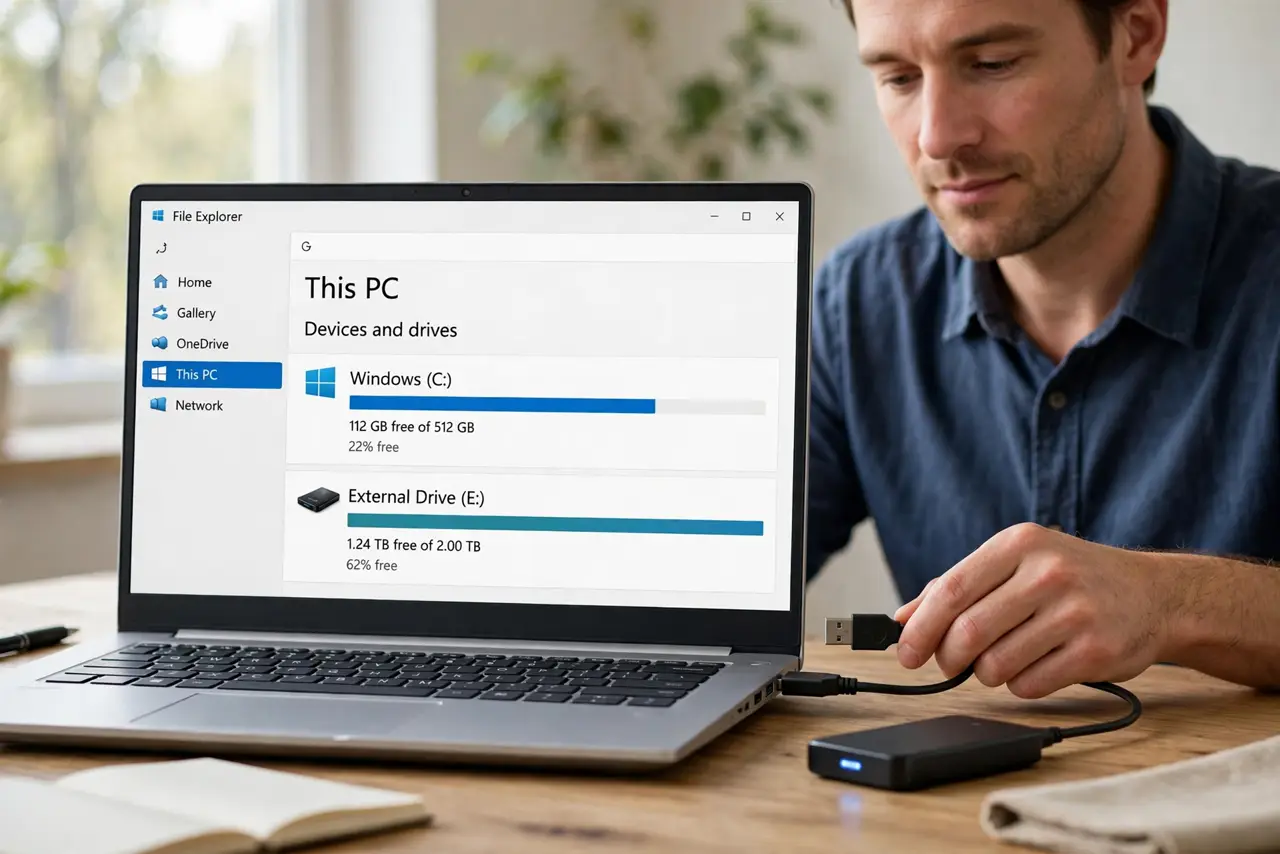
- Check what fills the drive. Open File Explorer, open the backup drive, and sort folders by size. Backup folders usually dominate, and knowing which one is biggest guides the cleanup.
- Confirm one good recent backup. Before deleting anything, confirm you have one recent, complete backup you trust. Never prune a drive until a good backup is identified and intact.
- Remove old versions through the backup tool. Open your backup tool settings and use its retention or cleanup option to remove old versions. The tool knows which versions are safe to remove, while manual deletion can break a backup chain.
- Delete non-backup files first. If the drive also holds movies, downloads, or installers, move or delete those first. Clearing non-backup clutter is safer than touching backup versions.
- Run a fresh backup test. After cleanup, run a new backup and confirm it completes. A backup that completes proves the cleanup worked, while a backup that still fails needs more space.
- Set a retention limit. In the backup tool, set how many versions to keep, or how much space backups may use. A limit stops the drive filling again silently next month.
What NOT to do
- Do not delete the newest backup to make room. The newest backup is the one you would actually restore from, so protect it above all else.
- Do not format the drive to fix a full drive. Formatting erases every backup at once, leaving you with no restore point at all.
- Do not delete backup files by hand inside a backup folder. Backup tools store versions as a chain, and deleting pieces by hand can corrupt the whole set.
- Do not ignore a full drive warning. A backup that cannot complete is no backup, so treat a full drive as urgent, not as a message to dismiss.
Frequently asked questions
Why does a backup drive fill up?
Each backup version adds files, and old versions accumulate. Without a retention limit, the drive eventually fills even when your data barely changes.
Is it safe to delete old backup versions?
Yes, through the backup tool retention option, once you confirm a recent complete backup remains. Manual deletion inside backup folders is riskier.
How much free space should a backup drive keep?
Enough for at least one full new backup. If a fresh backup cannot complete after cleanup, the drive is still too full.