'Always Use This App' Greyed Out? Fix It
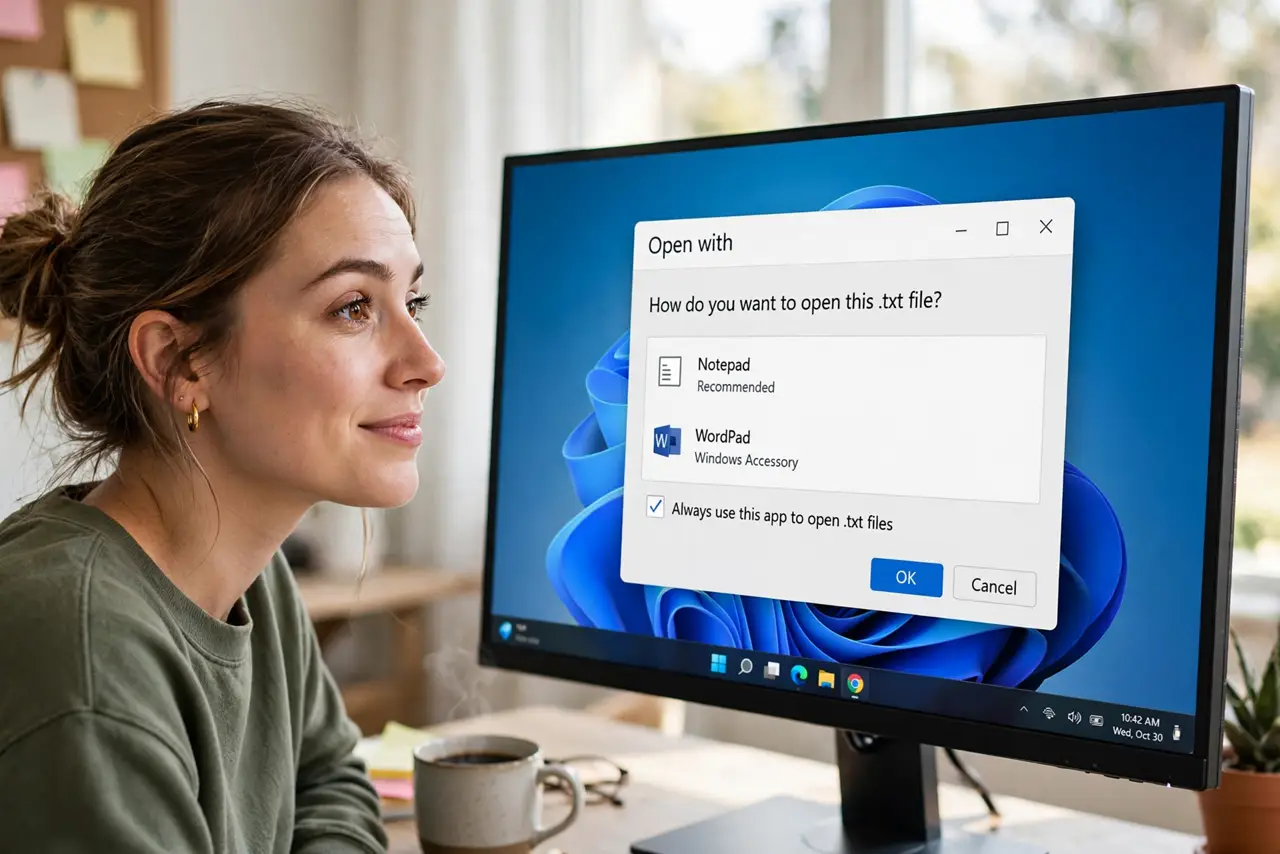
You want PDFs to always open in your reader, but the 'Always use this app' checkbox sits there greyed and unclickable. The checkbox only enables in the full 'Choose another app' dialog — the quick Open With flyout doesn't offer it. Open the dialog the right way and the choice unlocks.
TL;DR / Quick Fix
Right-click the file, choose Open with > Choose another app — the 'Always use this app' checkbox only enables in this full dialog. Pick the app, check the box, click OK. If it stays greyed, the app may be installed for another user or a company policy locks defaults.
Follow these steps
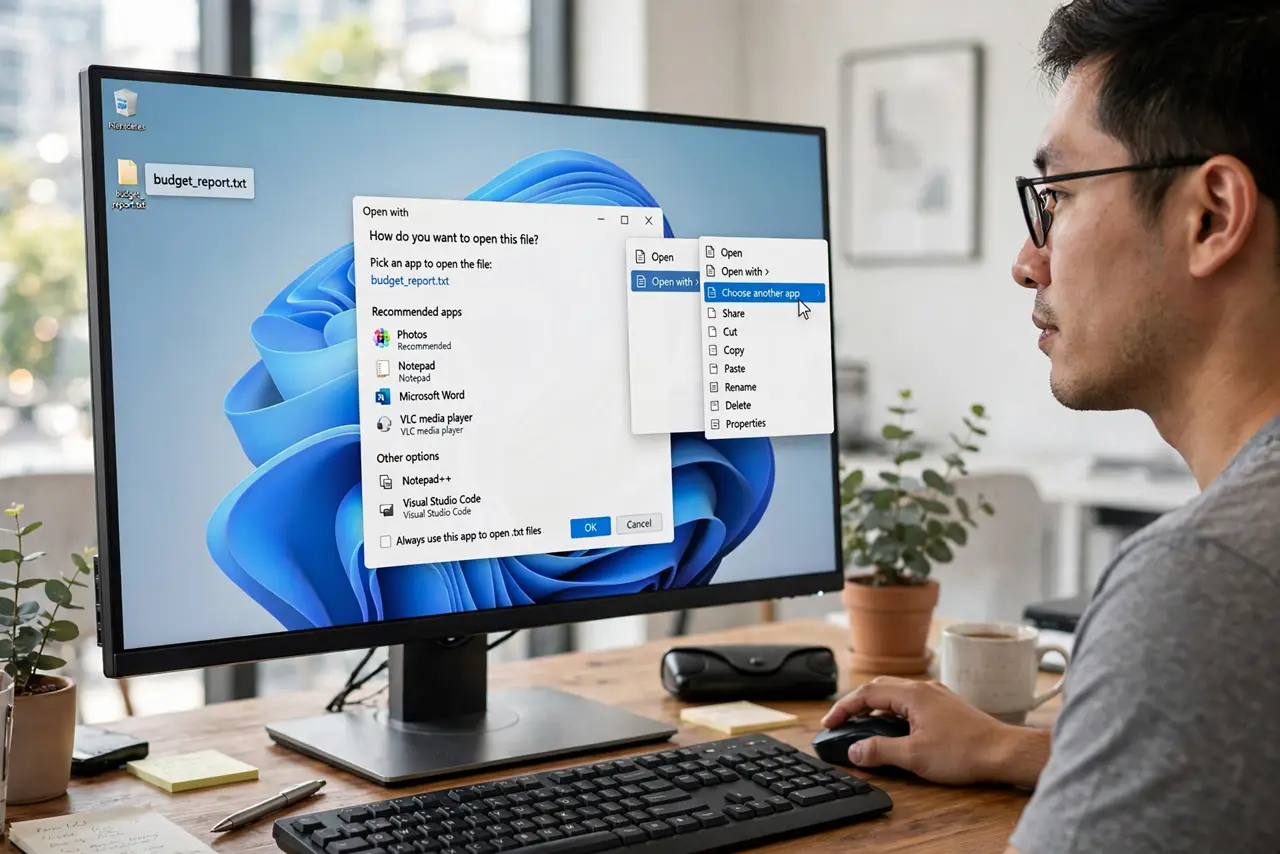
- Open the full dialog. Right-click the file, hover Open with, and click 'Choose another app'. Not the quick flyout — the full dialog with the app list.
- Pick your app from the list. Click the program you want. If it isn't listed, click 'Look for another app on this PC' and browse to its .exe.
- Check 'Always use this app'. The checkbox is now clickable. Tick it, then click OK — the file type is reassigned immediately.
- Verify with a double-click. Double-click the file. It should now open in your chosen app every time.
- Use Settings for stubborn types. If the checkbox stays greyed, go to Settings > Apps > Default apps and set the default per file type there — the browser default guide covers the same panel.
- Check for company policy. On work PCs, IT can lock default apps via policy. If nothing enables the checkbox, your admin owns that choice.
What NOT to do
- Do not check the box in the quick flyout — it isn't there. Only the full 'Choose another app' dialog carries the checkbox.
- Do not set defaults from inside portable apps. Portable programs that don't register with Windows can't hold a default properly.
- Do not fight Edge over PDFs here. If Edge keeps retaking PDFs, the per-type Settings page — not this dialog — is the battlefield.
- Do not assume greyed means broken. A greyed checkbox usually means the wrong dialog, a per-user install, or an IT policy — all explainable.
Frequently asked questions
Why is 'Always use this app' greyed out?
You opened the quick Open With flyout instead of the full dialog, the app is installed for a different user, or a policy locks it — in that order of likelihood.
Can I set defaults without any dialog?
Yes — Settings > Apps > Default apps lets you assign programs per file type directly, no right-clicking needed.
Will this change affect other users on the PC?
No. Default apps are per user — your choice doesn't touch anyone else's account.