Browser Autofill Never Offers Your Card
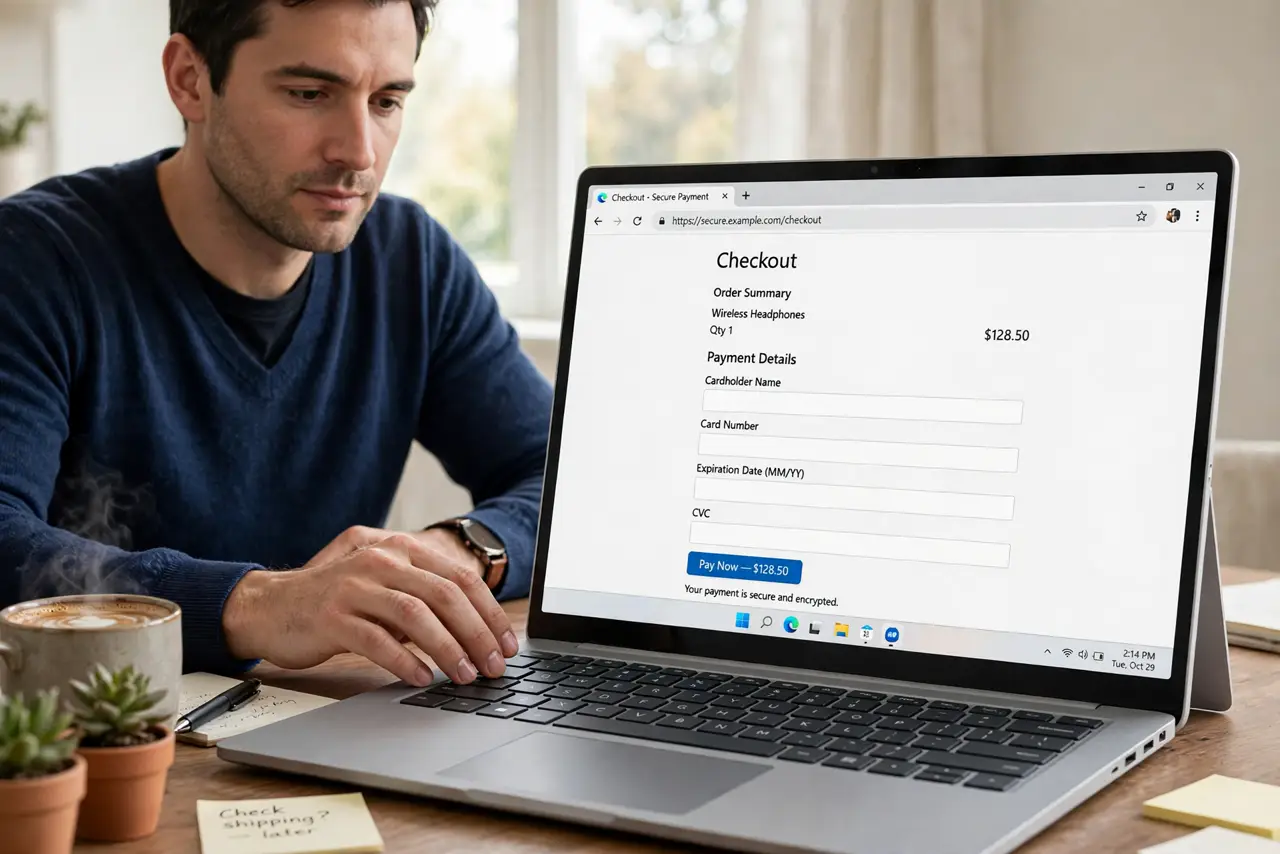
Checkout asks for your card and the browser offers nothing, even though you saved it. The card is usually saved but blocked by a setting — or the site's fields are built in a way autofill cannot read.
TL;DR / Quick Fix
Quick fix: open the browser's autofill settings and confirm payment methods are enabled with your card listed. Then check that sync is on if you saved the card on another device, and test the checkout on a plain, major retailer's page.
Follow these steps
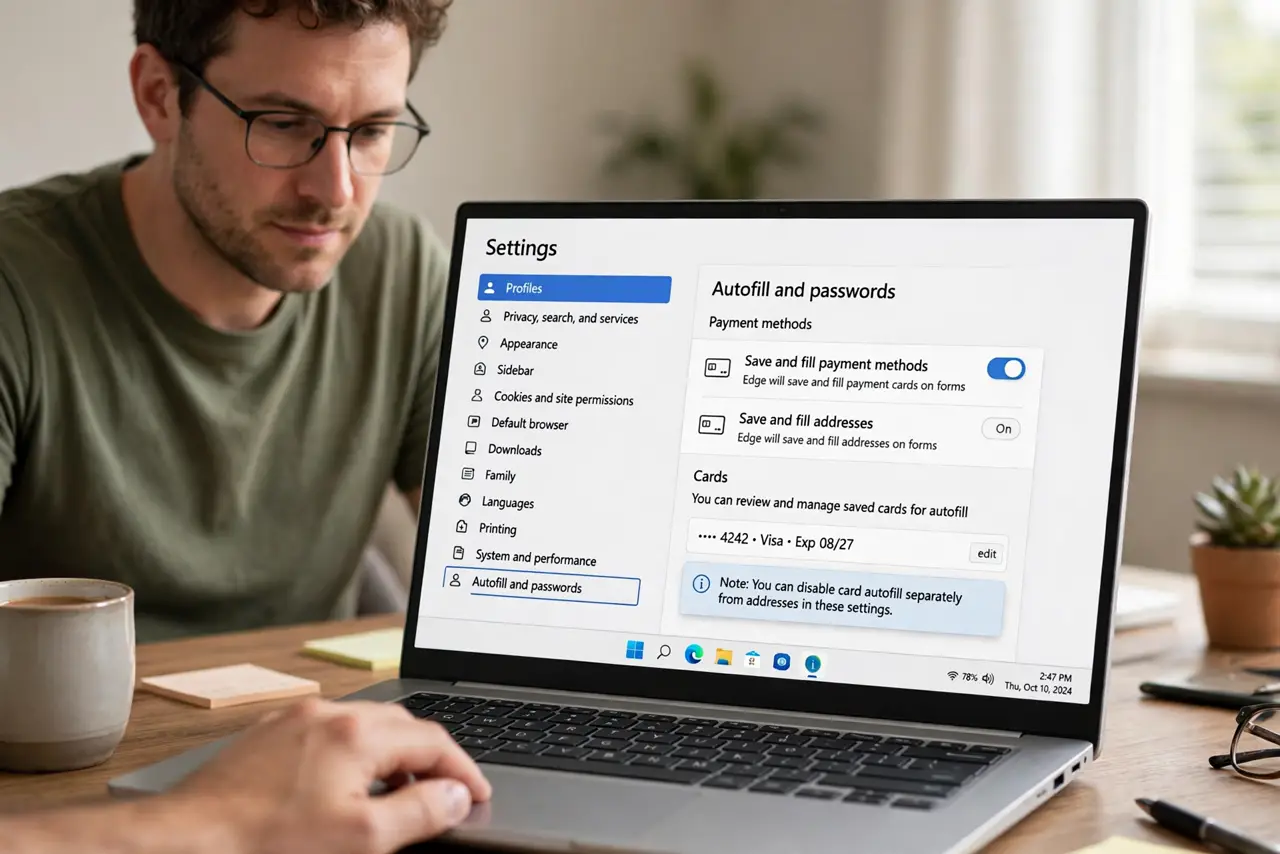
- Confirm autofill for cards is on. Open browser settings, then autofill or payment methods, and check the feature is enabled. Browsers let you disable card autofill separately from addresses.
- Check the card is actually saved. Look at the saved cards list. If the card is missing, add it once properly instead of retyping it at every checkout forever.
- Check sync across devices. A card saved on your phone appears on the laptop only if sync includes payment methods. Confirm sync is on and that payment sync is not excluded.
- Test on a simple checkout page. Try a major retailer's checkout. If autofill works there but not on one small site, that site's custom fields are the problem, not your browser.
- Check for an address mismatch confusing it. If autofill offers the wrong details elsewhere, an address mismatch in the saved entries may be confusing it. Cleaning them up often unblocks card offers too.
- Update the browser. An outdated browser can have broken autofill on newer checkout designs. Update and retest before assuming the feature is dead.
What NOT to do
- Do not retype the card on every site out of habit. One proper save in autofill settings ends the ritual and reduces typing errors.
- Do not save the card on a shared or public computer. Autofill there hands your card to the next user, so keep card saving to your own devices.
- Do not assume the site is broken when one checkout fails. Test a major retailer first, since custom-built checkouts defeat autofill regularly.
- Do not turn autofill off entirely over one failure. Fix the single setting or entry, and keep the convenience everywhere else.
Frequently asked questions
Why does autofill ignore my card?
Usually the payment autofill toggle is off, the card is not saved, sync excludes payments, or the site uses fields autofill cannot read.
Is saving my card in the browser safe?
On your own device with a screen lock, yes for most people. Never save cards on shared or public computers.
Why does it work on my phone but not my laptop?
Because sync for payment methods is off or the card was saved on the phone only. Enable payment sync to share it.