The Download Bar Disappears Too Fast
The file downloads, the little bar flashes, and then it is gone — and you have no idea where the file went. The file is almost certainly safe in your downloads folder; the bar was just shy.

TL;DR / Quick Fix
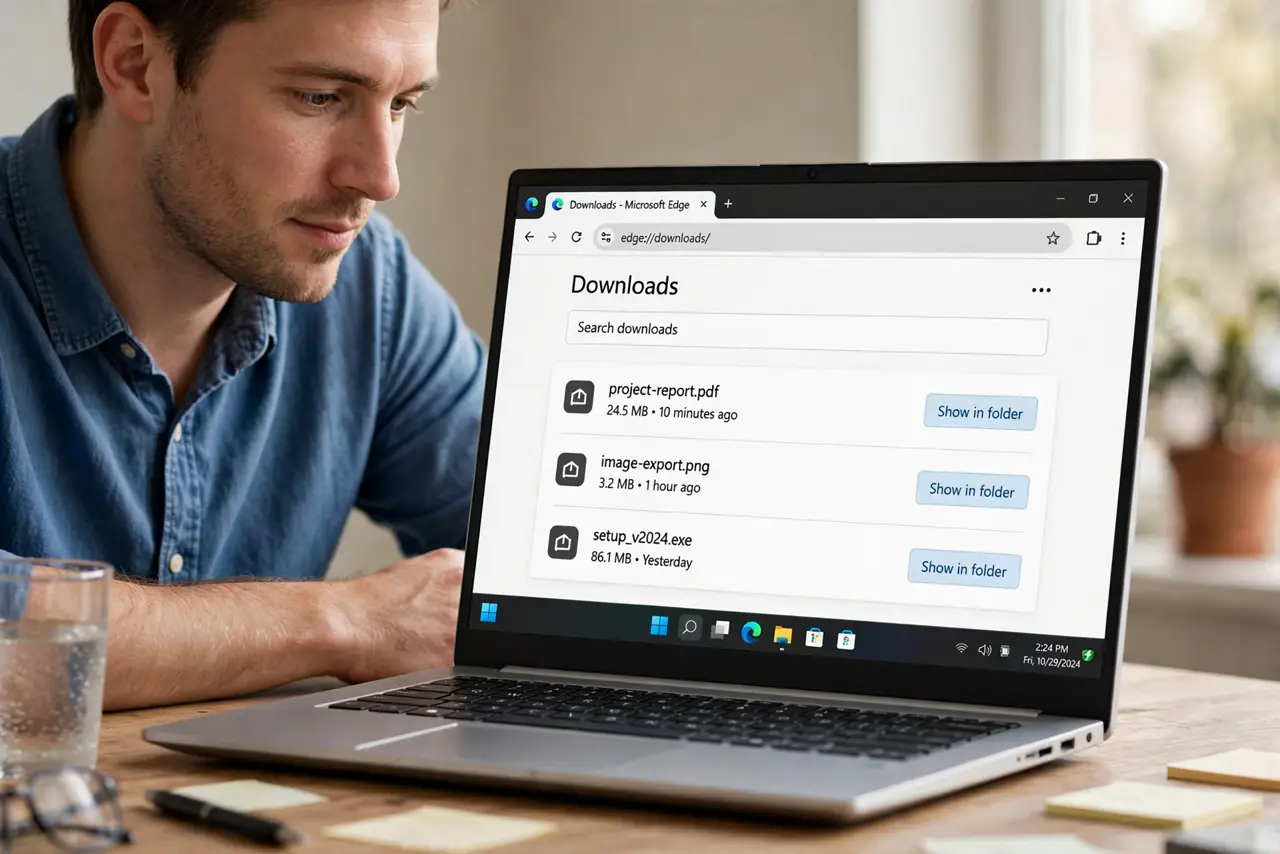
Quick fix: press Ctrl+J on Windows or Cmd+J on Mac to open the downloads list and find your file. Then turn on Ask where to save each file in the browser settings, so future downloads wait for your choice instead of vanishing.
Follow these steps
- Open the downloads list. Press Ctrl+J or Cmd+J, or open the browser menu and choose Downloads. Every recent download is listed there with a Show in folder option.
- Check the downloads folder. Open the system's Downloads folder directly. The file is almost always there, downloaded completely, despite the shy bar.
- Turn on Ask where to save. In browser settings under downloads, enable asking for each file's location. Future downloads pause for your decision instead of flashing past.
- Check the download did not stall first. If the file is missing from the list, first confirm the download did not stall. A download that never finished will not appear anywhere.
- Look for a security quarantine. Some antivirus tools move fresh downloads aside for scanning. Check its quarantine or notifications if the file is nowhere to be found.
- Keep the folder organized going forward. A tidy downloads folder means the next fast-vanishing bar costs you seconds, not a search party — keep the folder organized going forward.
What NOT to do
- Do not download the file three times. Duplicates pile up in the folder and waste bandwidth, while one look at the downloads list finds the original.
- Do not assume the download failed. A vanished bar usually means a completed download, so check before retrying.
- Do not disable download warnings to keep the bar longer. The warnings are unrelated to the bar's speed, and disabling them trades safety for nothing.
- Do not save everything to the desktop instead. The desktop becomes a mess fast, while Ask where to save keeps each file deliberate.
Frequently asked questions
Where did my download go?
Almost certainly the Downloads folder. Open the browser's downloads list with Ctrl+J or Cmd+J to see it and reveal its location.
Can I make the bar stay longer?
The setting that matters is Ask where to save each file, which makes every download wait for you instead of flashing by.
Why do some downloads never appear?
They may have stalled, been blocked by antivirus, or saved somewhere unexpected — check the downloads list first.