Browser Extensions Slowing Every Page? Fix It
When every page feels slow, an extension is a prime suspect, because extensions run on pages you visit. Testing them in halves finds the slow one far faster than testing one at a time from the start.
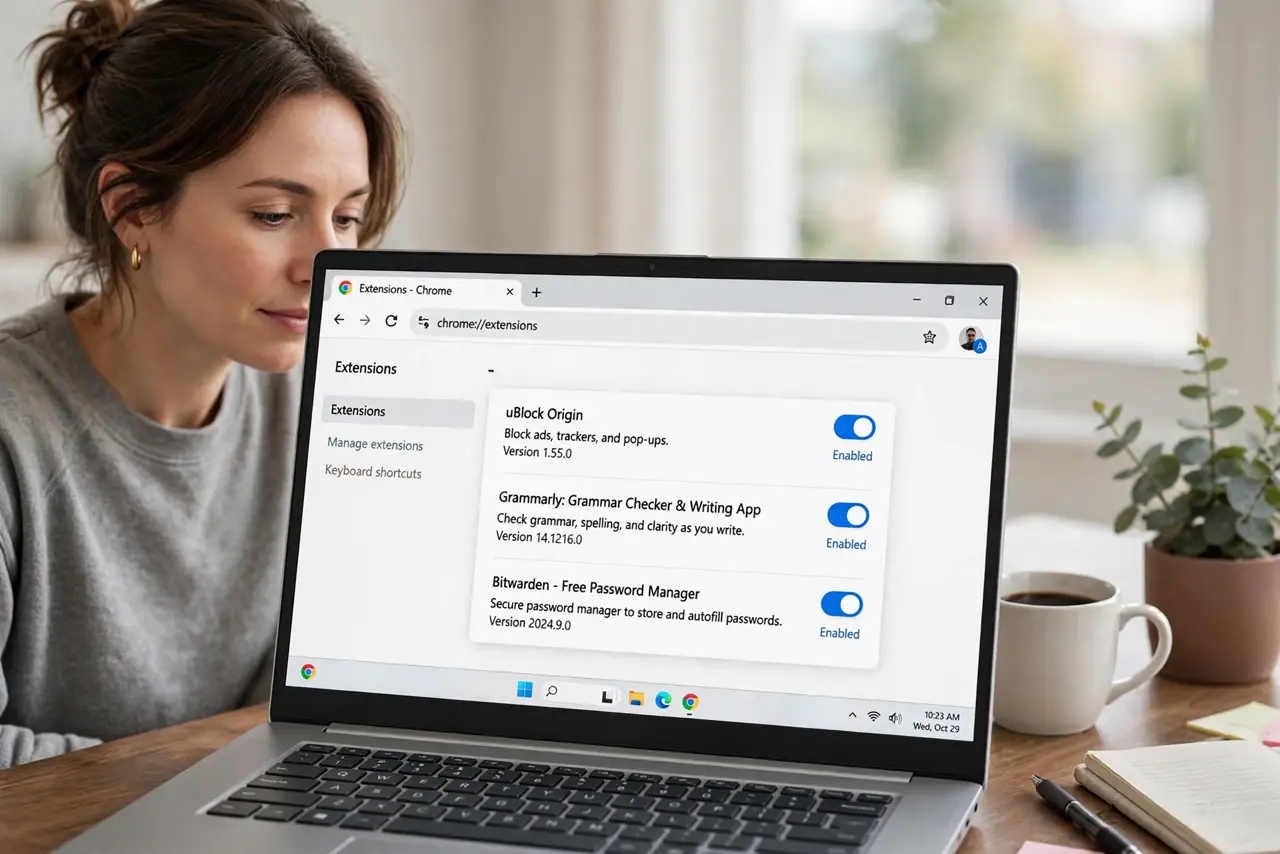
TL;DR / Quick Fix
Quick fix: test the slow page in a private window, then disable extensions in halves to find the slow one. Remove extensions you do not use, keep only the ones you need, and retest the page after each change. Last, restart the browser and retest to confirm it.
Follow these steps
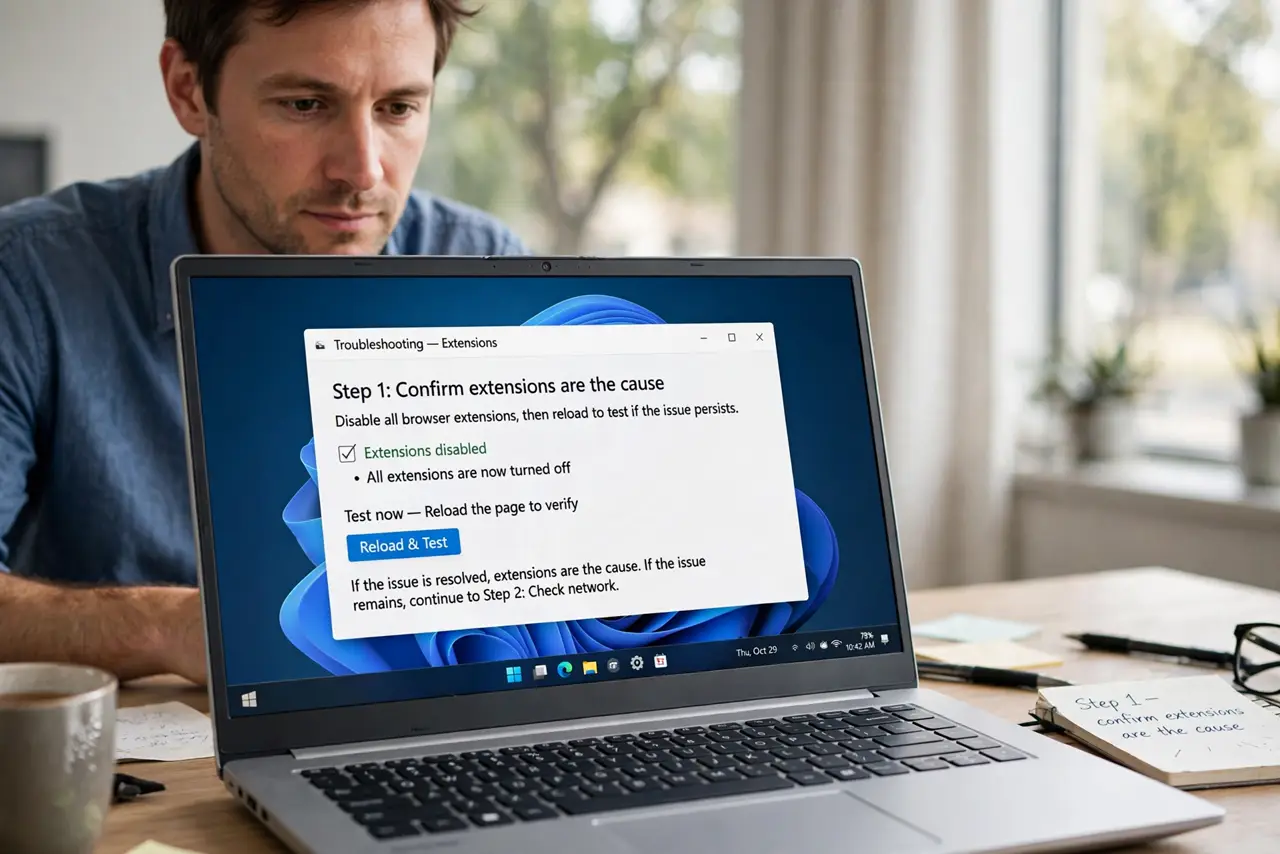
- Confirm extensions are the cause. Load a slow page in a private window, where most extensions are off by default. If it loads fast there, an extension is slowing your normal window.
- Disable half the extensions. Open Extensions and turn off half of them, then reload the slow page. If it stays slow, the culprit is in the half still on; if it speeds up, it is in the half you turned off.
- Repeat until one extension remains. Keep halving the suspect group and retesting. This method finds one slow extension in a few rounds, even with many installed.
- Remove or replace the slow extension. Remove the slow extension, or replace it with a lighter alternative that does the same job. Keeping a slow extension you rarely use is not worth the daily delay.
- Remove extensions you do not use. Delete anything you installed once and forgot. Every extra extension adds work to every page, even when you never open it.
- Restart the browser and retest. Close the browser fully, reopen it, and load several pages. The browser should now feel consistently faster, not just fast on one page.
What NOT to do
- Do not install a second speed booster extension. More extensions usually make the browser slower, not faster.
- Do not keep every extension enabled just in case. Enable an extension only when you actually use it.
- Do not allow extensions on every site by default. Limit site access to the sites each extension genuinely needs.
- Do not blame the connection first. If a private window is fast on the same connection, the browser, not the network, is slow.
Frequently asked questions
Why do extensions slow every page?
Many extensions check or change each page as it loads, so their work adds up on every site you visit.
Is one extension enough to slow everything?
Yes. A single heavy extension, such as one that scans all page content, can slow every page noticeably.
Should I use a private window all the time?
No. Private windows are a test, not a fix. Removing the slow extension fixes the normal window properly.