Browser History Disappeared? Recover It
History usually disappears because of a profile switch, a private window, or a cleanup setting, not because it vanished on its own. Check those three causes before assuming the record is gone.
TL;DR / Quick Fix
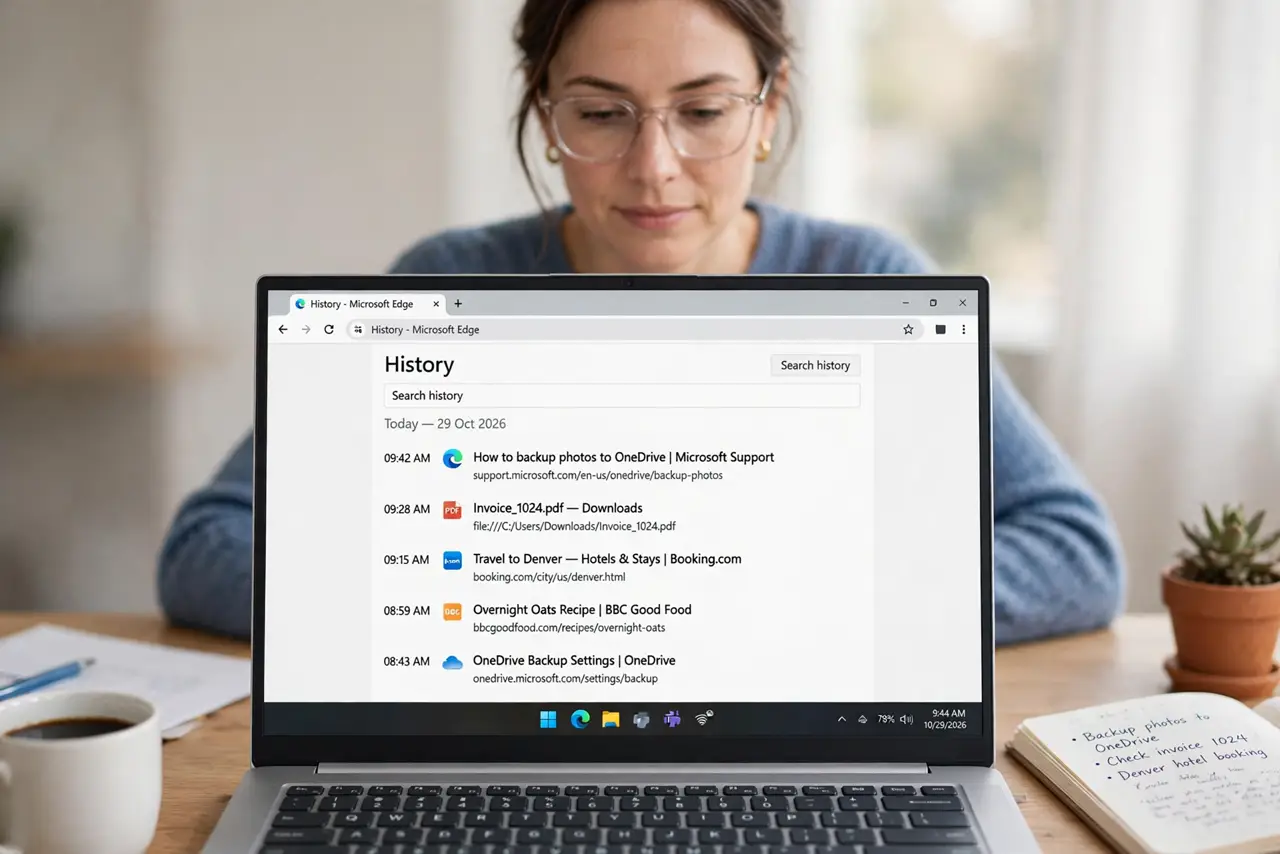
Quick fix: check you are in the right browser profile, confirm sync is signed in, and look at the history page for today. If a cleanup setting clears history on exit, turn it off so future history is kept. Last, revisit the site from another record to confirm it.
Follow these steps
- Open the history page in your usual profile. Open History and check today and recent days. Also confirm the profile icon shows your usual profile, since another profile has its own separate history.
- Check whether you were in a private window. Private windows do not save history. If the missing visits happened in a private window, the browser never recorded them, and there is nothing to recover.
- Confirm sync is signed in. Check that sync is on and signed in to your usual account. A signed-out browser shows only local history, which can look much shorter.
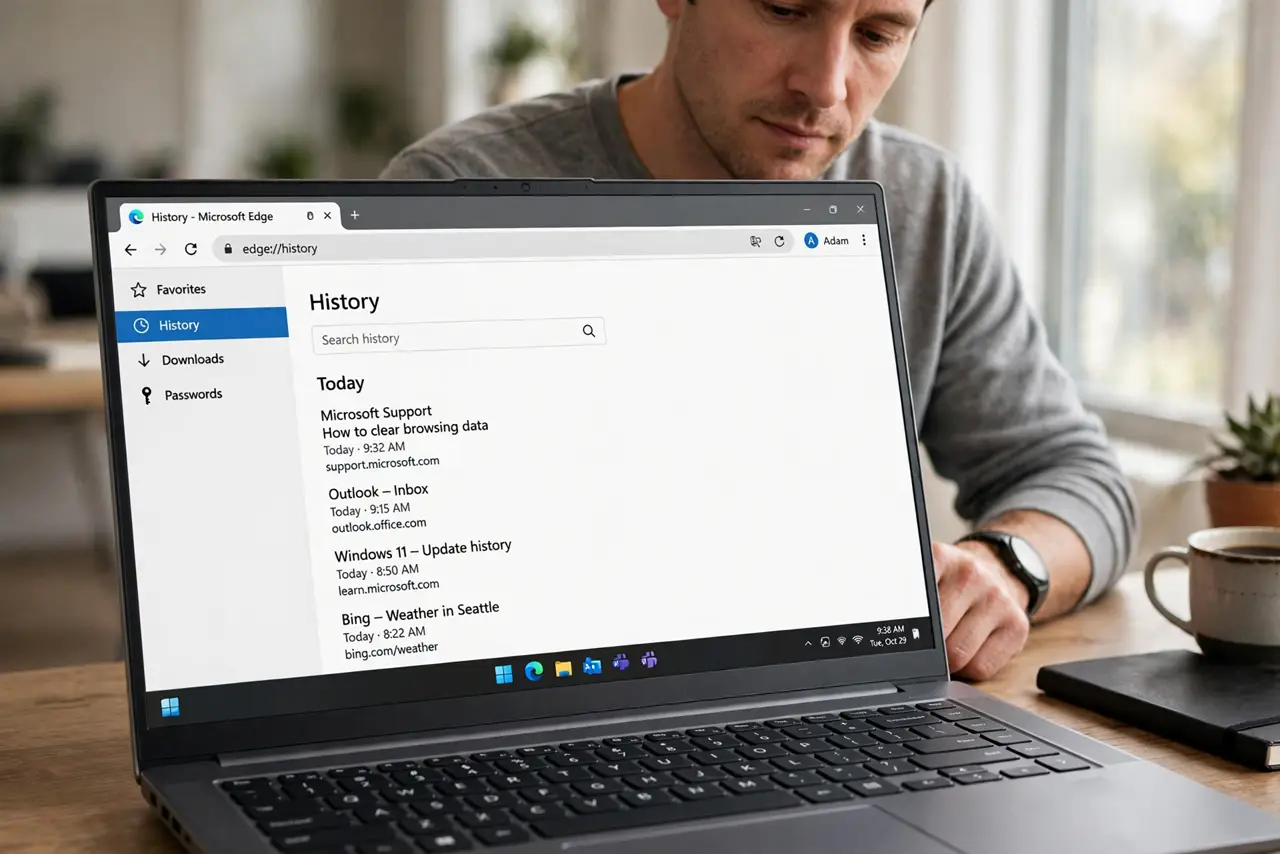
- Check the clear-on-exit setting. In privacy settings, look for an option that clears history when the browser closes. Turn it off if you want history kept, and note that past cleared history cannot be restored by this setting.
- Search history instead of scrolling. Use the search box on the history page and type a word from the site. A long history is easier to search than to scroll, and the entry may be older than you remember.
- Revisit the site from another record. Check bookmarks, downloads, or an email link to the site. Even when history is gone, another record often holds the address you need.
What NOT to do
- Do not install a history recovery tool from a pop-up. Such tools rarely recover cleared history and often add unwanted software.
- Do not turn off all privacy protections to keep history. Keep the protections, and only change the clear-on-exit setting.
- Do not assume history proves what happened on a shared computer. Another person may have used a different profile or a private window.
- Do not keep sensitive pages only in history. Bookmark pages you need again, because history can be cleared at any time.
Frequently asked questions
Can cleared history be recovered?
Usually not from the browser itself. Once history is cleared, the browser does not keep a hidden copy for you to restore.
Why is only recent history missing?
A clear-on-exit setting, a profile switch, or private browsing usually explains a short or empty recent history.
Does sync keep my history forever?
No. Synced history still follows retention and clearing rules, so bookmark anything you need long term.