A Private Window Is Still Signed In
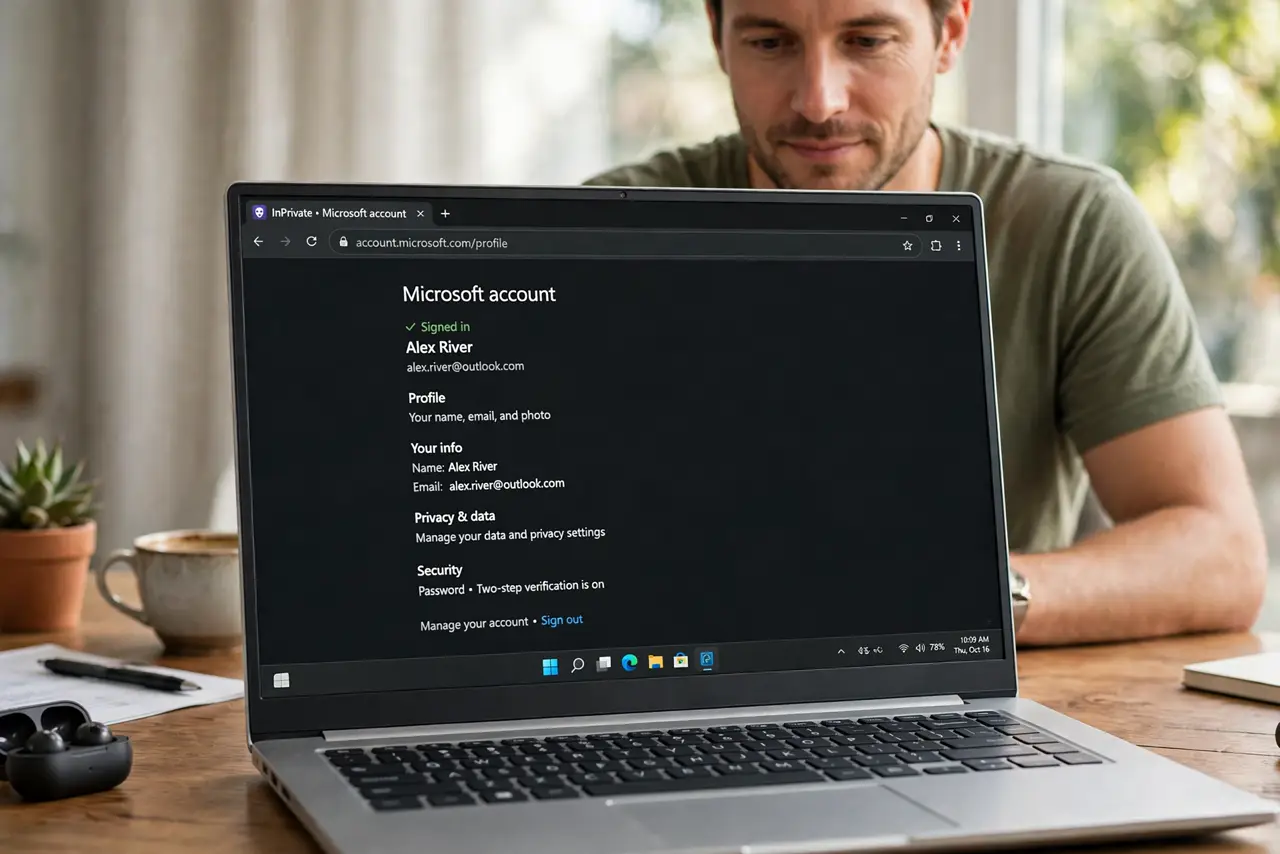
Private windows are supposed to start clean, yet yours opens already signed into everything. Something is carrying the session in — usually sync, an extension, or a window that is not as private as it looks.
TL;DR / Quick Fix
Quick fix: confirm the window is truly private by checking its dark theme and label. Then check whether sync or an extension is signing you in, close every private window fully, and reopen just one to test it clean from scratch.
Follow these steps
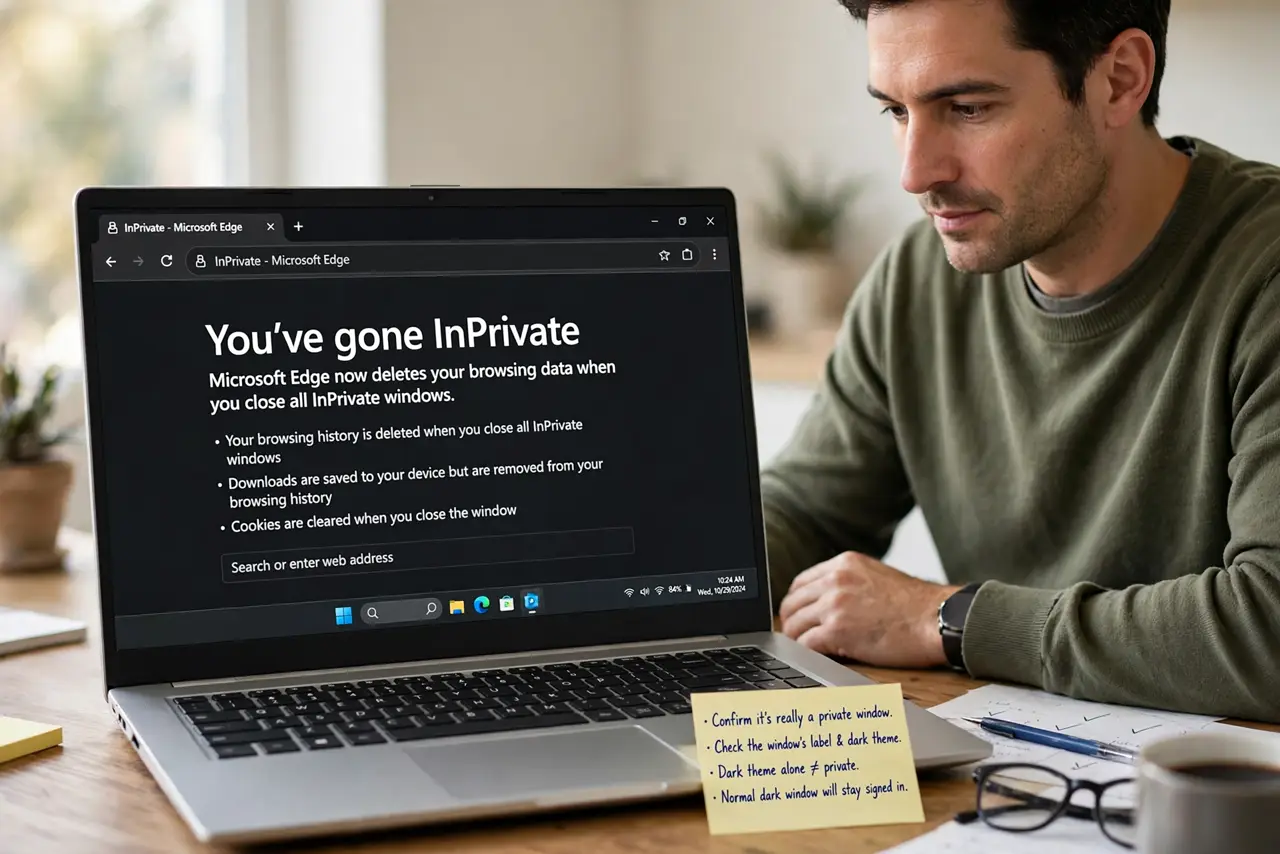
- Confirm it is really a private window. Check the window's label and dark theme. A normal window with a dark theme is not private, and it will happily stay signed in.
- Close all private windows, then reopen one. Private sessions end only when every private window closes. One forgotten private window keeps the whole session — and its logins — alive.
- Check browser sync. If sync signs the browser profile itself in, some browsers restore that identity in private windows too. Review what sync carries into private mode.
- Disable extensions in private mode. Extensions allowed in private windows can inject logins or sessions. Turn off private-window access for extensions and retest.
- Check for a merged profile underneath. If two profiles merged, the private window may inherit sessions from the wrong one — check for a merged profile underneath. Separating the profiles fixes the leak at its root.
- Test with everything closed. Quit the browser entirely, reopen, and open a single private window. If it is clean now, something in the previous session was the carrier.
What NOT to do
- Do not trust a private window on a shared computer blindly. Verify it opens signed-out before doing anything sensitive, every time.
- Do not assume private means invisible. It hides history locally, but your network, employer, and the sites themselves still see you.
- Do not stay signed in and call it private. Sign out inside the private window too if the page offers it, for the session to be truly clean.
- Do not install extensions into private mode casually. Each one sees your private browsing, which defeats half the purpose.
Frequently asked questions
Why is my private window signed in?
Usually an unclosed private window kept the session alive, sync restored the identity, or an extension carried the login in.
Does private mode hide me from my employer?
No. It only skips local history. Network-level monitoring still sees the traffic.
How do I get a truly clean private window?
Close every private window, quit the browser, reopen, and open exactly one private window with extensions disabled.