Browser Saved Password Missing? Find It
A missing saved password is usually a profile or sync mix-up, not a deleted password. Check you are in the right browser profile first, because each profile keeps its own saved passwords.
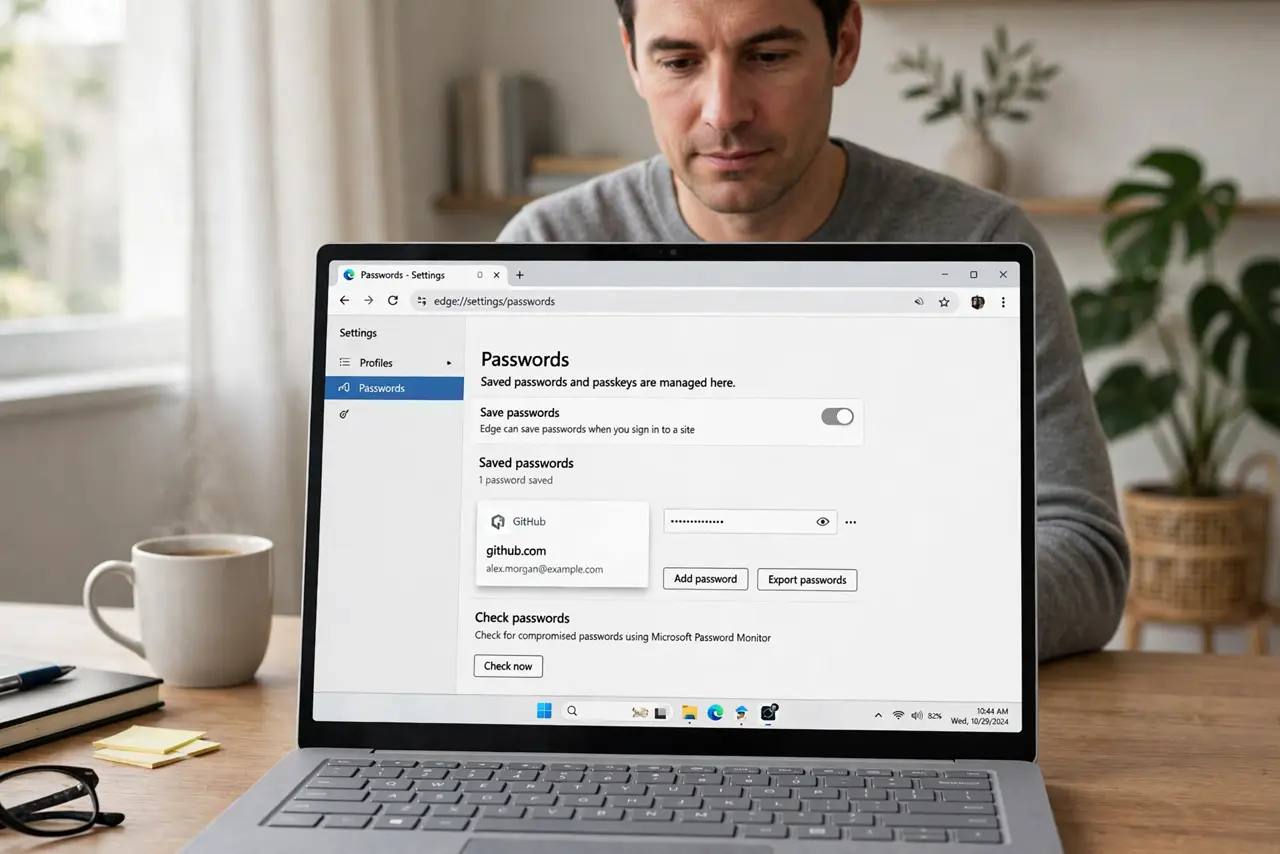
TL;DR / Quick Fix
Quick fix: open the browser password manager and search for the site, then check you are in the right profile and signed in to sync. If the password is truly gone, reset it on the site and save the new one carefully.
Follow these steps
- Open the password manager and search. Open browser settings, go to Passwords, and search for the site name. The entry may still be there even when the login form does not offer it.
- Check you are in the right profile. Look at the profile icon and confirm you are using your usual profile. A second profile, or a guest window, will not show your saved passwords.
- Confirm sync is signed in. Check that sync is on and signed in to your usual account. A signed-out browser can hide synced passwords until you sign in again.
- Check whether the site address changed. Search for the site without typing the full address. A site that moved to a new address may store the password under the old one.
- Show the password and copy it safely. Use the show-password option, confirm with your device sign-in if asked, and copy it only into the login form. Never paste a password into a chat or a note.
- Reset the password if it is truly gone. If no entry exists anywhere, use the site's forgot-password option, set a new password, and let the browser save it. Then check it appears in the password manager.
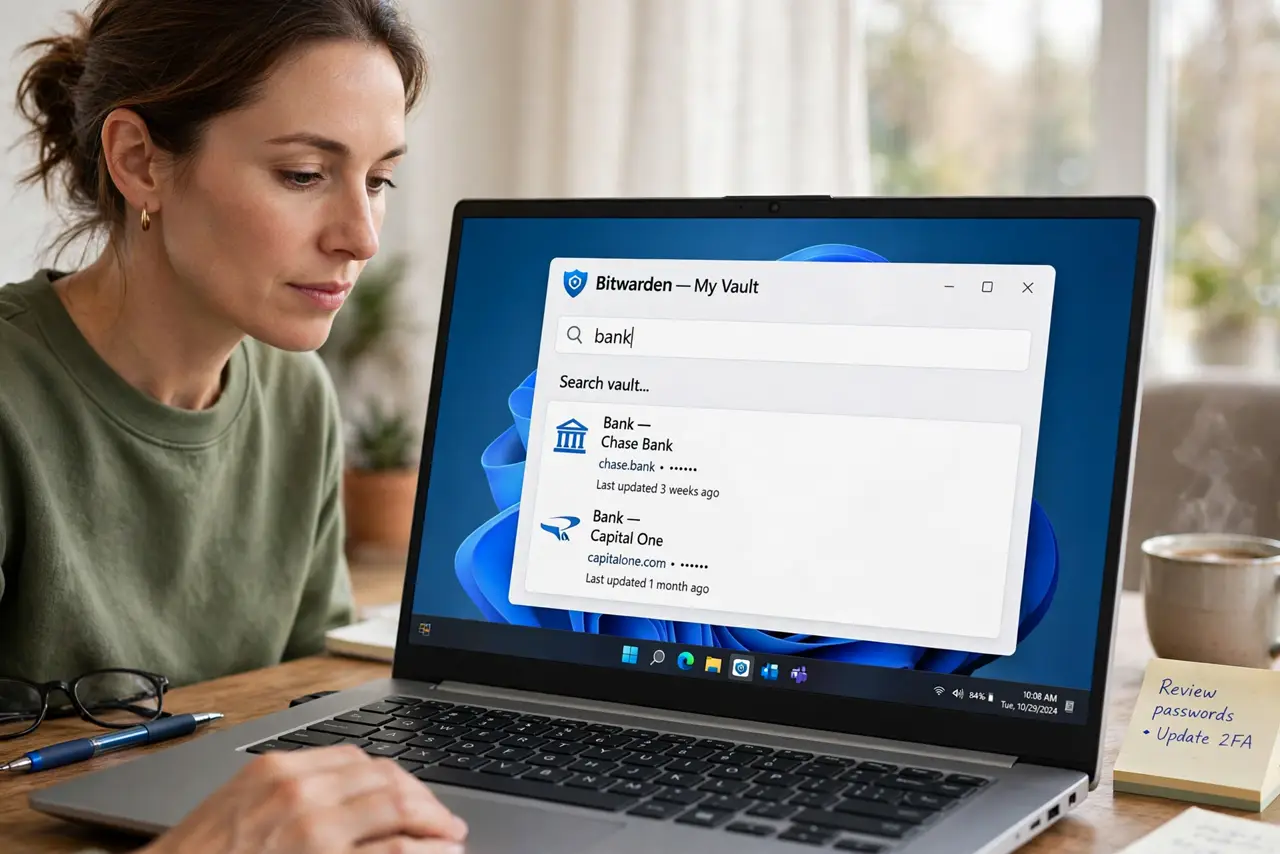
What NOT to do
- Do not save passwords in a plain text file or an unprotected note. Use the browser password manager or a dedicated password manager instead.
- Do not share your device sign-in to reveal a password. Anyone who can unlock the device can reveal saved passwords.
- Do not reuse the same password across sites after a reset. Give the reset site its own password.
- Do not install a password recovery tool from a pop-up. The browser's own password manager is the safe place to look.
Frequently asked questions
Why did the browser stop offering my password?
You may be in a different profile, signed out of sync, or on a changed site address, all of which hide the saved entry.
Can a deleted password be recovered?
If it was deleted from the password manager and sync, usually not, so resetting it on the site is the practical fix.
Should I let the browser save passwords?
Yes, if your device sign-in is protected. A saved unique password beats a reused one you can remember.