Browser Sync Merges Two Profiles Together
Work bookmarks appear in your personal profile, or two people's passwords mix into one list — sync merged what should have stayed separate. The fix is untangling the accounts, not deleting everything.
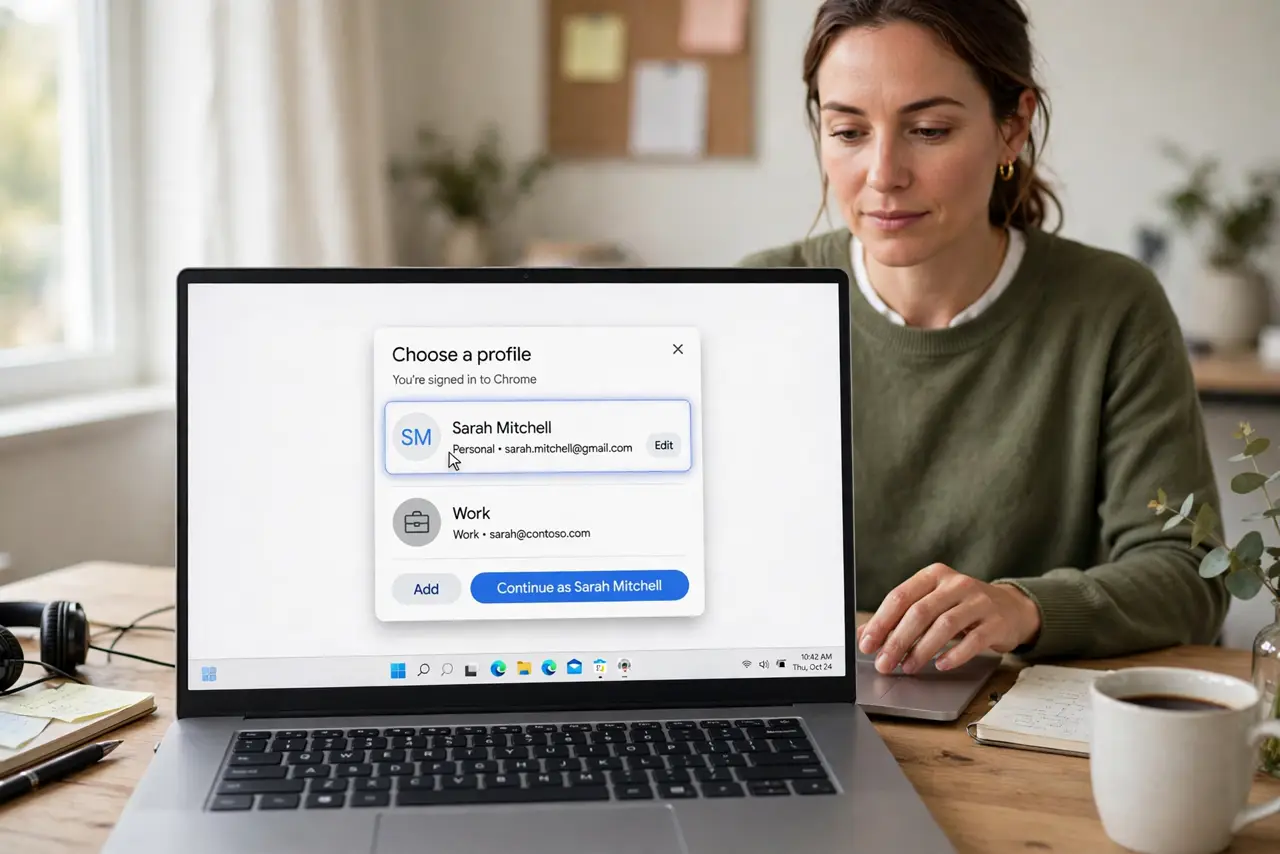
TL;DR / Quick Fix
Quick fix: open the browser's profile manager and check which account each profile syncs to. Sign the wrong account out of the mixed profile, turn its sync off, and clean up the merged bookmarks and passwords that already crossed over.
Follow these steps
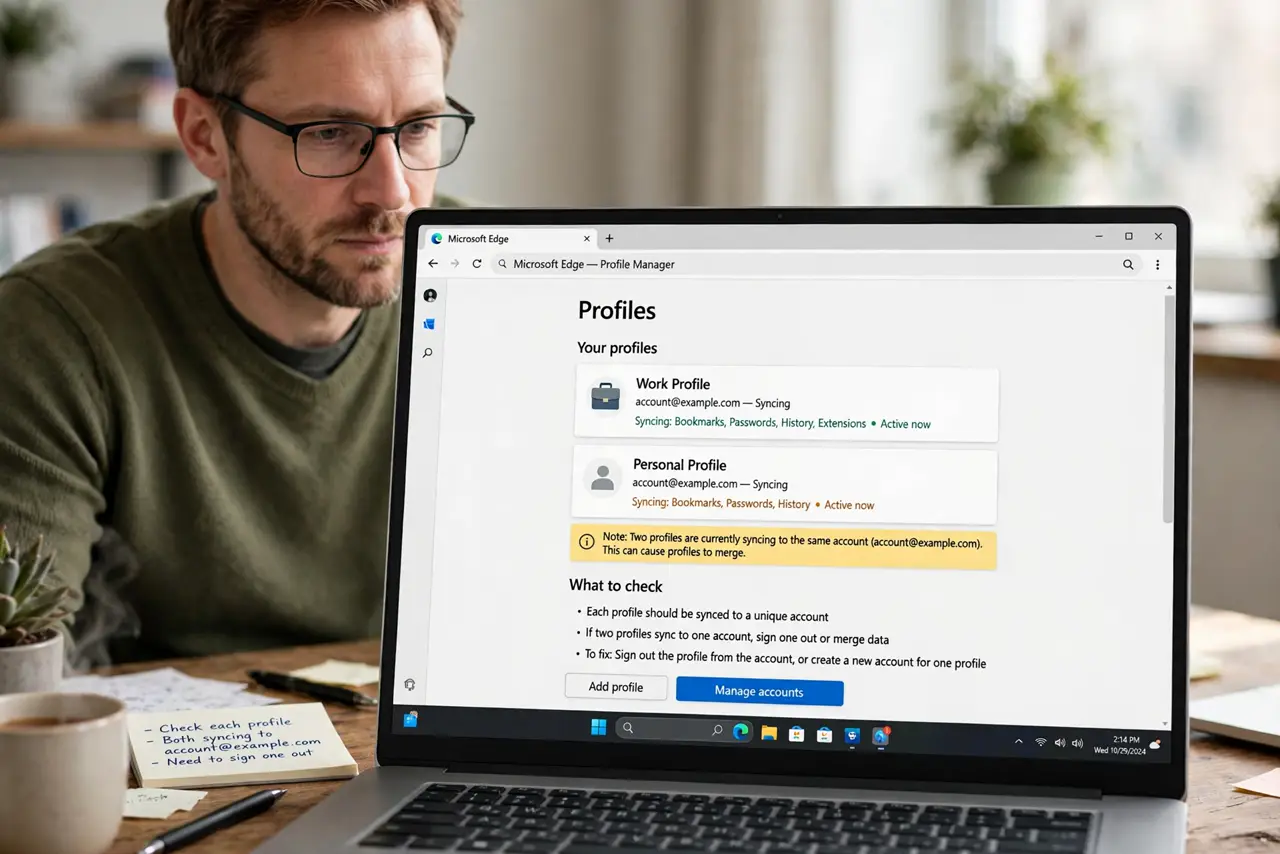
- Open the profile manager. Look at each browser profile and note which account it syncs with. The merge happened because two profiles synced to one account, or one profile synced to two.
- Sign out the wrong account. In the mixed profile, sign out the account that does not belong. This stops the ongoing merge immediately, before more data crosses.
- Turn off sync where it should never have been. Disable sync on shared or work profiles that must stay local. Sync is the pipe; closing it stops the flow.
- Clean up what already merged. Sort the mixed bookmarks into folders per owner and delete duplicates. For passwords, keep both entries for now and delete the wrong ones only when sure.
- Check every device, not just this one. A phone or second laptop with the same wrong sync will re-merge everything. Fix the account setup on all devices before calling it done.
- Use separate profiles going forward. Keep one profile per person or per context, each with its own sync account. The profile switcher exists exactly for this.
What NOT to do
- Do not delete all bookmarks in a rage. The merged set contains both people's data, and bulk deletion destroys the good with the bad.
- Do not just turn sync off everywhere and stop. That freezes the mess in place instead of untangling it, and the next sign-in merges again.
- Do not share one browser profile between people. Profiles are free and separate, while sharing one guarantees the next merge.
- Do not ignore the phone. Mobile browsers sync too, and one misconfigured phone re-merges the desktop in an hour.
Frequently asked questions
How did two profiles merge?
One account signed into two profiles, or sync got enabled on a profile that should have stayed local. The pipe does not ask; it just copies.
Can the merge be fully undone?
Mostly. Stop the sync, then sort bookmarks and passwords by hand. Some manual cleanup is unavoidable.
Should work and personal share a browser?
They can share the app, but never the profile or the sync account. Separate profiles keep them apart.