Browser Video Fullscreen Adds Black Bars
A video goes fullscreen and black bars frame it top and bottom — or on the sides. This is almost never a bug: the video's shape and your screen's shape simply do not match.

TL;DR / Quick Fix
Quick fix: check the video's quality setting and the player's zoom or fill option. If the bars come from mismatched aspect ratios, they are normal — only a fill or crop option removes them, at the cost of cutting some picture.
Follow these steps
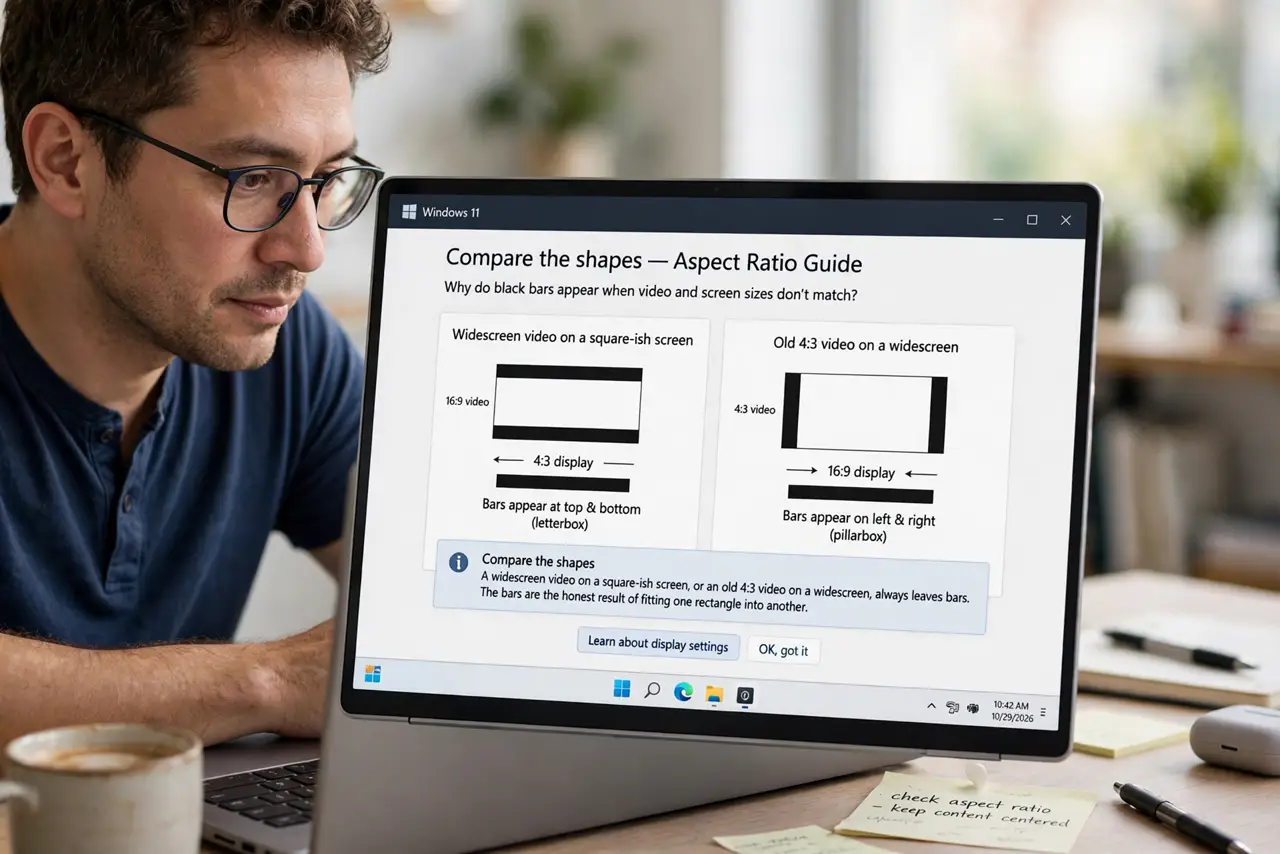
- Compare the shapes. A widescreen video on a square-ish screen, or an old 4:3 video on a widescreen, always leaves bars. The bars are the honest result of fitting one rectangle into another.
- Check the player's fill option. Many players offer fit, fill, or zoom. Fill removes the bars by cropping the edges, so decide whether the full picture matters more than the full screen.
- Raise the video quality. Low-quality streams sometimes add bars from letterboxed source files. A higher quality setting can deliver the true full-frame version.
- Check the monitor's own scaling. Some monitors add their own bars or stretch. Open the monitor menu and confirm it is set to a normal aspect mode, not a forced one.
- Rule out a stuck fullscreen confusing you. If the browser itself is stuck in fullscreen oddly, the video area can look wrong — rule out a stuck fullscreen first. Exit and re-enter fullscreen cleanly.
- Accept normal bars. Bars on a cinematic film are the director's framing, not a defect. Watching the whole frame beats cropping it away.
What NOT to do
- Do not stretch the video to kill the bars. Stretching distorts every face and circle, which looks worse than the bars ever did.
- Do not buy a new monitor for one video's bars. The bars follow the video's shape, so they will appear on any screen with a different shape.
- Do not assume the browser is broken. Aspect-ratio bars are correct behavior, and no setting in the browser removes physics.
- Do not crop every video by default. Fill modes cut picture permanently while watching, so use them only when the bars truly bother you.
Frequently asked questions
Why do black bars appear?
The video's aspect ratio differs from the screen's. The player fills the gap with black rather than stretching or cropping.
Can I remove them safely?
With the player's fill or zoom option, yes — but it crops the picture's edges to do it.
Are bars a sign of low quality?
Not by themselves. Cinematic films carry bars at every quality level as part of their framing.