Shared Drive Link Says No Access? Fix It
A no-access message usually means the link permission does not include you, or you are signed in to a different account. Check the account first, because that fix takes seconds and needs no help from anyone.
TL;DR / Quick Fix
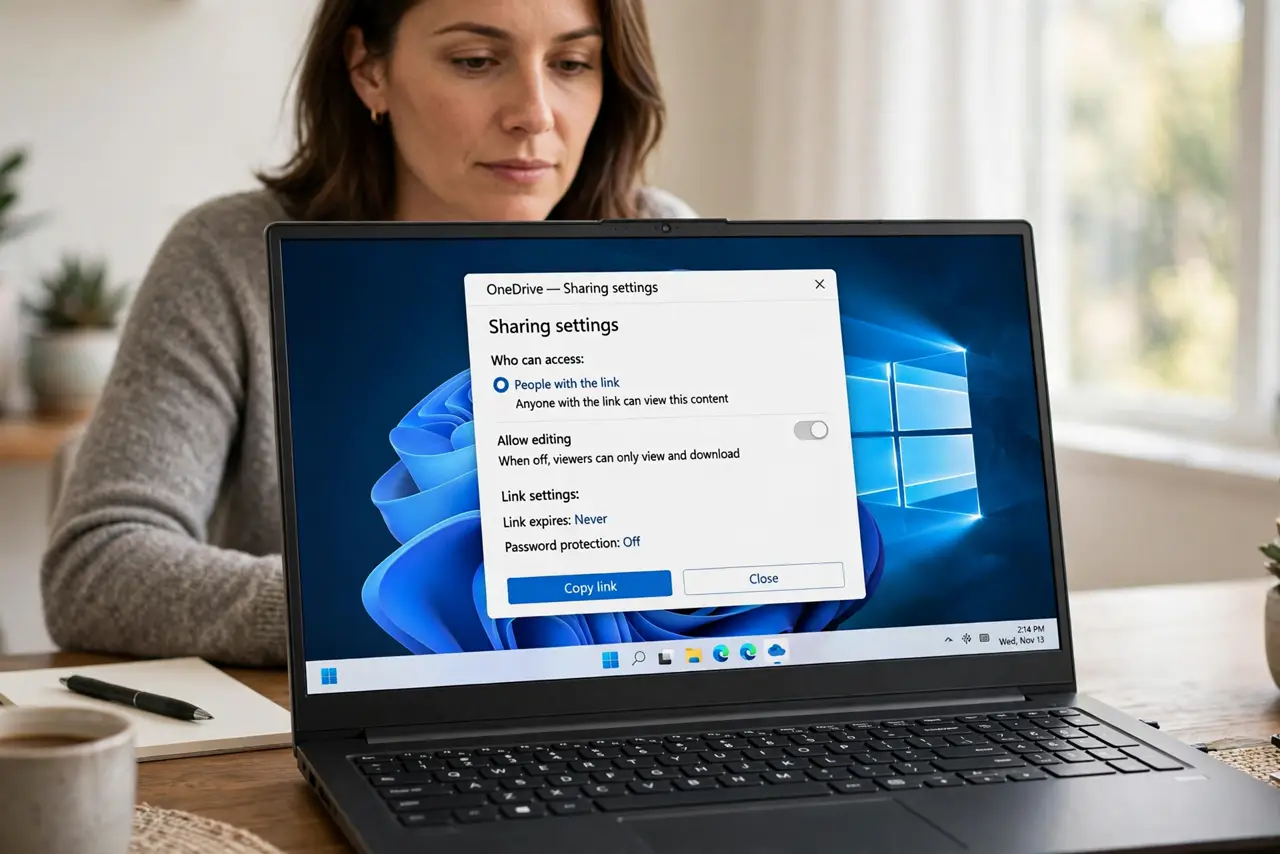
Quick fix: confirm you are signed in to the account the file was shared with, then check the link permission. If access is still denied, use the request access option or ask the owner to share it with your exact address.
Follow these steps
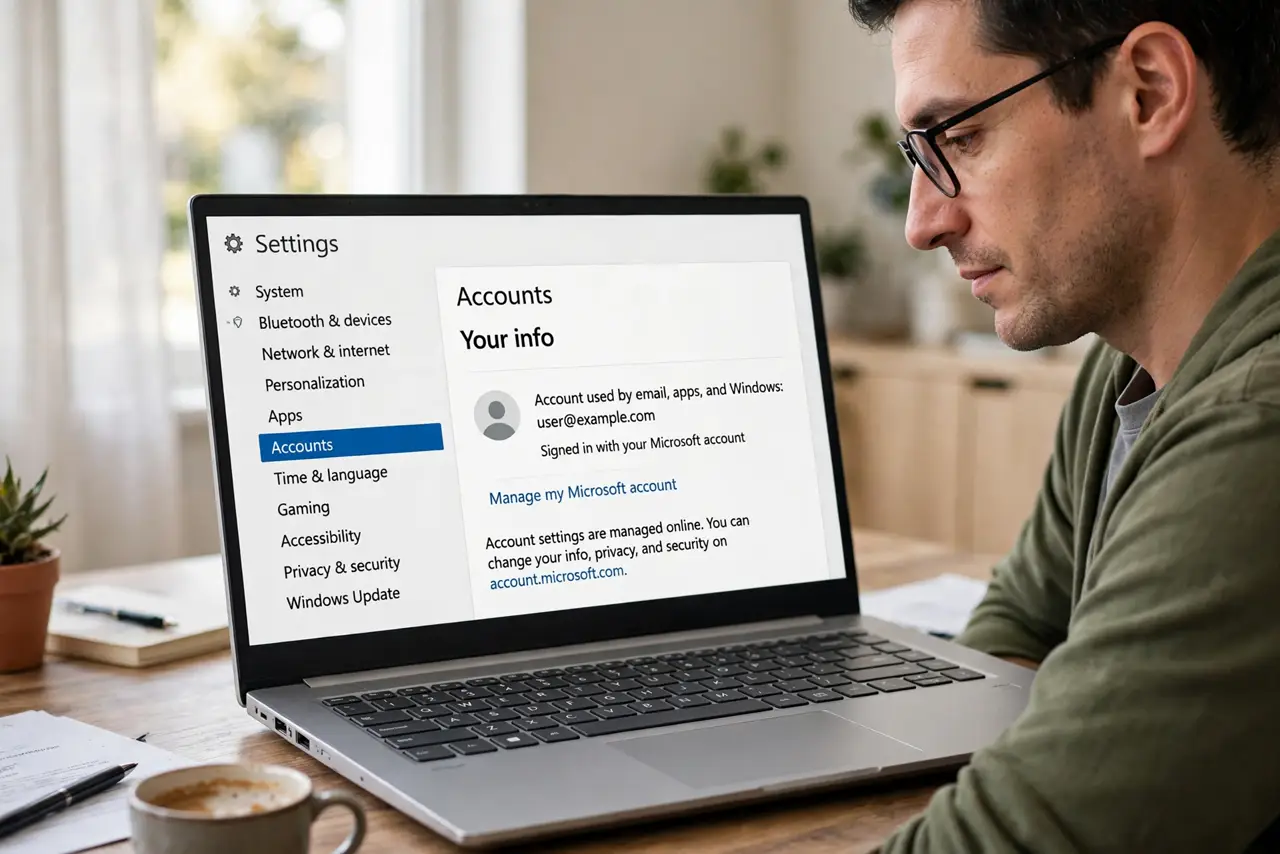
- Check which account you are signed in to. Open the cloud app or website and confirm the signed-in account. A link shared with a work address will deny a personal account, even when the link itself is correct.
- Switch to the right account. Sign out or switch accounts to the address the file was shared with, then open the link again. Many no-access errors disappear at this step.
- Read the exact access message. Note whether the message says you need permission, the file was removed, or the link expired. Each message points to a different fix, so do not guess.
- Use the request access option. If the page offers a request access button, use it and add a short note saying who you are. The owner then gets a clear request to approve.
- Ask the owner to check the permission. Ask the owner to confirm the file is shared with your exact address, not just anyone with the link. A small spelling difference in the address blocks access.
- Ask for a fresh link if it expired. If the link expired or the file moved, ask the owner for a new link. An old link to a moved file will keep denying access.
What NOT to do
- Do not sign in with a shared password to open someone else's file. Use your own account and a proper share instead.
- Do not forward the link to another account hoping it works. Access follows the account, not the link alone.
- Do not change the link address by hand. Editing the address usually breaks it further.
- Do not request access repeatedly. One clear request with your identity is enough; repeated requests look like spam.
Frequently asked questions
Why does a shared link deny access?
Usually the file was shared with a different account, the permission changed, or the link expired.
Can the owner fix this quickly?
Yes. Sharing the file with your exact address, or turning on link access, usually fixes it in a minute.
What if the file was deleted?
Then no permission fix helps, and the owner needs to restore or reshare the file.