The Restored Cloud File Version Is Too Old
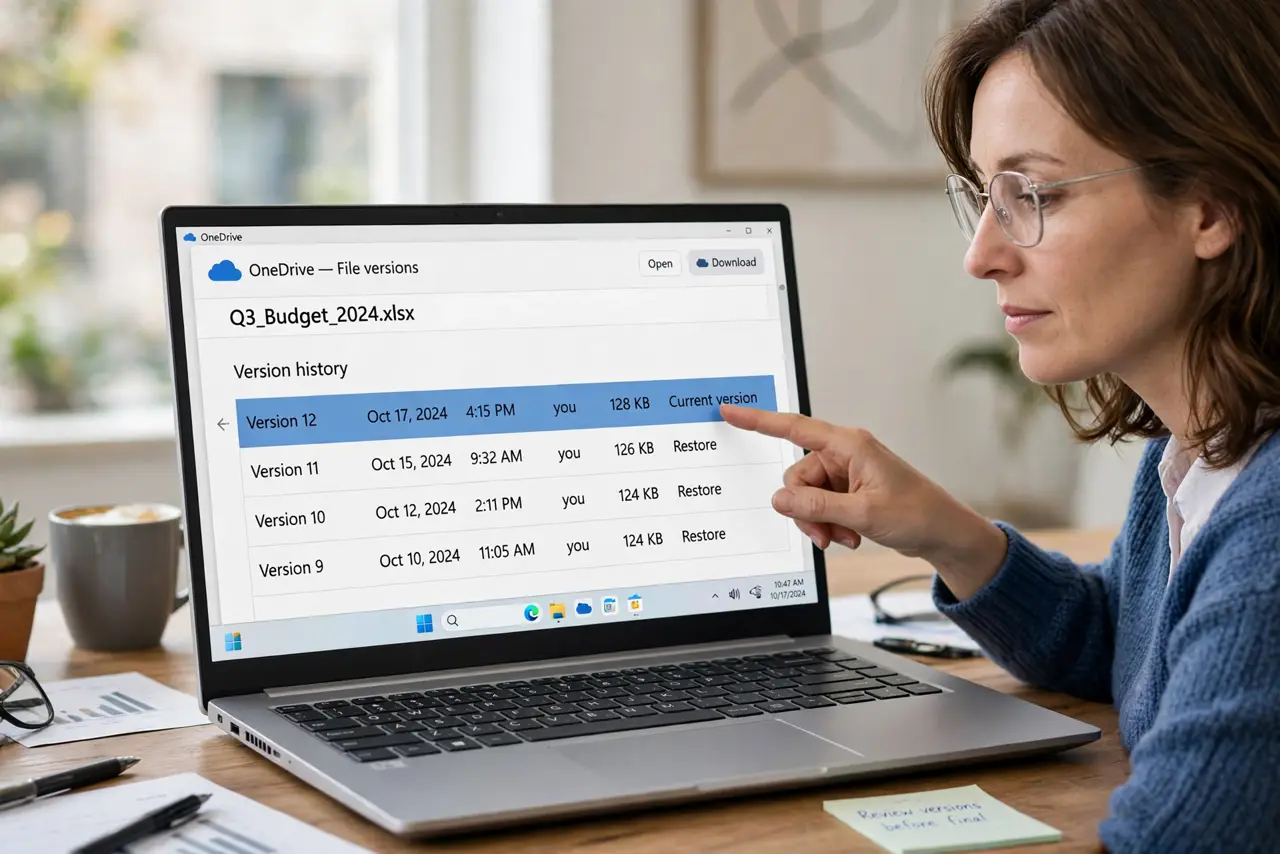
You restore a file from cloud version history, but the version you get back is older than the one you remember. Version history saves snapshots on a schedule, and the newest change may not have become a snapshot yet.
TL;DR / Quick Fix
Quick fix: open the file's version history and look for a newer snapshot you may have missed, since lists are not always in the order you expect. If none exists, check whether the app was offline when you made the newest edits, because unsynced changes never become versions.
Follow these steps
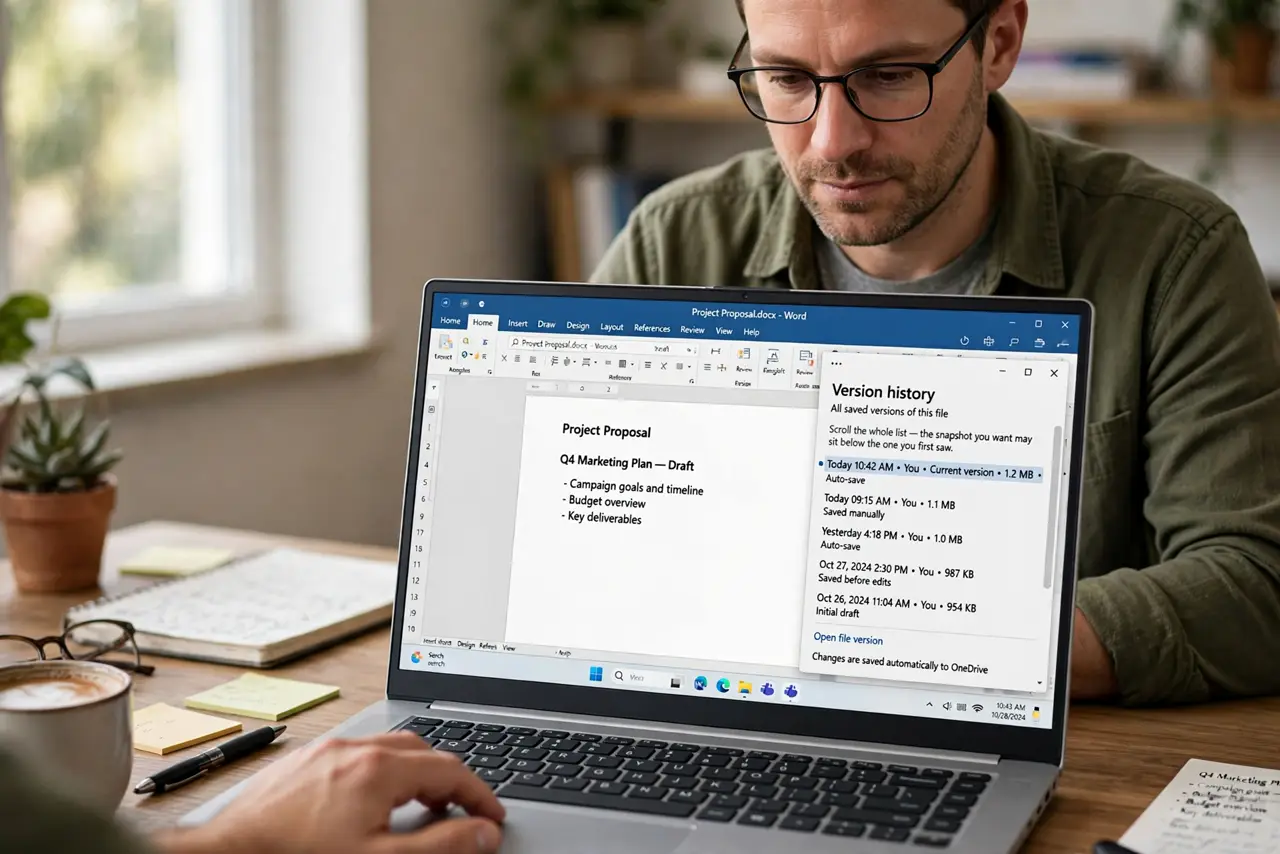
- Open the full version history. Open the file online or in the desktop app and open its version history. Scroll the whole list, because the snapshot you want may sit below the one you first saw, in an order you did not expect.
- Check the dates, not just the order. Read the date and time on each snapshot. A version that looks wrong in the list may simply be named by the time it was saved, and the newest one may not be the top entry.
- Check whether the app was offline. If you edited the file without an internet connection, those edits never reached the cloud. Reconnect the computer, let it sync fully, and check the history again for a newer snapshot.
- Look for the file under another name. A file saved under a slightly different name keeps a separate history. Search your cloud storage for the exact name you used, because the restored file may not be the file you actually edited.
- Check the recycle or trash folder. If the newest version was deleted by mistake, a copy may sit in the cloud recycle bin. Restoring from the bin returns a version that never appears in history.
- Ask a collaborator if the file is shared. Someone else may have restored an old version before you looked. Check with collaborators, then restore the newest snapshot once more and watch it together.
What NOT to do
- Do not restore the first old version you see. Check the whole history list first, since restoring an old snapshot can overwrite the newer one you actually want.
- Do not assume every keystroke becomes a version. Version history saves snapshots, so very recent edits may not have one yet.
- Do not edit the restored old file and keep working. Sync or recreate the newest edits first, or your next sync can create a conflict copy instead of a clean file.
- Do not delete the file to fix its history. Deleting removes the version history entirely, while the history itself usually holds the version you need.
Frequently asked questions
Why is the restored version older than my last edit?
Because the newest edits had not become a snapshot yet, or they were made offline and never synced to the cloud.
Can I see a version made five minutes ago?
Only if the service saved a snapshot then. Very recent changes often appear in history after the next sync or autosave interval.
What if a collaborator restored the old one?
Restore the newest snapshot again and tell your collaborators, so nobody restores the old one a second time.