Contacts Duplicated After Sync? Clean Them Up Fast
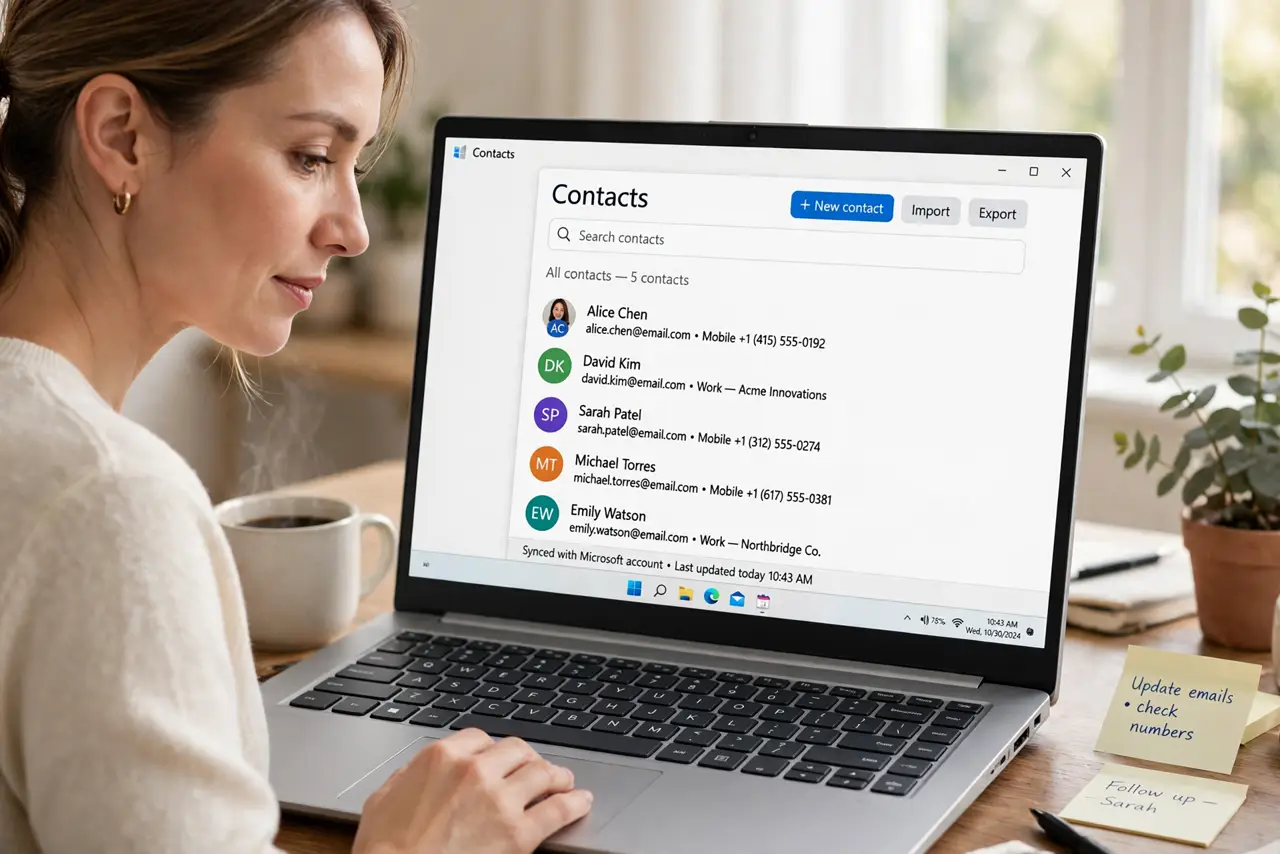
After syncing, every contact appears twice, or three times, and your list is a mess. Two accounts syncing the same contacts is the usual cause, and merging without fixing the source just recreates the duplicates.
TL;DR / Quick Fix
Quick fix: check which accounts sync contacts on this computer and turn off contact sync for the duplicate source. Then merge or delete duplicate entries one account at a time, and sync again to confirm the list stays clean afterwards.
Follow these steps
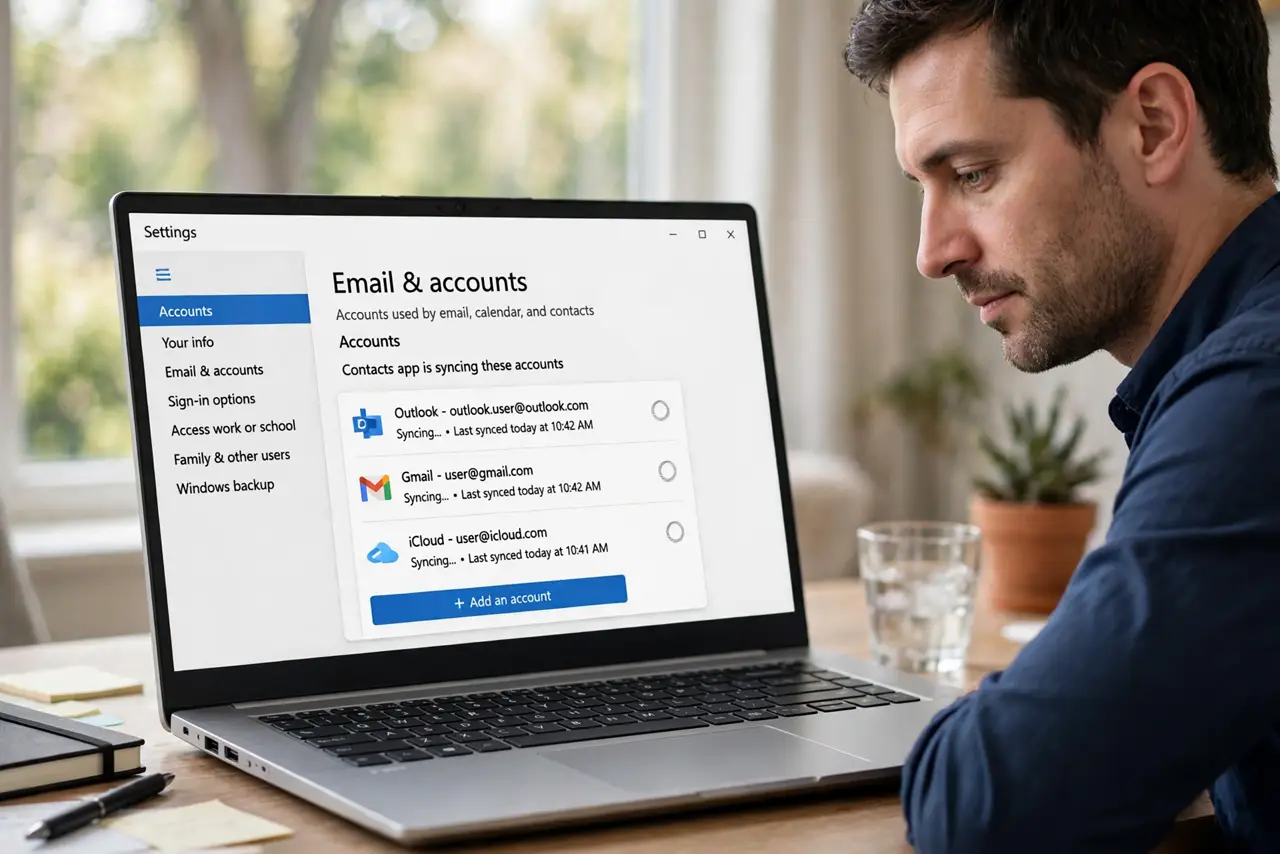
- Find which accounts sync contacts. Open the people or contacts app settings and list every account syncing contacts. Two accounts holding the same people is the most common duplication source.
- Turn off the duplicate source. Turn off contact sync for the account that duplicates the main one, and keep sync on only for the account you want as the source of truth.
- Sync once and recount. Sync the contacts app once and count a known contact. If it now appears once, the source fix worked before you cleaned anything by hand.
- Merge true duplicates. Use the contacts app merge or link option to combine copies of the same person, keeping the entry with the most complete details. Merge, do not just delete, when details differ.
- Delete empty duplicates carefully. Delete only copies that are clearly empty or identical after merging. When in doubt, keep the fuller entry and check it after the next sync.
- Sync again and confirm. Sync once more and check several contacts. A list that stays clean after a second sync proves the duplicate source is gone, not just hidden.
What NOT to do
- Do not delete duplicates before fixing the sync source. Deleting first only clears the way for the next sync to recreate every duplicate.
- Do not merge contacts with different details blindly. Check phone numbers and emails first, or a merge can combine two different people into one entry.
- Do not sync contacts from every account just in case. Each extra sync source is another chance for the same person to appear twice.
- Do not clean the list on two devices at once. Clean one source, sync, and confirm, or the two cleanups can conflict and recreate duplicates.
Frequently asked questions
Why did sync duplicate my contacts?
Two accounts holding the same people both synced to the same list, so each person arrived twice, once per account.
Will deleting duplicates delete them everywhere?
It depends on the account. Delete from the synced account with care, and confirm the main source still holds the contact afterwards.
Should I merge or delete duplicates?
Merge when copies hold different details, so nothing is lost. Delete only copies that are empty or fully identical after merging.