Play PC Videos on TV via DLNA
Your PC holds the movie collection, your TV can play network videos, but the TV insists no media server exists. DLNA is the quiet standard that lets them talk — it just needs the server switched on, both devices on the same network, and the firewall out of the way. Here is the setup that makes the TV see your PC.
TL;DR / Quick Fix
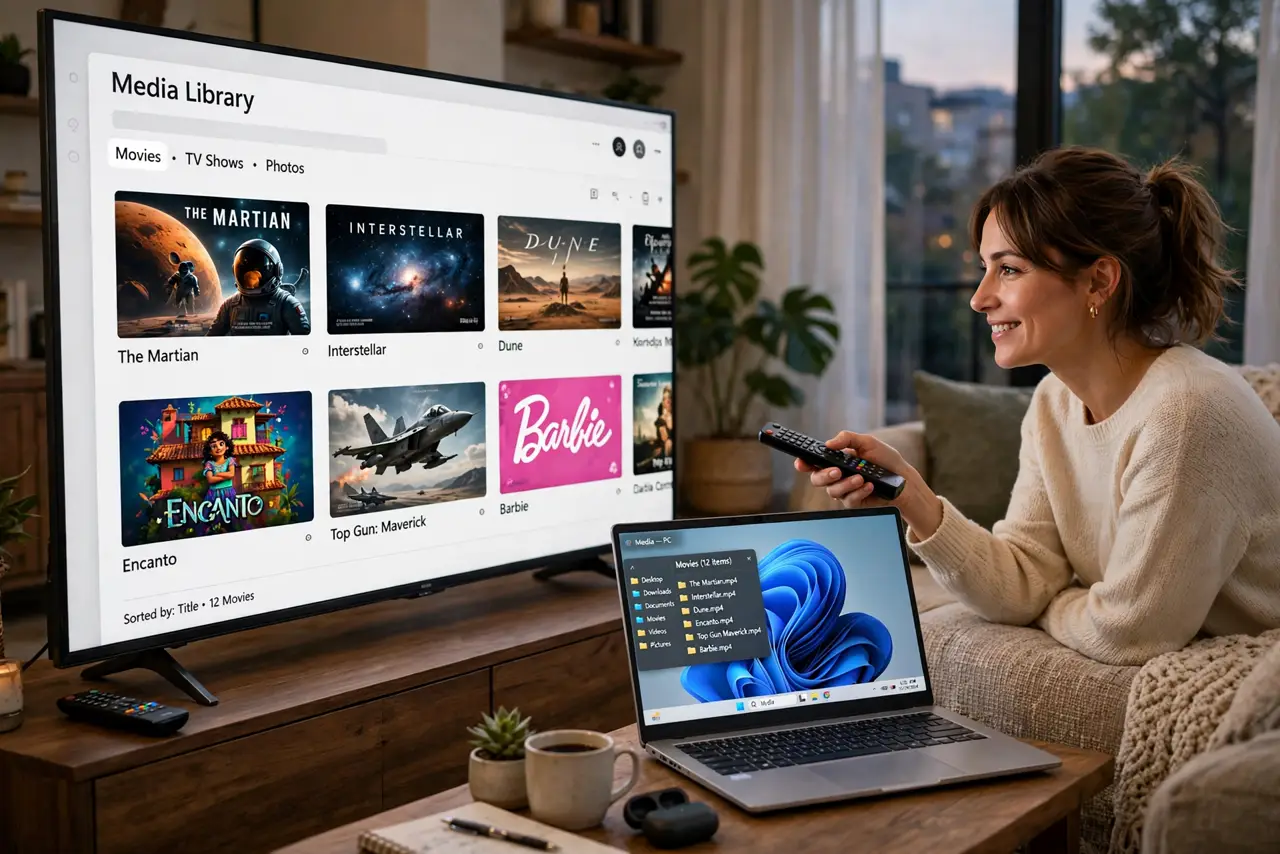
Quick fix: enable media streaming in Windows or install a DLNA server app, with the PC and TV on the same home network. Open the TV's media menu and pick the PC's library. If the TV can't see it, check the PC's firewall and confirm both use the same Wi-Fi.
Follow these steps
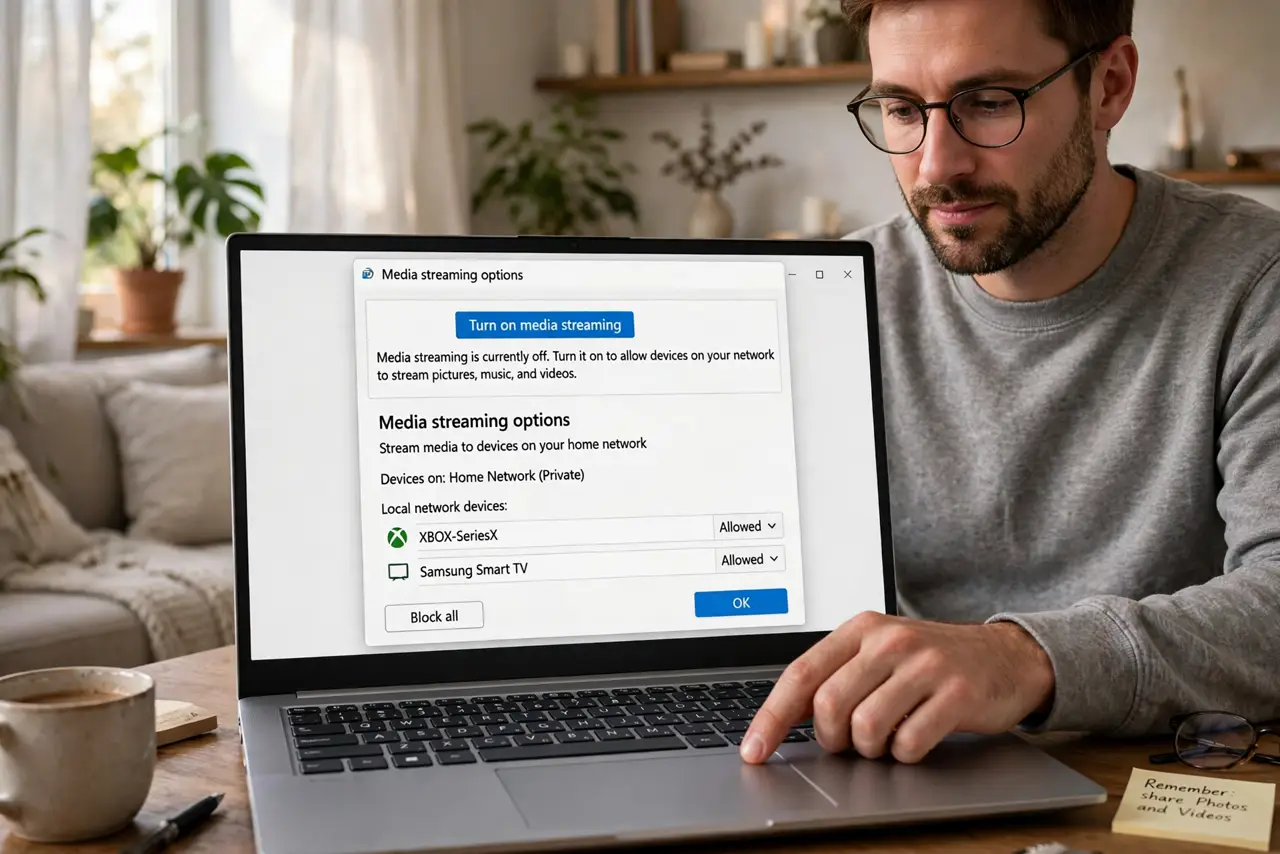
- Turn on media streaming on the PC. In Windows, open the Network and Sharing Center's media streaming options and allow your TV. Or install a free DLNA server app — both do the same job of announcing your video folders to the network.
- Put the PC and TV on the same home network. DLNA discovery does not cross networks. If the PC is on Ethernet and the TV on Wi-Fi, that is fine — as long as both belong to the same router and neither is on a guest network.
- Open the TV's media or source menu. On the TV, look for Sources, Media, or Network — not the HDMI inputs. Your PC's library should appear by the computer's name. Select it to browse folders.
- Share the right folders. In the server settings, add the folders holding your videos. The TV can only browse what the server shares — an empty library usually means no folders were added.
- Check the PC's firewall if the TV sees nothing. Firewalls sometimes block the discovery traffic. Allow the media server app through the firewall, or temporarily test with it off to confirm the diagnosis — then turn it back on with an exception.
- Convert stubborn formats ahead of time. If a video shows up but won't play, the TV doesn't understand the format. Convert it to a common MP4, or use a server that transcodes on the fly.
What NOT to do
- Do not expose your DLNA server to the internet. It is a home-network feature with no login — port-forwarding it invites the whole world in.
- Do not expect subtitles to always work. DLNA subtitle support is spotty; if subtitles matter, check your TV and server combo handles them.
- Do not buy a 'DLNA booster' or extra hardware. Discovery problems are settings problems — new boxes don't fix them.
- Do not forget both devices must share one network. A TV on the guest Wi-Fi will never see a PC on the main network, no matter what you toggle.
Frequently asked questions
Why can't my TV find the DLNA server?
Usually the firewall blocks discovery, or the devices are on different networks. Verify the same network first, then the firewall exception.
Why does video stutter over DLNA?
Weak Wi-Fi to the TV is the usual cause — the same fix as smart TV buffering applies: stronger signal or Ethernet.
Can my phone be the DLNA server?
Yes, several apps turn a phone into a media server. It works, but a PC that stays on is more reliable for a real library.