Do Not Disturb Turns On by Itself? Stop It Fast
Do not disturb switches itself on, and you miss messages until you notice the quiet icon. An automatic rule or a schedule is usually switching it on for you, and the fix is to find that rule and turn it off.
TL;DR / Quick Fix
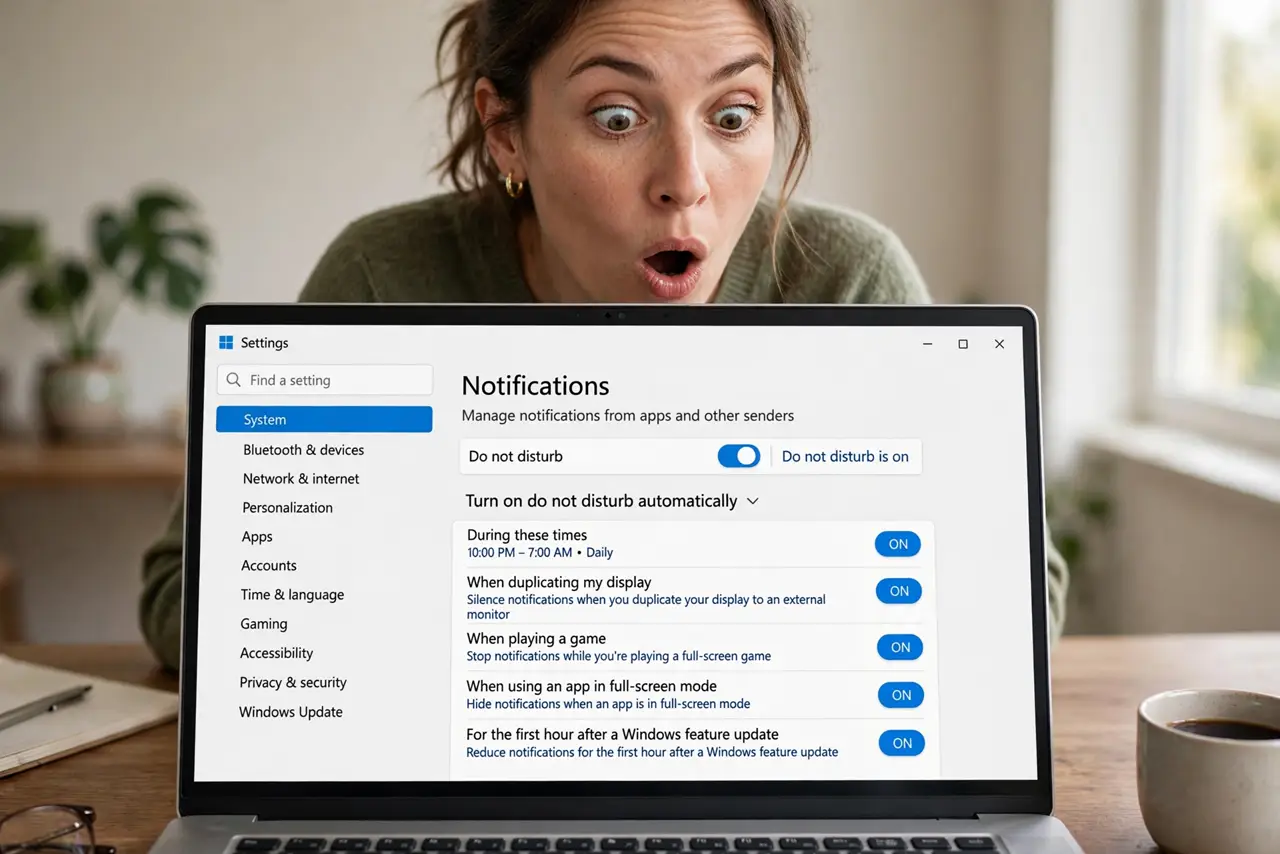
Quick fix: open Settings, then System, then Notifications, and review every automatic Do not disturb rule and schedule. Turn off rules you do not recognize, turn Do not disturb off by hand, and watch for a full day to confirm it stays off.
Follow these steps
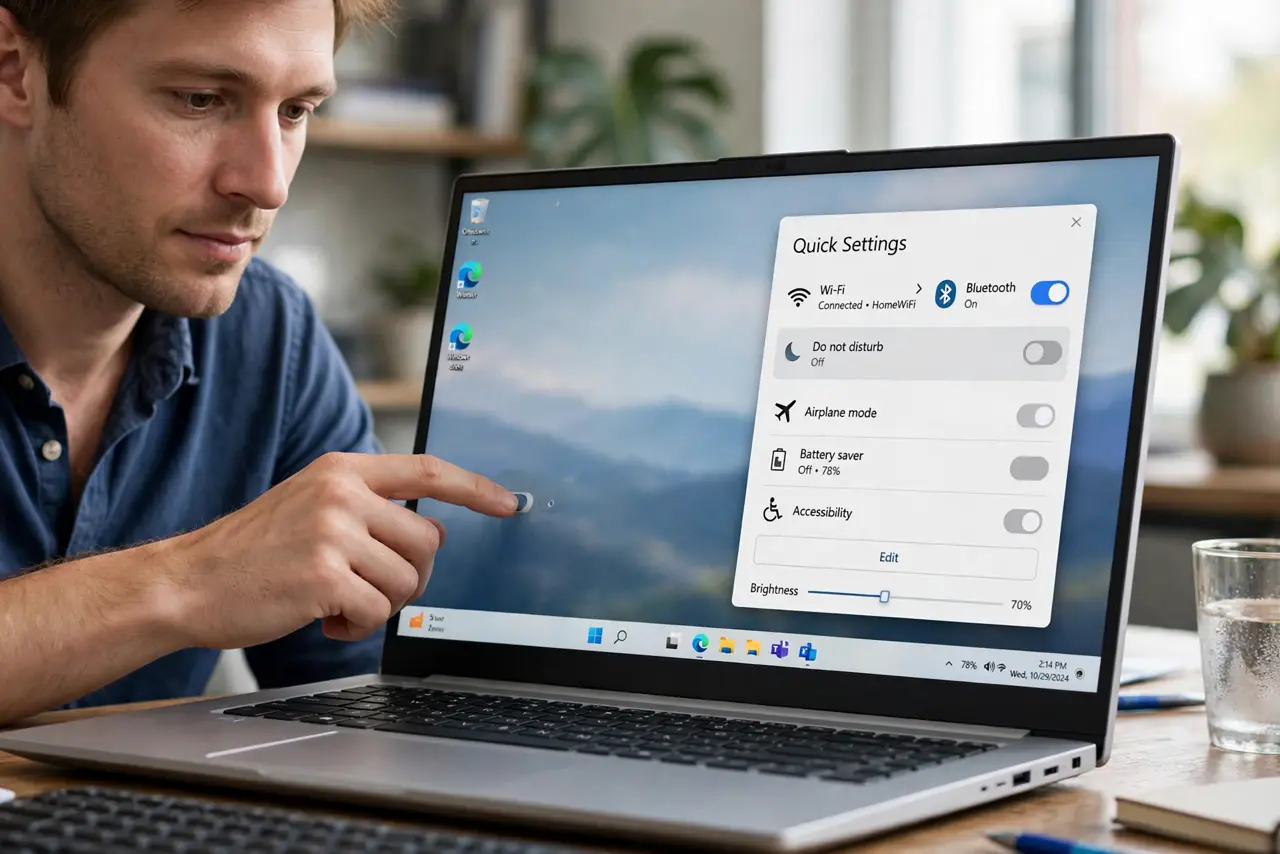
- Turn Do not disturb off by hand. Open Quick Settings and turn Do not disturb off. Note the time, so you can tell whether it switches back on later and what you were doing when it did.
- Open automatic rules. Open Settings, then System, then Notifications, and look at the automatic Do not disturb rules. These rules switch silence on without any action from you.
- Turn off rules you do not need. Turn off rules for presenting, gaming, duplicating the display, or any schedule you do not recognize. Each rule you leave on can switch silence back on.
- Check for a schedule. Look specifically for a time-based schedule. A schedule set months ago can silence evenings or work hours long after you forgot setting it.
- Check linked devices. If a phone or another device shares Focus state with this computer, check its Focus setting too. A linked device turning on Focus can switch this computer as well.
- Watch for a full day. Leave the rules off for a full day of normal use and check Quick Settings periodically. A full day without self-activation proves the culprit rule is gone.
What NOT to do
- Do not keep turning Do not disturb off without checking rules. The manual switch treats the symptom, while the rule keeps switching it back on.
- Do not turn off every notification to stop the mystery. The problem is a single rule, and blanket silence makes missing messages worse, not better.
- Do not assume a schedule you forgot does not exist. Schedules persist quietly, and checking the schedule list is the only way to rule one out.
- Do not ignore linked devices. A phone Focus state can re-silence the computer even after you fixed every rule on the computer itself.
Frequently asked questions
Why does Do not disturb turn on alone?
An automatic rule or schedule is switching it on, often tied to presenting, gaming, duplicating a display, or a set time of day.
Can my phone turn on computer Do not disturb?
Yes, if Focus state is shared between devices. Check the phone Focus setting if computer rules alone do not explain it.
How do I know it is fixed?
Watch for a full day. If Do not disturb stays off through presenting, gaming, and your usual schedule, the culprit rule is gone.