Email Link Opens the Wrong Browser? Fix It
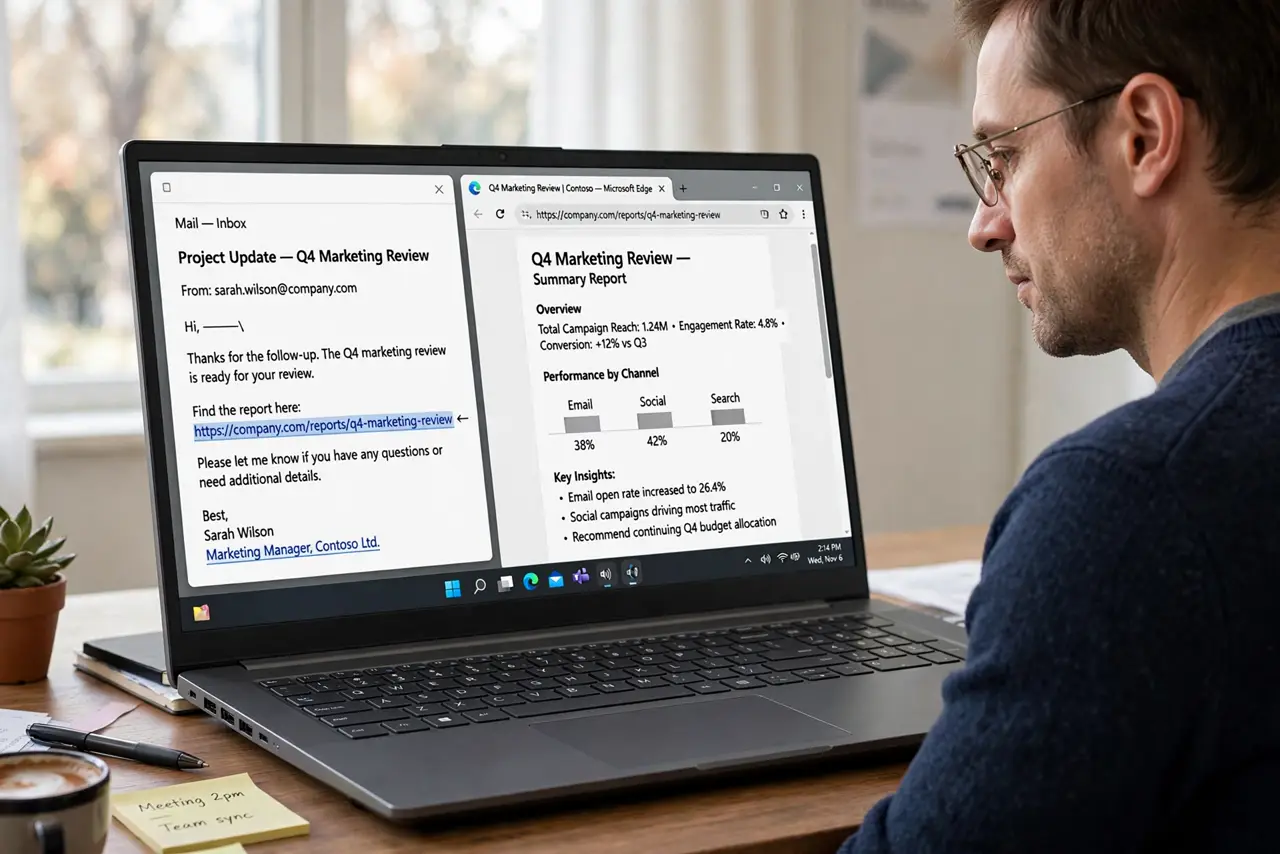
Email links follow two settings: the system default browser, and sometimes the mail app's own browser choice. When they disagree, links open somewhere unexpected, and fixing only one setting leaves the problem in place.
TL;DR / Quick Fix
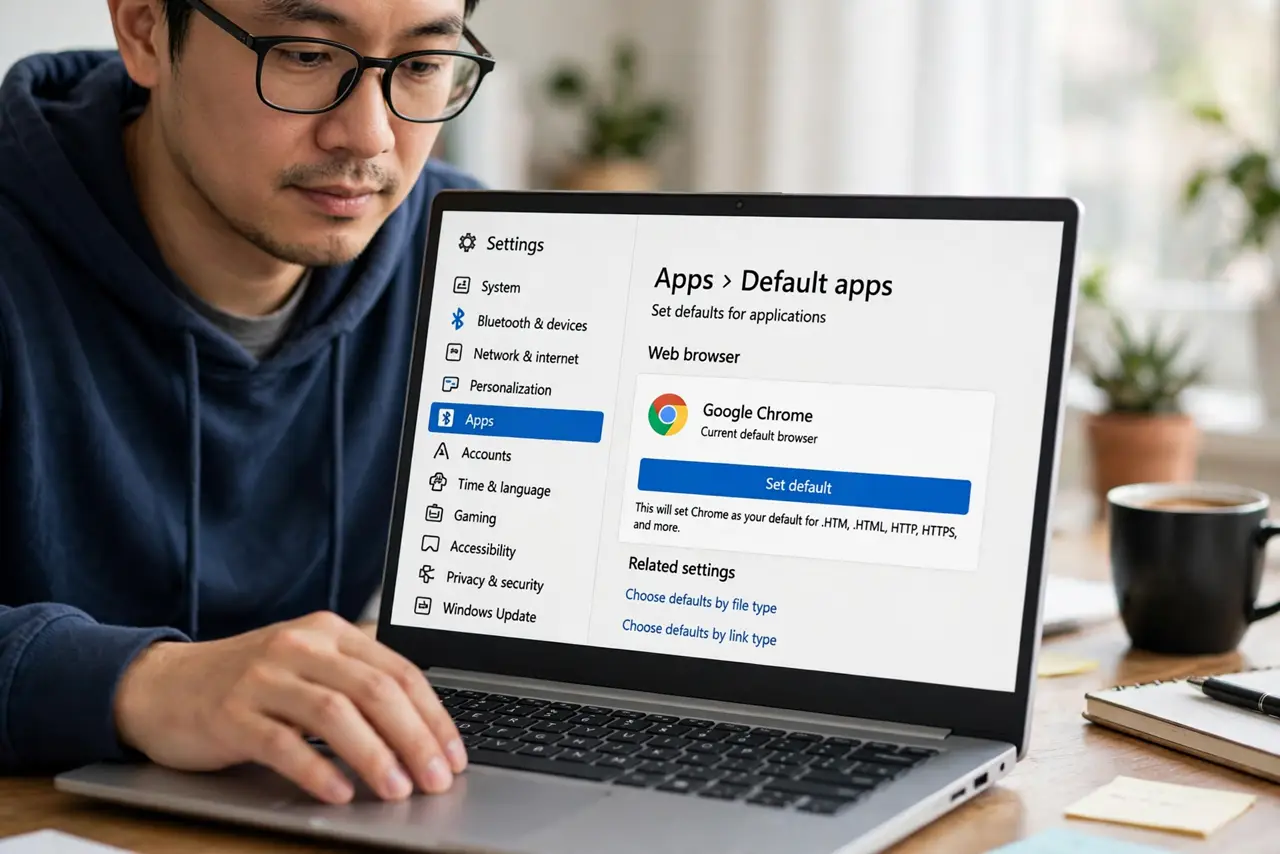
Quick fix: set your preferred browser as the system default, then open the mail app settings and set its link handling to the same browser. Then click a test link in an email to confirm it opens where you expect.
Follow these steps
- Set the system default browser. Open system settings, go to default apps, and set your preferred browser as the default for web links. This is the setting most programs follow.
- Check the mail app browser setting. Open the mail app settings and look for an option that opens links in a built-in browser or a specific browser. Set it to your preferred browser, or to the system default if that option exists.
- Test with a safe link. Click a link in a newsletter or a message you trust, and watch which browser opens. A safe test link confirms the fix without risking an unknown destination.
- Check the browser that keeps opening. If the wrong browser still opens, open that browser's settings and see whether it asks to be the default. Decline that prompt, so it stops reclaiming the default.
- Restart the mail app. Close the mail app fully and reopen it. Some mail apps only apply a new link setting after a restart.
- Retest after any browser update. After a browser update, click a test link again. Updates sometimes ask to restore a default, and catching that early keeps links opening correctly.
What NOT to do
- Do not set a browser as default from a pop-up without thinking. Choose the browser you actually use every day.
- Do not allow every browser to claim the default. Only one browser can be the default, and prompts from others cause the flip-flopping.
- Do not click links in unexpected messages to test this. Use a newsletter or a message you already trust.
- Do not edit system file associations by hand unless you know the change. The default apps setting handles this safely.
Frequently asked questions
Why do links open in a browser I never chose?
That browser may have set itself as the default during an update, or the mail app may use its own browser setting.
Does changing the default affect bookmarks?
No. Bookmarks stay in each browser. Changing the default only changes which browser opens new links.
What if the mail app has no browser setting?
Then the system default controls links, so setting the default browser is the whole fix.