Email Signature Image Missing? Fix It
A signature image usually goes missing because the image was linked from a location that moved, or the mail app blocked it. Reinserting the image as a hosted file, then testing a fresh message, fixes most cases.
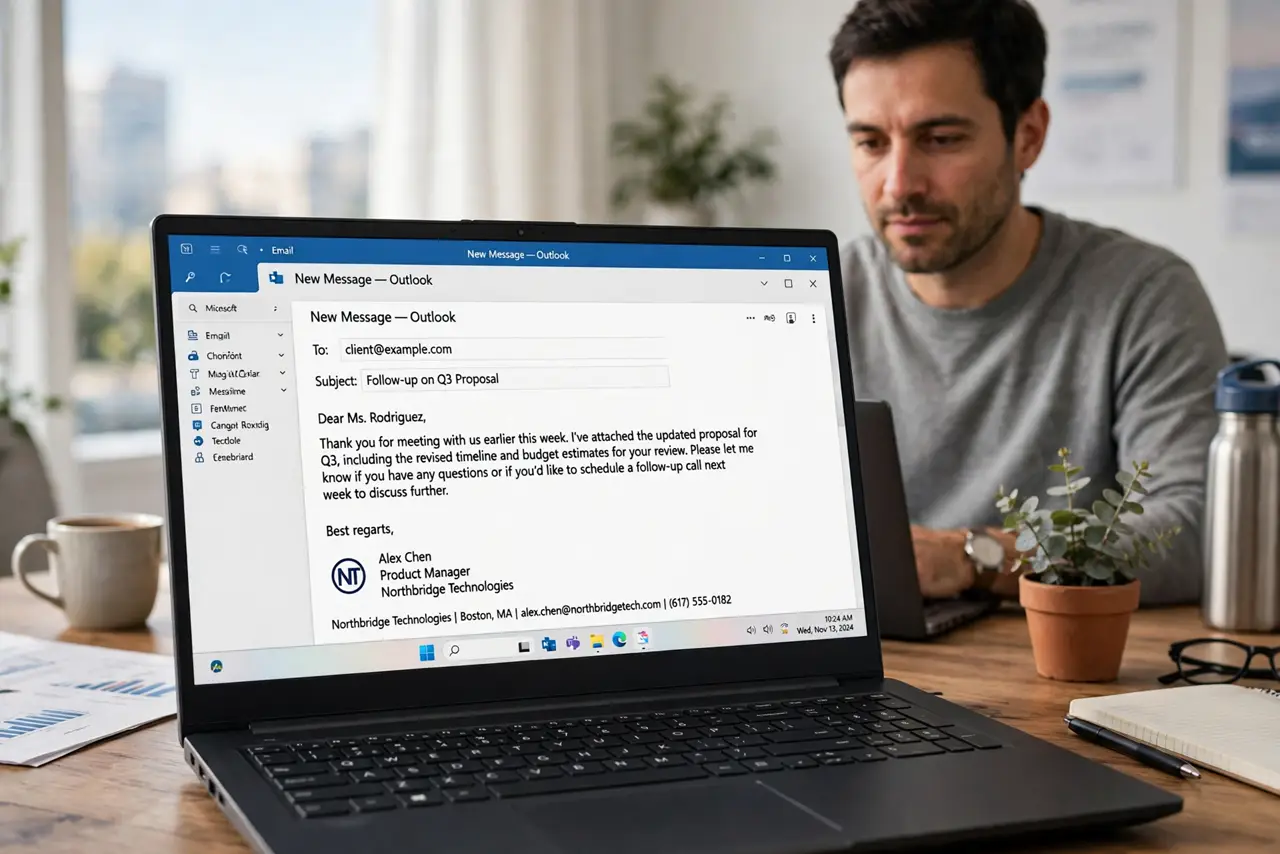
TL;DR / Quick Fix
Quick fix: open the signature settings, remove the broken image, and insert it again from a stable hosted location. Then send yourself a test message and check the image appears before using the signature again. Last, check the image on the recipient side to confirm it.
Follow these steps
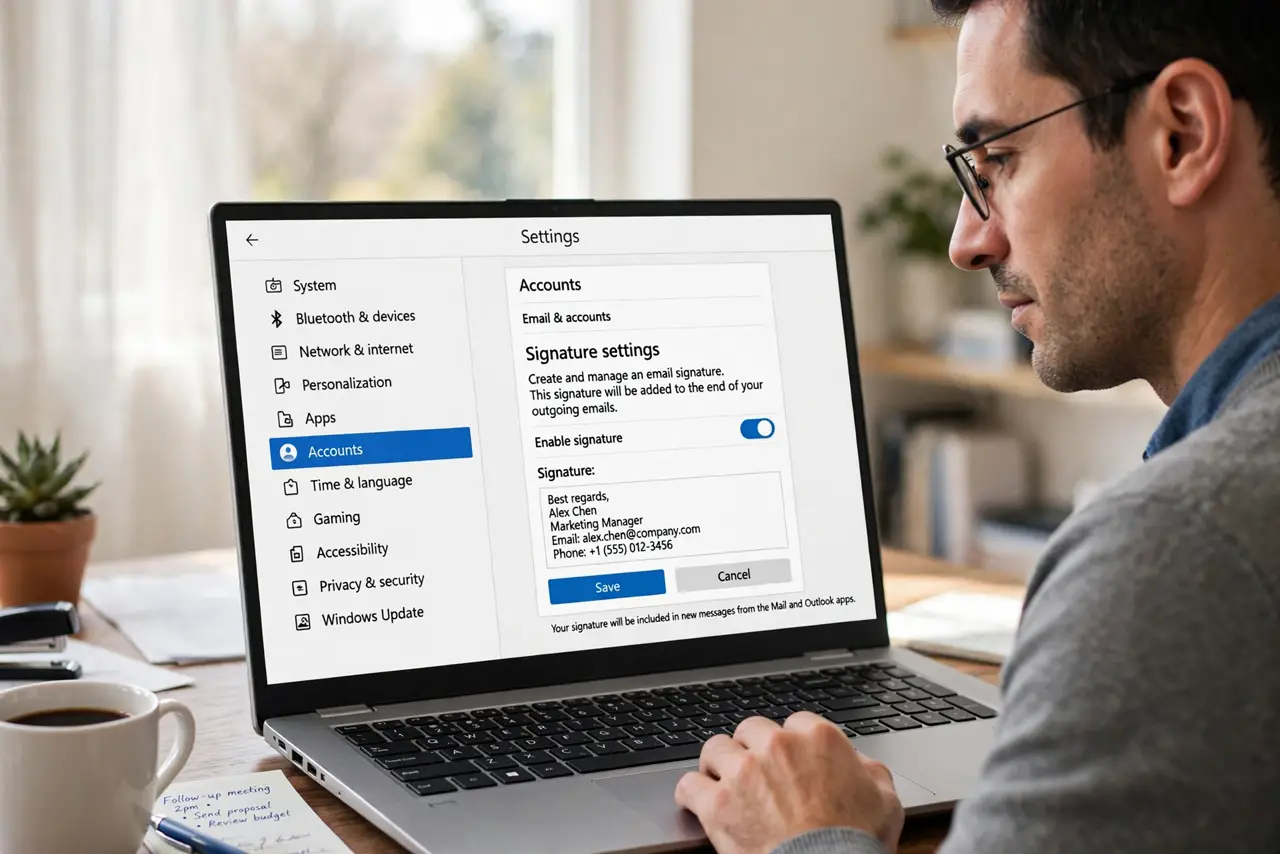
- Open the signature settings. Open mail settings, find Signatures, and open the signature that lost its image. The broken image usually shows as a blank box or a small icon.
- Remove the broken image. Delete the broken image placeholder from the signature. Starting clean avoids keeping a link that points to a moved or deleted file.
- Insert the image from a stable location. Upload the image to a stable hosted location you control, then insert it from that address. An image pasted from a temporary folder often breaks when the folder moves.
- Keep the image small. Use a modest image size, both in dimensions and file size. A huge signature image loads slowly and can be blocked or clipped by the recipient's mail app.
- Send yourself a test message. Compose a new message with the signature and send it to yourself. Check the image on both a computer and a phone before using the signature for real mail.
- Check the image on the recipient side. Ask a colleague to confirm the image appears in a message from you. Your own view can look fine while the recipient sees a blank box.
What NOT to do
- Do not attach the signature image as a file. An attachment is not a signature image, and it annoys recipients.
- Do not link the image from your own computer folder. That location does not exist for the recipient, so the image breaks.
- Do not use a huge logo in a signature. A small, clear image is professional and loads reliably.
- Do not skip the test message. A signature you never tested is how a broken image reaches clients.
Frequently asked questions
Why did my signature image disappear suddenly?
The hosted file may have moved or been deleted, or the mail app may have blocked the image after a settings change.
Does the recipient need to allow images?
Yes, if their mail app blocks images. Even a correct signature can appear blank until they allow images from you.
Is text-only signature safer?
Yes. A text signature never breaks, and it is a good fallback if images keep failing.