File Explorer Keeps Crashing? Fix It
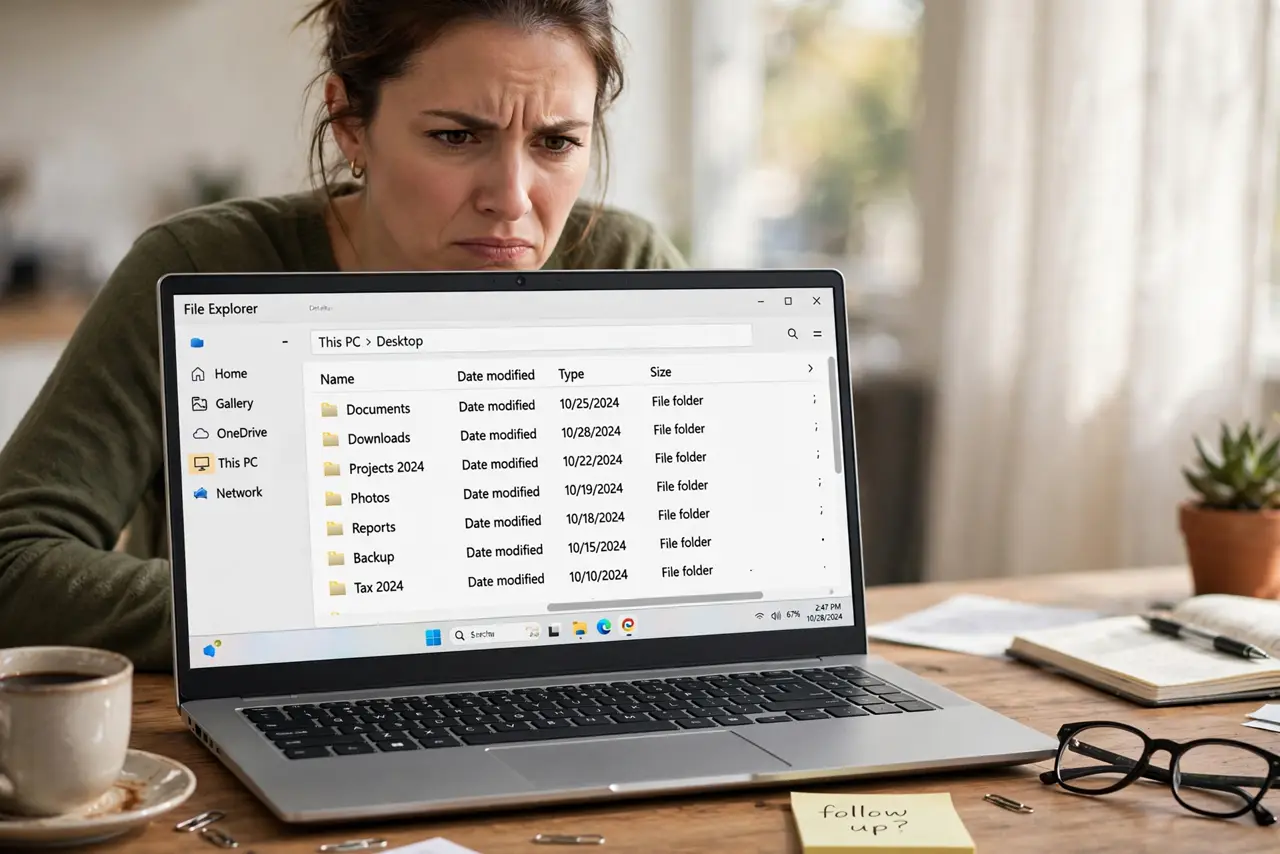
File Explorer crashing every time you open a folder is disruptive, but your files are usually still safe. The cause is often a damaged quick access entry, a problem folder, or a stuck process, and you can isolate it step by step.
TL;DR / Quick Fix
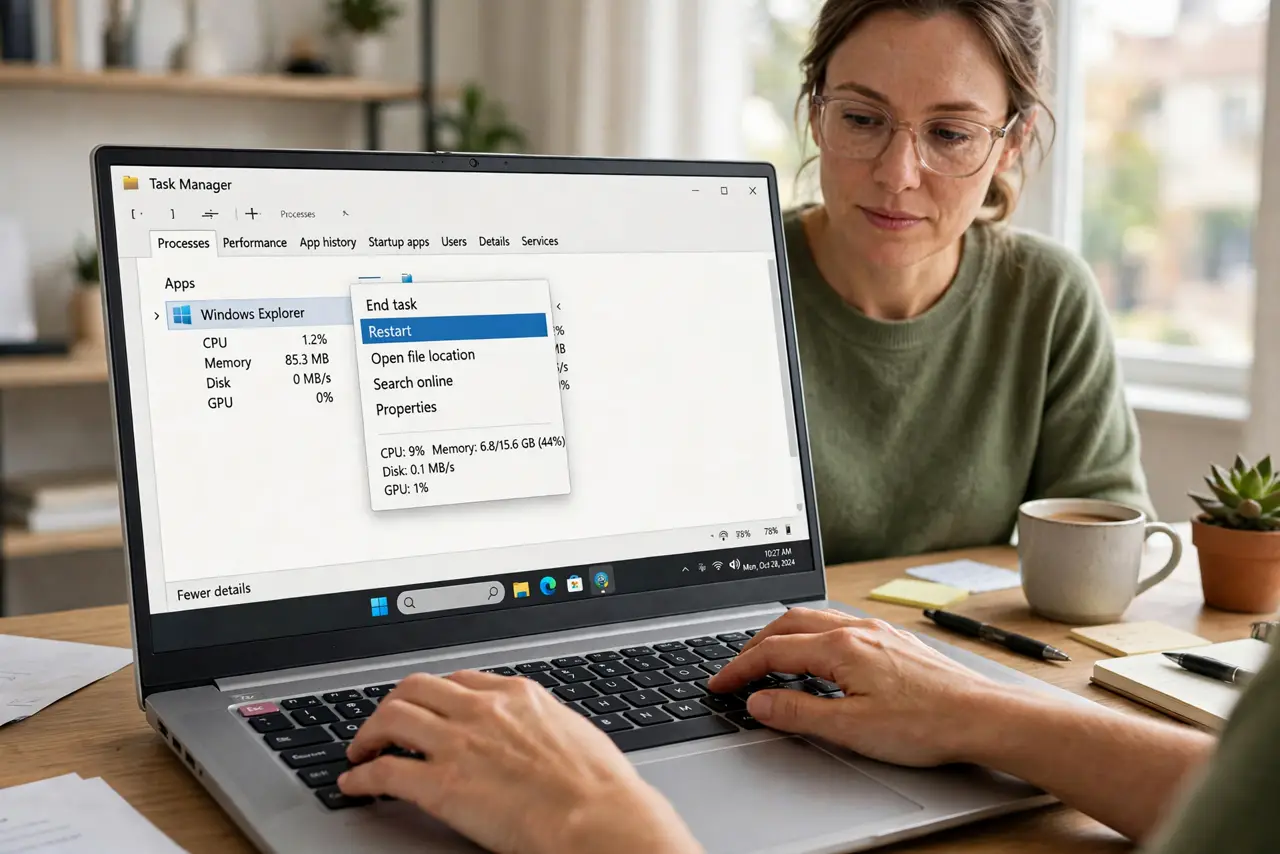
Quick fix: restart Windows Explorer from Task Manager, then open a plain folder like Documents. If it crashes again, clear File Explorer history in Folder Options. If one folder always triggers it, avoid that folder until you find the damaged file inside.
Follow these steps
- Restart Windows Explorer. Press Ctrl, Shift, and Esc, find Windows Explorer in Task Manager, right-click it, and choose Restart. Then open a folder and see whether the crash repeats.
- Open a plain folder first. Open Documents or Downloads instead of a folder full of large files. If plain folders work, the problem is tied to a specific folder, not to Explorer itself.
- Clear File Explorer history. Open Folder Options, and on the General tab choose Clear next to File Explorer history. This removes damaged quick access entries that can crash Explorer on open.
- Change the opening folder. In Folder Options, set File Explorer to open to This PC instead of Quick access. If Quick access was the trigger, Explorer will now open without loading it.
- Find the problem folder by halves. If one folder crashes Explorer, move half its files to a new folder and test again. Repeat with the crashing half until you find the file that triggers the crash.
- Run the system file check. Open Terminal as administrator, run the system file checker, and restart. This repairs damaged system files that can make Explorer unstable.
What NOT to do
- Do not delete files at random from the crashing folder. You may delete the only copy of something important before you know which file is the trigger.
- Do not empty the whole drive to fix Explorer. A crashing window does not mean the drive is full or failing, and deleting files will not fix it.
- Do not install a replacement file manager from a pop-up ad. It adds risk and does not repair the built-in Explorer problem.
- Do not keep reopening the same crashing folder. Each crash can interrupt a copy or move in progress, so isolate the folder first.
Frequently asked questions
Are my files gone when Explorer crashes?
No. A crash closes the window, not the files. Open a plain folder and check that your files are still listed there.
Why does only one folder crash Explorer?
That folder may hold a damaged preview, a very large file, or a file type Explorer struggles to show. Isolating it by halves finds the trigger.
Should I clear history often?
Only when Explorer misbehaves. Clearing history is a repair step, not a daily habit, and it removes your quick access shortcuts.