How to Free Up Space on Windows Without Deleting Anything Important
When Windows says your drive is almost full, everything slows down and updates can fail. You do not need to delete your photos or documents to fix it. Most of the space is usually taken up by temporary files, old downloads, and a few surprisingly large files you forgot about.
TL;DR / Quick Fix
Quick fix: Turn on Storage Sense. Clear temporary files by hand. Check what is actually using the space. Find your largest files. Uninstall apps you no longer use. Move what you want to keep, then delete the copy. Follow these steps in order, then check the result below.
Follow these steps
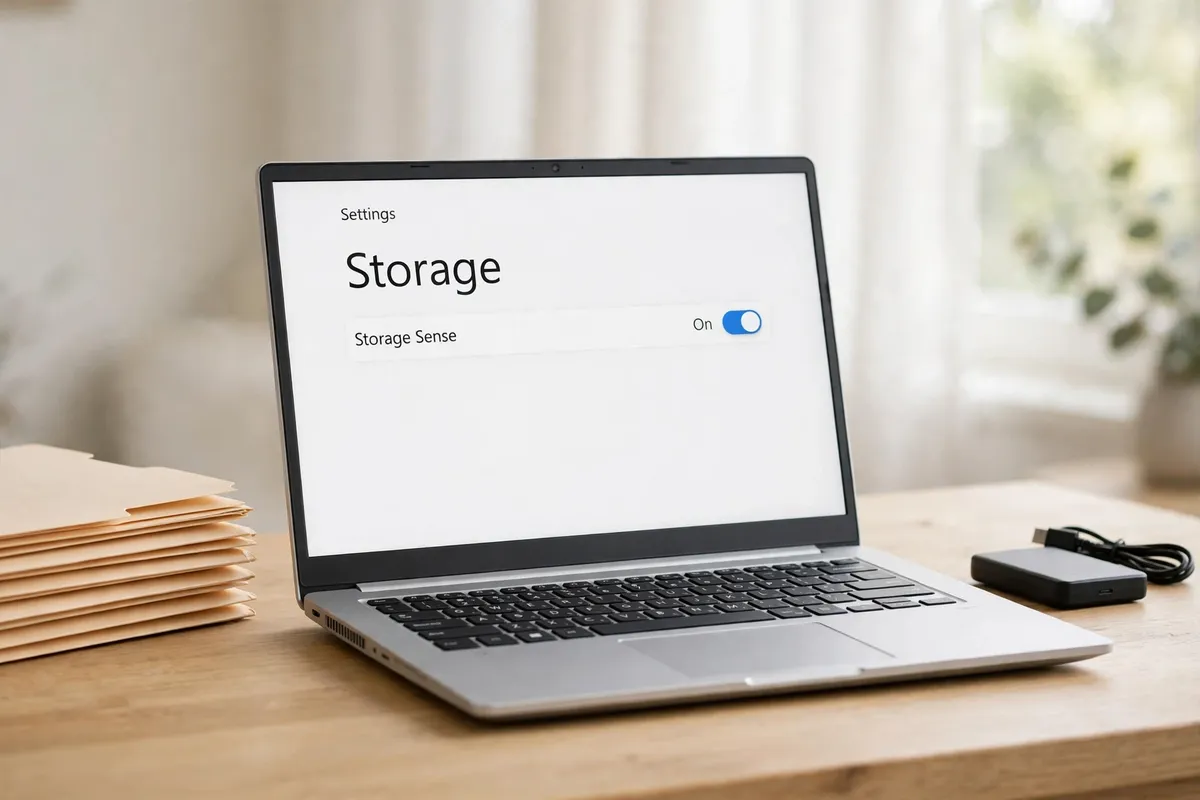
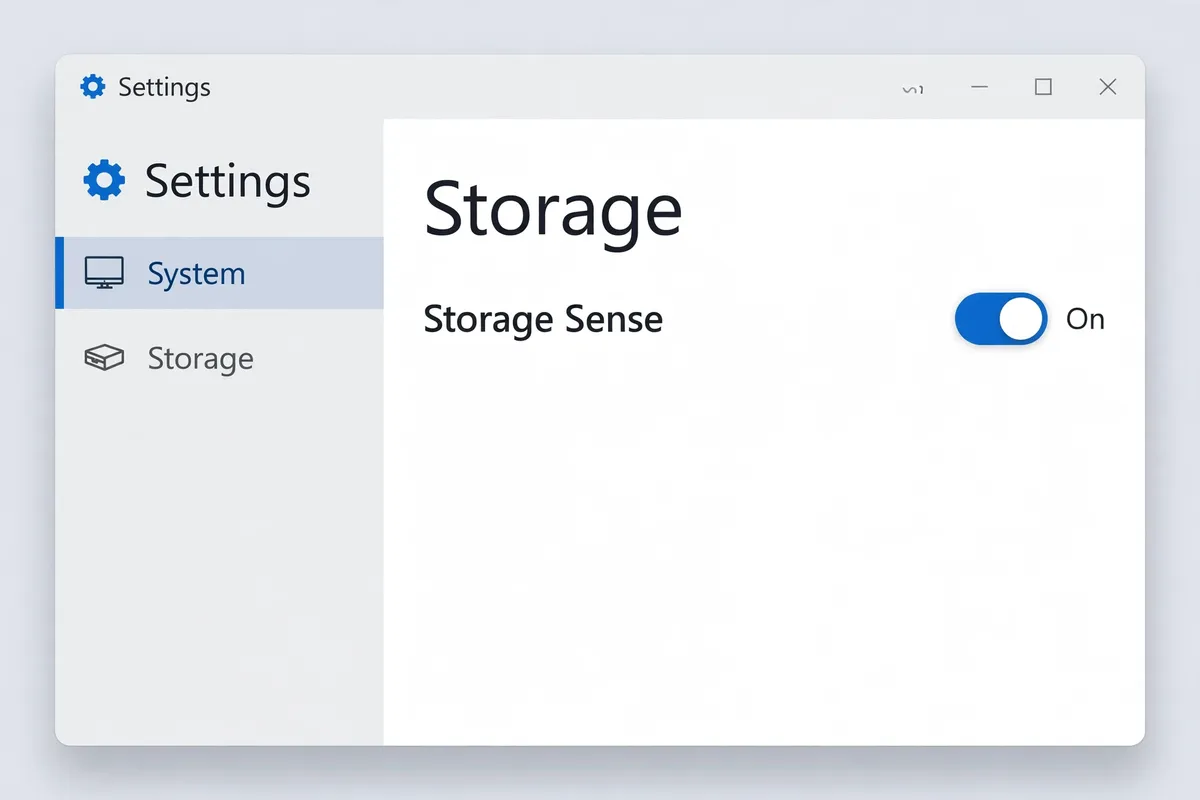
- Turn on Storage Sense. Open Settings, then System, then Storage, and turn on Storage Sense. It automatically clears temporary files and empties the Recycle Bin on a schedule you choose, so the drive does not quietly fill up again.
- Clear temporary files by hand. In the same Storage screen, open Temporary files, review what is listed, and remove items such as temporary files and the Downloads folder cleanup option only if you have checked what is in Downloads first. Leave anything you do not recognize alone.
- Check what is actually using the space. In Storage, look at the breakdown by category, such as Apps, Documents, and Temporary files. This tells you where to look instead of guessing, and it usually points to one or two categories doing most of the damage.
- Find your largest files. Open File Explorer, search in a folder, and sort by size, starting with Downloads, Videos, and Documents. A handful of old installers, videos, or duplicate downloads often frees more space than deleting hundreds of small files.
- Uninstall apps you no longer use. Open Settings, then Apps, then Installed apps, sort by size, and remove programs you recognize and no longer need. Uninstalling properly is safer than deleting program folders by hand.
- Move what you want to keep, then delete the copy. If photos or videos are the problem, copy them to an external drive or a cloud folder first, check that the copy opens, and only then delete the originals from the computer. Never delete the only copy of anything.
What NOT to do
- Delete files from the Windows folder or System folders. Windows needs those files, and deleting them can stop the computer from starting.
- Delete everything in Downloads without looking. Installers you still need, and files you saved there by accident, live in that folder.
- Install a cleaner that promises to free gigabytes with one click. Many of these remove useful files and install extra software you did not ask for.
- Empty the Recycle Bin before checking it. A file you deleted by mistake can only be recovered while it is still there.
Freeing space is mostly about clearing what Windows no longer needs and moving what you want to keep somewhere safe. If the drive fills up again quickly, turn Storage Sense on and repeat the large-file check every few months.
Frequently asked questions
What is the quickest fix in this guide?
Turn on Storage Sense.
What should I avoid doing?
Delete files from the Windows folder or System folders.
What do I check after I finish?
Move what you want to keep, then delete the copy.