Headphones Not Detected? Fix Them
When Windows does not detect headphones, sound keeps coming from the speakers or nowhere at all. The cause is often the wrong output device, a loose connection, or a pairing problem, and each is quick to rule out.
TL;DR / Quick Fix
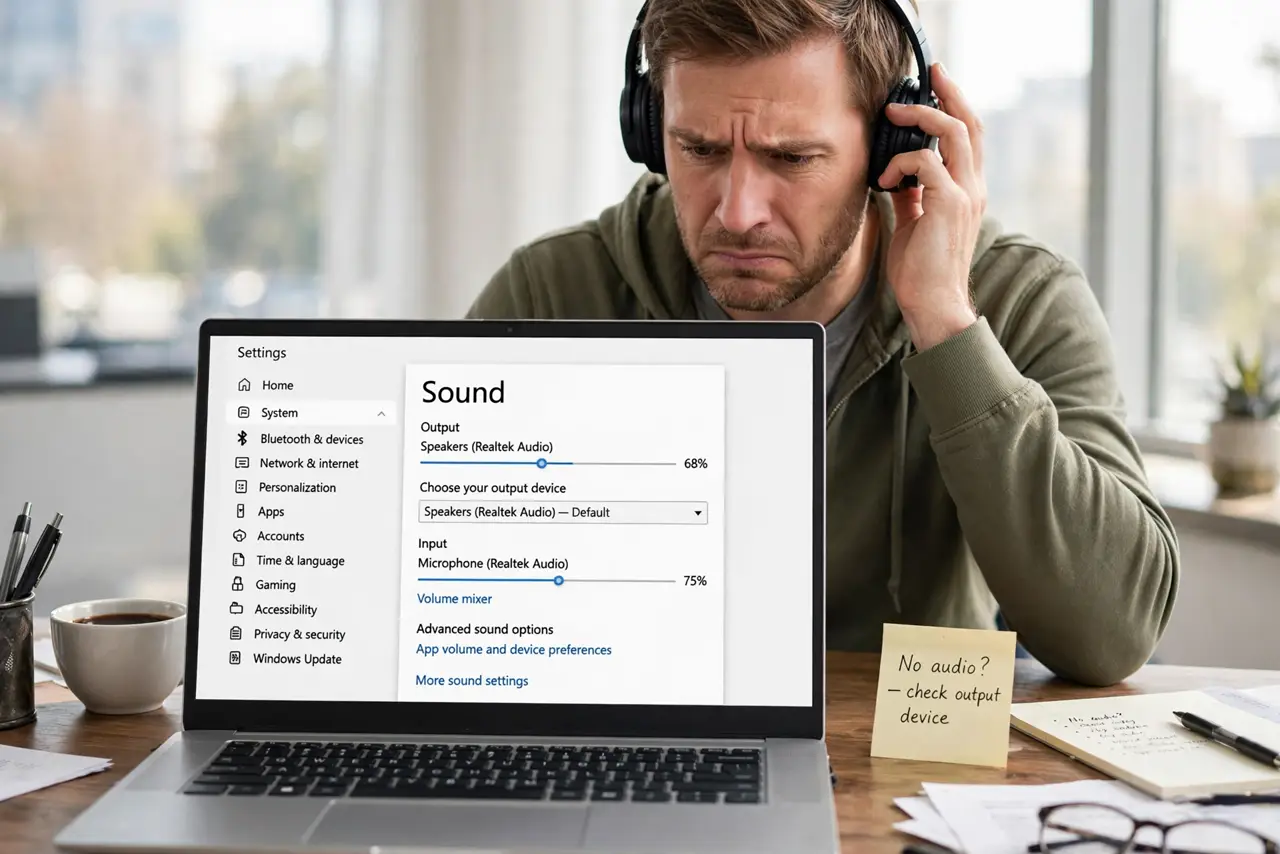
Quick fix: unplug the headphones, plug them back in firmly, then open Settings, then System, then Sound, and pick the headphones as the output device. Play a test sound. If Bluetooth headphones fail, remove them once and pair them again close to the computer.
Follow these steps
- Reseat the connection firmly. Unplug wired headphones and plug them back in until fully seated. For Bluetooth headphones, make sure they are charged, on, and in pairing mode.
- Pick the headphones as output. Open Settings, then System, then Sound, and choose the headphones under Output. Windows sometimes keeps the speakers selected even after you plug headphones in.
- Test with one simple sound. Play a system sound or a short video. If that works, the headphones are detected, and the problem is a single app using the wrong output.
- Check the app output setting. In the app that has no sound, check its own audio output setting. Some apps remember a different device, even when Windows picks the headphones.
- Remove and re-pair Bluetooth headphones. In Settings, then Bluetooth and devices, remove the headphones, then pair them again close to the computer. Keep other Bluetooth devices off during pairing if you can.
- Try the headphones on another device. Plug or pair the headphones with a phone. If they work there, the computer has the problem. If they fail everywhere, the headphones are the cause.
What NOT to do
- Do not turn the volume to maximum to test detection. A sudden loud sound can hurt your ears if the headphones connect mid-test, so keep volume low.
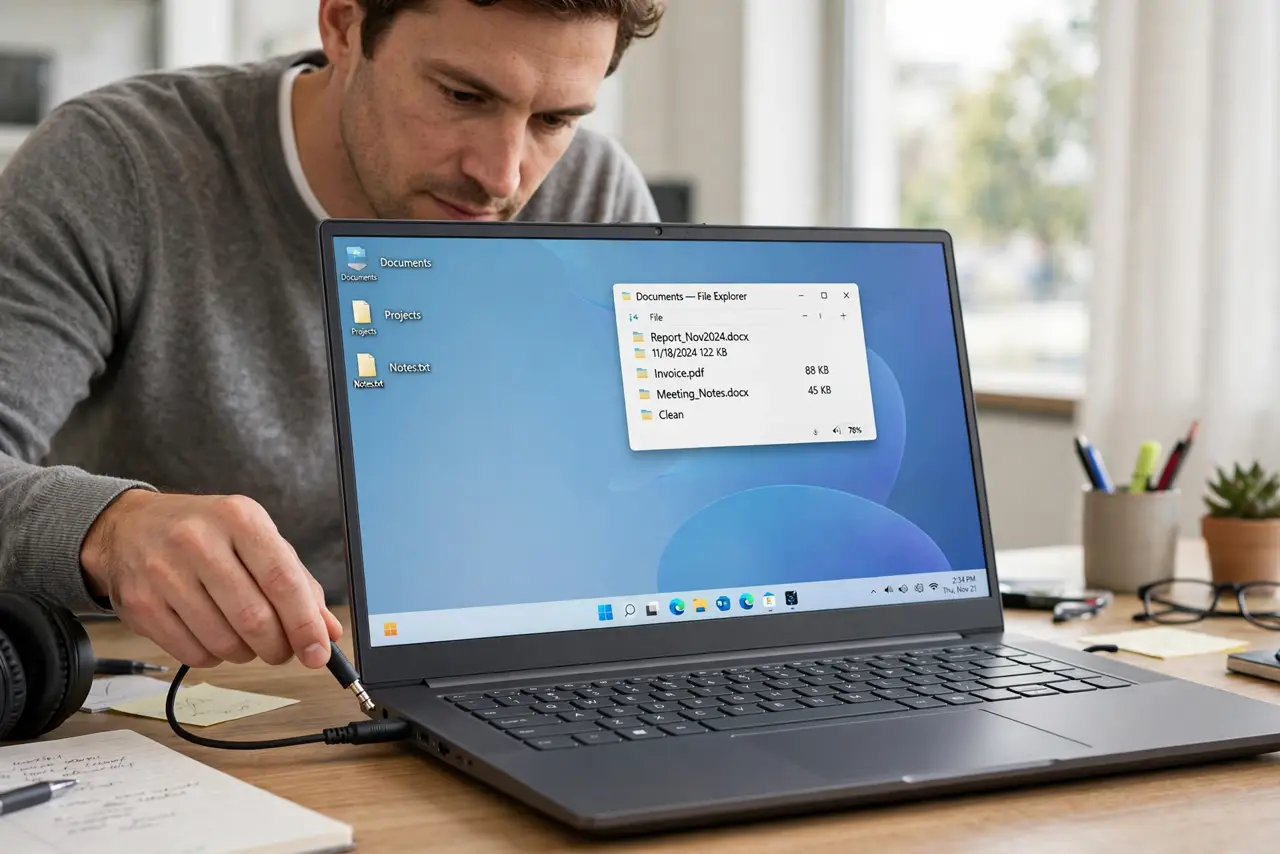
- Do not force a headphone plug into the wrong jack. A microphone jack looks similar, and forcing it can damage the port.
- Do not buy a new headset before testing the old one on another device. A wrong output setting is free to fix, and a new purchase will not fix it.
- Do not update sound drivers as a first step. Check the connection and the output device first, because drivers are rarely the cause of a simple detection failure.
Frequently asked questions
Why do speakers play when headphones are plugged in?
Windows kept the speakers as the output device. Pick the headphones in Sound settings, and check the app output too.
Bluetooth headphones pair but give no sound. Why?
They may be paired for calls only, or another device may hold the connection. Remove them, pair again, and disconnect them from the other device.
Do I need a driver for wired headphones?
Usually no. Wired headphones work through the standard sound device, so check the jack and the output setting first.