Guest Network on 2.4 GHz?
Your router can broadcast a separate guest network so visitors get internet without touching your main Wi-Fi — and many routers put that guest network on the 2.4 GHz band only. That is usually fine for phones browsing the web, but it surprises people when a guest's laptop crawls or a smart device will not connect. Here is how the guest band works and when to change it.
TL;DR / Quick Fix
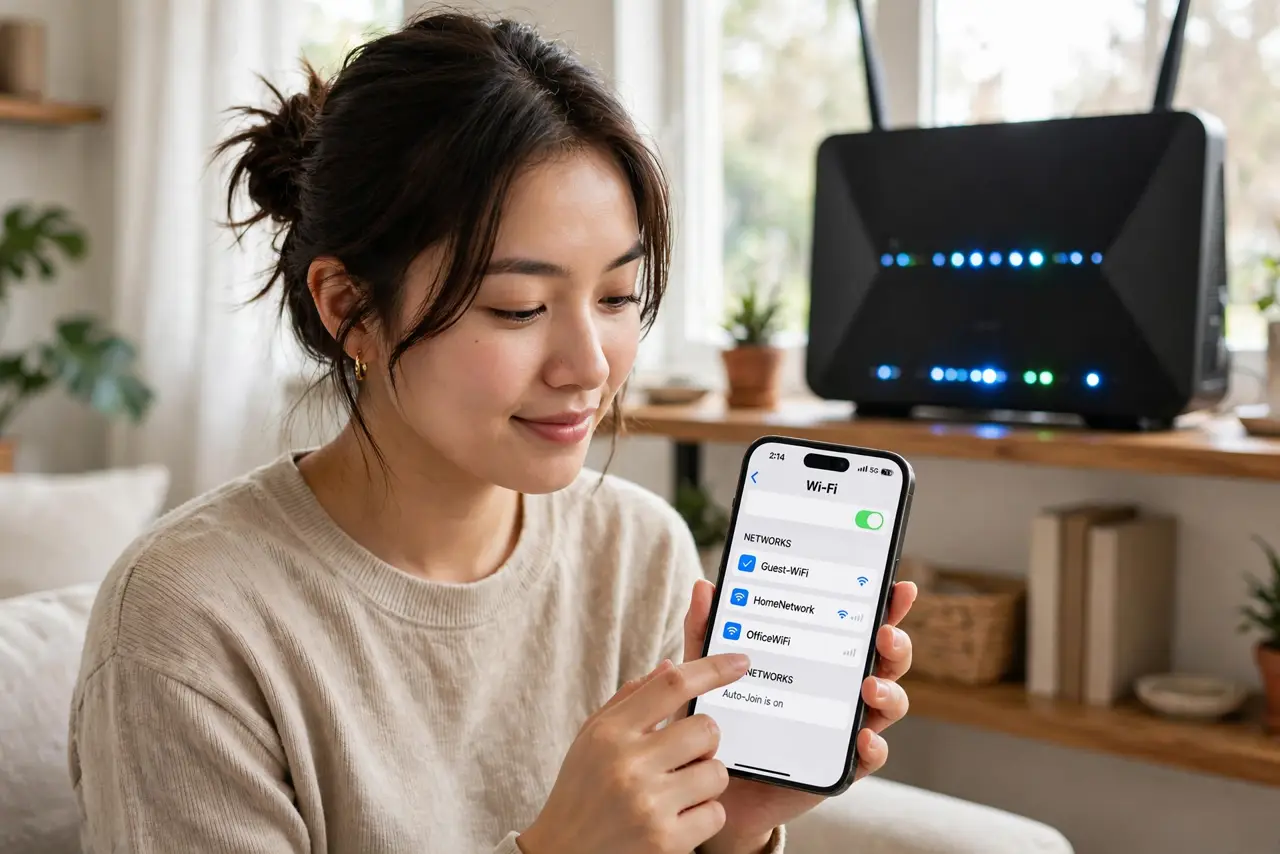
Quick fix: a guest network on 2.4 GHz is normal — that band reaches farther through walls, which suits visitors. It is slower than 5 GHz but plenty for browsing and video calls. If guests need real speed, enable the guest network on both bands in the router settings.
Follow these steps
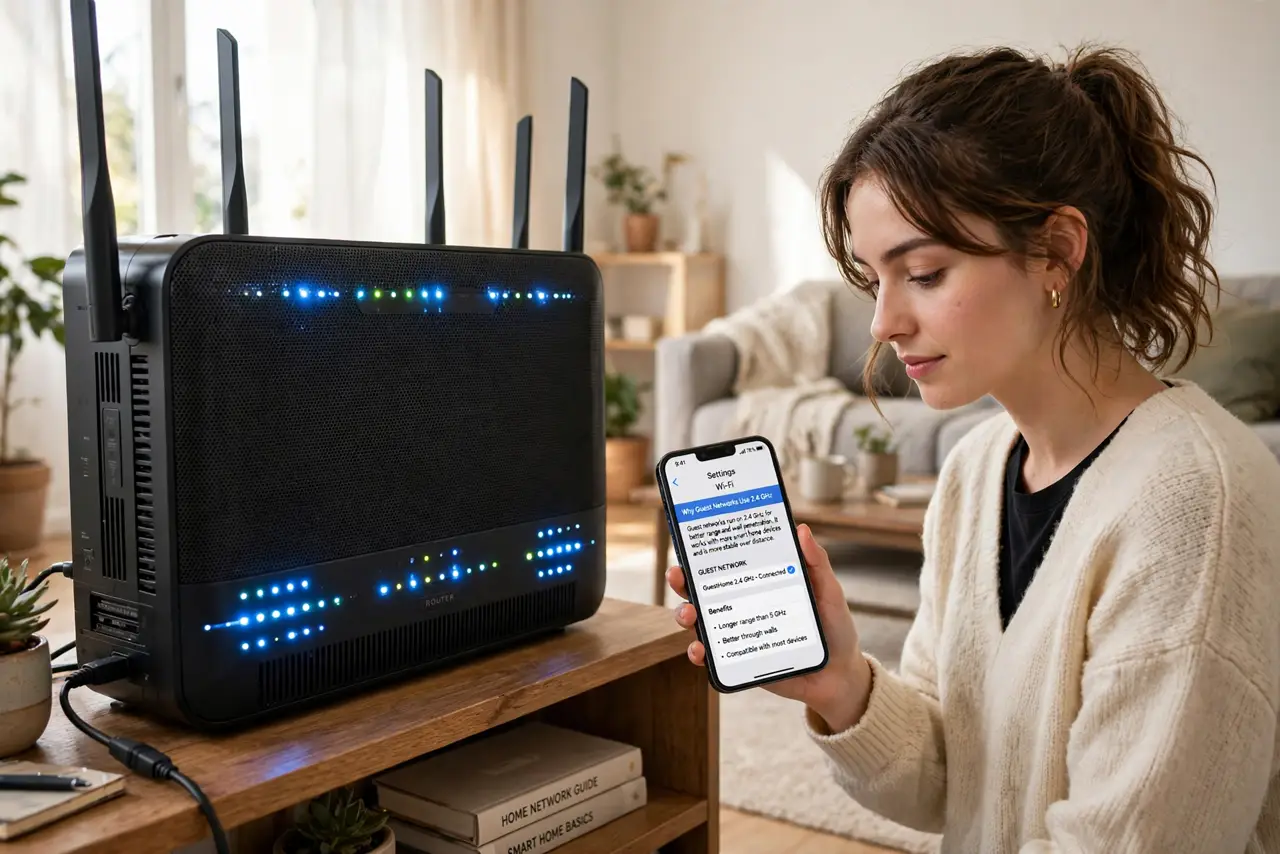
- Understand why guests land on 2.4 GHz. Many routers create the guest network on 2.4 GHz only, because that band has the longest range — guests in the backyard or spare room stay connected. The tradeoff is speed: 2.4 GHz tops out far below 5 GHz.
- Know what guests can and cannot reach. A proper guest network isolates visitors from your private devices — they get internet but cannot see your computers, NAS, or printer. That isolation is a feature, not a bug.
- Enable the guest network on 5 GHz too. Most modern routers let the guest network use both bands. In the router's wireless settings, look for the guest section and enable the 5 GHz copy — guests close to the router get the faster band automatically.
- Set a simple password and rotate it. Guests type this on phones, so make it easy to dictate — a few plain words. Change it every few months, or after a house full of visitors, since you cannot control who shares it onward.
- Limit guest bandwidth if your connection is slow. Some routers let you cap guest speed. If visitors streaming video makes your own calls stutter, a cap keeps the peace without awkward conversations.
- Turn the guest network off between visits. No guests, no guest network. Disabling it when idle shrinks your attack surface — one less open door on your router for no benefit.
What NOT to do
- Do not give guests your main Wi-Fi password to 'make it faster.' The guest network exists precisely to keep visitors off your private network.
- Do not expect full speed on a 2.4 GHz guest network. It is a range-first band — fine for browsing, not for big downloads.
- Do not leave the default guest password. Routers ship with guessable defaults; set your own before inviting anyone.
- Do not assume the guest network reaches everywhere. 2.4 GHz goes far, but thick walls still win — test from the guest room before visitors arrive.
Frequently asked questions
Can guests print to my printer?
Usually not — guest isolation blocks access to private devices including printers. If a guest needs to print, share the file another way or temporarily adjust the isolation setting.
Is a guest network safer than sharing my main password?
Yes, much. Guests cannot reach your devices or snoop local traffic, and you can change the guest password freely without reconfiguring your own gadgets.
Why is the guest network so slow?
It is likely 2.4 GHz only, possibly with a bandwidth cap. Enable the 5 GHz guest band in the router settings for nearby guests who need speed.