TV on 5 GHz? Basics
Your smart TV buffers during the big game while your phone flies on the same Wi-Fi -- and the fix is often just the band. Many TVs default to 2.4 GHz, the slow-but-far band, even when the fast 5 GHz band is right there. Putting the TV on 5 GHz is one of the highest-impact Wi-Fi tweaks in a home, provided the TV is close enough to the router.
TL;DR / Quick Fix
Quick fix: smart TVs stream far better on 5 GHz -- faster 4K with less interference -- so switch the TV to the 5 GHz network in its settings. This works best with the TV near the router. Far away, 2.4 GHz's longer range may win.
Follow these steps
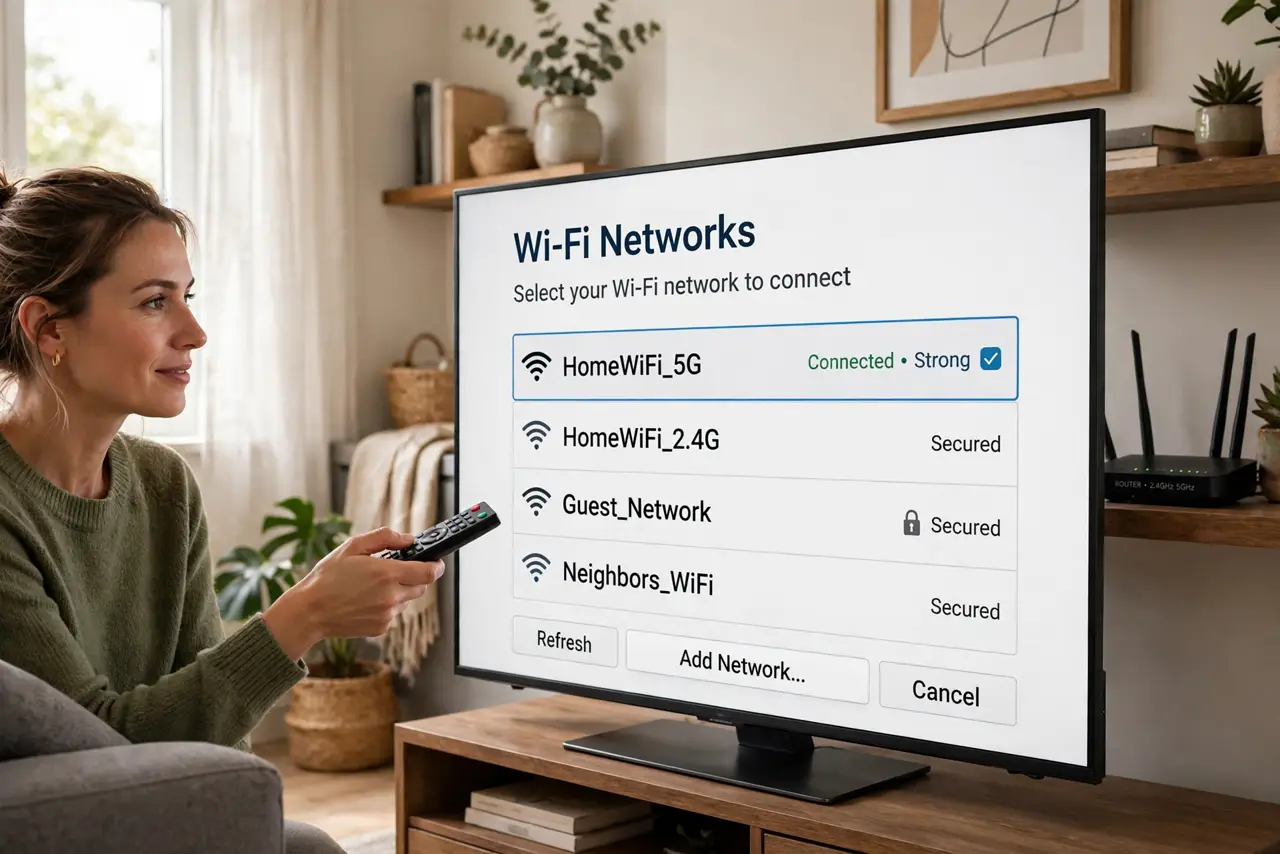
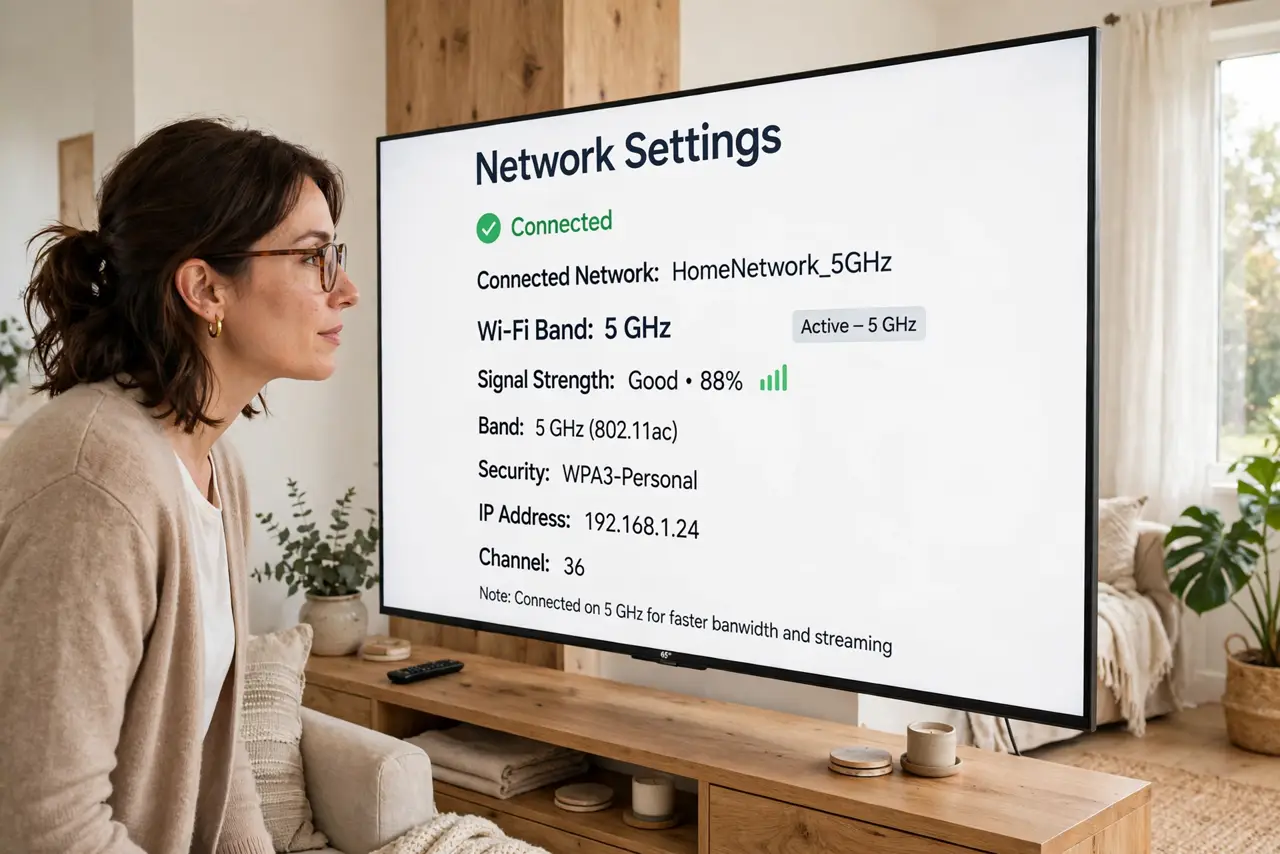
- Check which band the TV uses now. In the TV's network settings, look at the connected network name -- many routers broadcast separate names for 2.4 and 5 GHz. If the TV sits on the 2.4 GHz name, you have found the bottleneck.
- Switch the TV to the 5 GHz network. Forget the 2.4 GHz network on the TV and join the 5 GHz one with the same Wi-Fi password. Run a speed test from the TV's browser or a speed-test app to confirm the jump.
- Mind the distance rule. 5 GHz is faster but shorter-range. Same room or adjacent room: 5 GHz wins clearly. Two floors away through concrete: 2.4 GHz's reach may stream more reliably than a weak 5 GHz signal.
- Reduce interference on 5 GHz. 5 GHz has more channels and less congestion than 2.4 GHz, but neighboring networks still matter. If the router lets you pick a channel, choose a less crowded one in the router's wireless settings.
- Consider Ethernet for the main TV. A cable beats every band -- no interference, no dropouts, full speed. If the router is nearby, a cheap Ethernet cable ends the buffering conversation permanently.
- Re-check after router changes. New router, new band names, new passwords -- the TV does not follow automatically. After any network change, verify the TV reconnected to the 5 GHz band, not the 2.4 one.
What NOT to do
- Do not leave the TV on 2.4 GHz 'because it connects.' It connects, but 4K streaming needs the headroom only 5 GHz reliably provides.
- Do not force 5 GHz on a distant TV. A weak 5 GHz signal buffers worse than a strong 2.4 GHz one -- match the band to the distance.
- Do not forget the TV after changing the Wi-Fi password. It will sit silently disconnected while everyone blames the streaming app.
- Do not assume buffering is the band. An overloaded internet plan or a struggling streaming service can look identical -- test speed at the TV first.
Frequently asked questions
Why does my smart TV keep buffering?
Usually weak Wi-Fi at the TV's location or the wrong band. Check the connected band and run a speed test on the TV before anything else.
Is Ethernet really better than 5 GHz for a TV?
Yes -- wired is faster, steadier, and immune to interference. For the main living-room TV near the router, it is the best upgrade.
My TV doesn't show a 5 GHz network -- why?
Older or budget smart TVs are 2.4 GHz only. Check the specs; if that is the case, Ethernet or a streaming stick with 5 GHz is the workaround.