A Separate Network for Smart Home Gadgets
Smart bulbs, plugs, and cameras are handy but rarely updated, so keeping them on their own network limits the damage if one gets hacked. Most routers can do this with a guest network or a dedicated IoT network.
TL;DR / Quick Fix
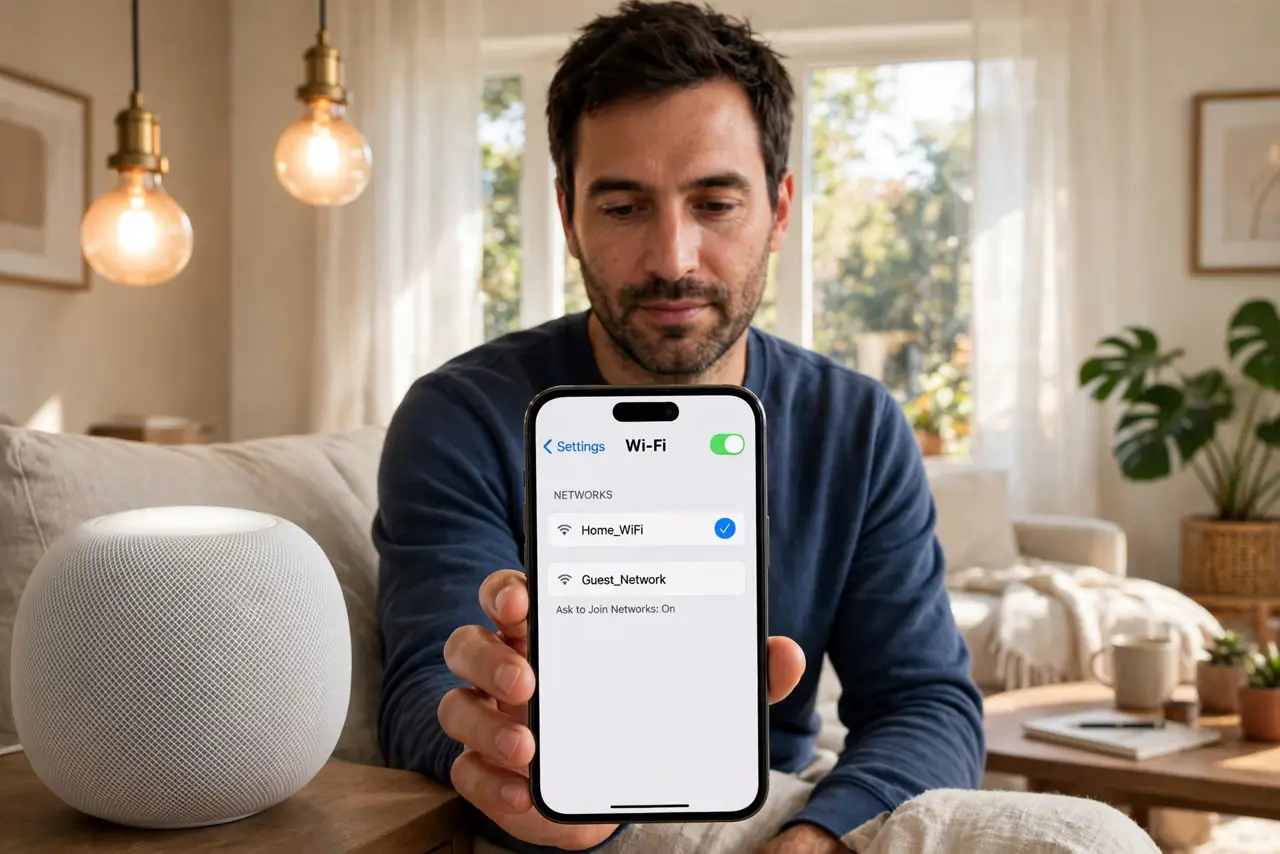
Quick fix: use your router's guest network or IoT network for all smart home gadgets, with its own password. Move the gadgets over one by one, keep them on the 2.4 GHz band they prefer, and leave your phones and laptops on the main network.
Follow these steps
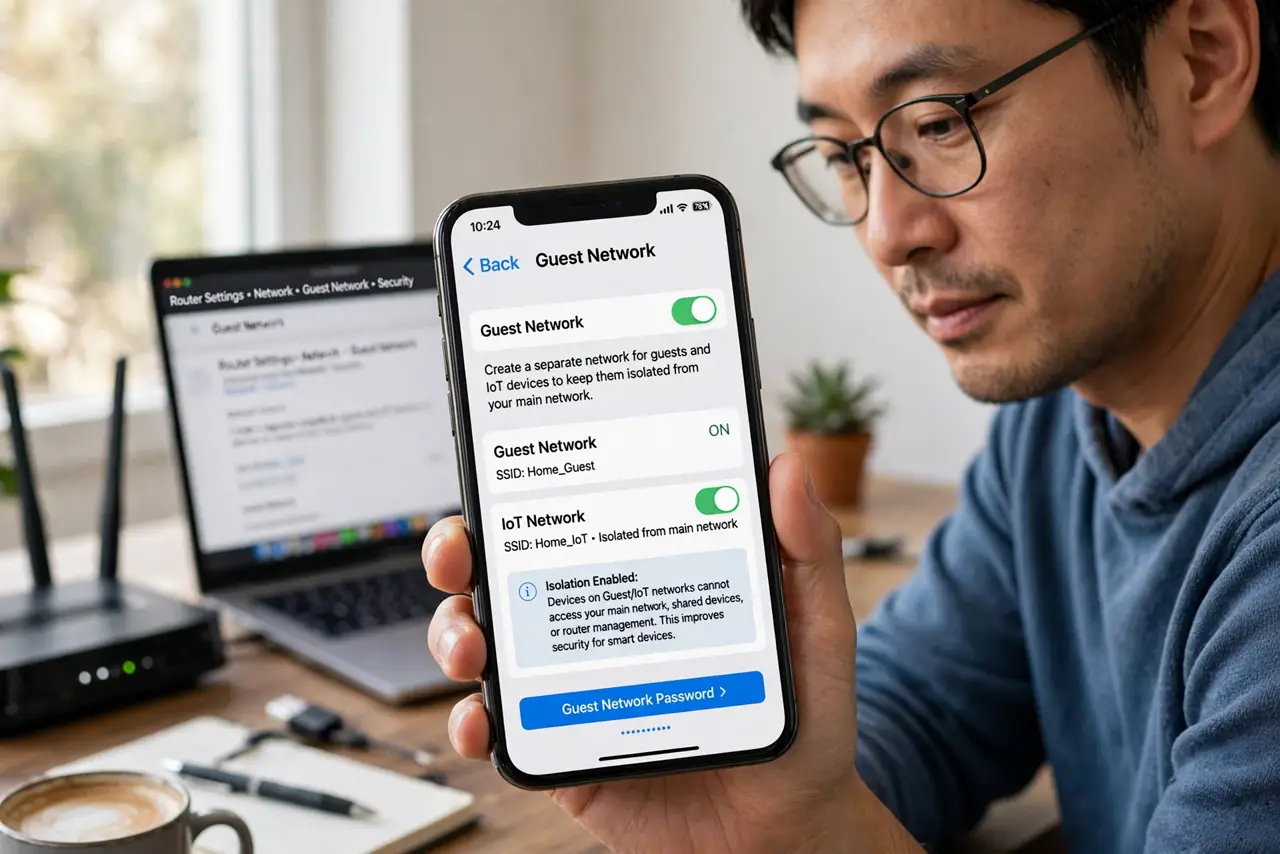
- Check what your router offers. Look for a guest network or an IoT network option in the router settings. Either one isolates gadgets from your main network, which is the whole point.
- Create the gadget network with its own password. Set it up with a strong password you store safely. A separate password means a compromised bulb never hands out the keys to your main network.
- Move gadgets over one by one. In each gadget's app, change its Wi-Fi to the new network. Doing them one at a time lets you confirm each one reconnects before moving the next.
- Keep gadgets on 2.4 GHz. Most smart home gadgets only speak 2.4 GHz. If the router merges the bands under one name, check the 2.4 GHz option is actually broadcasting for the gadget network.
- Test control from your phone. With your phone on the main network, try controlling a bulb or plug. Most gadget apps relay through the maker's cloud, so cross-network control usually keeps working.
- Write down which network holds what. Note that gadgets live on the separate network. When the router changes one day, that note tells you exactly which devices need moving.
What NOT to do
- Do not put smart gadgets on the main network out of laziness. One unpatched camera on the main network can see traffic the separate network would have hidden.
- Do not reuse your main Wi-Fi password for the gadget network. A separate network with the same password is barely separate at all.
- Do not move every gadget at once and walk away. Move one, confirm it works, then continue, so a failure points to one gadget instead of twenty.
- Do not forget the gadget network exists when you change routers. A new router means moving the gadgets again, so keep the network name and password written down.
Frequently asked questions
Why separate smart gadgets at all?
Because cheap gadgets get few security updates. Isolation means a hacked bulb cannot reach your laptop or files.
Will my phone still control the gadgets?
Yes, in most cases. The gadget apps talk through the maker's cloud, so your phone's network and the gadget's network do not need to match.
Guest network or IoT network — which one?
Either works for isolation. Use whichever your router offers, and keep its password different from your main Wi-Fi.