Triple-Click Shortcuts
Your favorite accessibility feature lives five menus deep, and you toggle it ten times a day. The Accessibility Shortcut puts it on the triple-click of the side button — instant access to Guided Access, VoiceOver, Magnifier, or whatever you use most. Set it once, triple-click forever.
TL;DR / Quick Fix
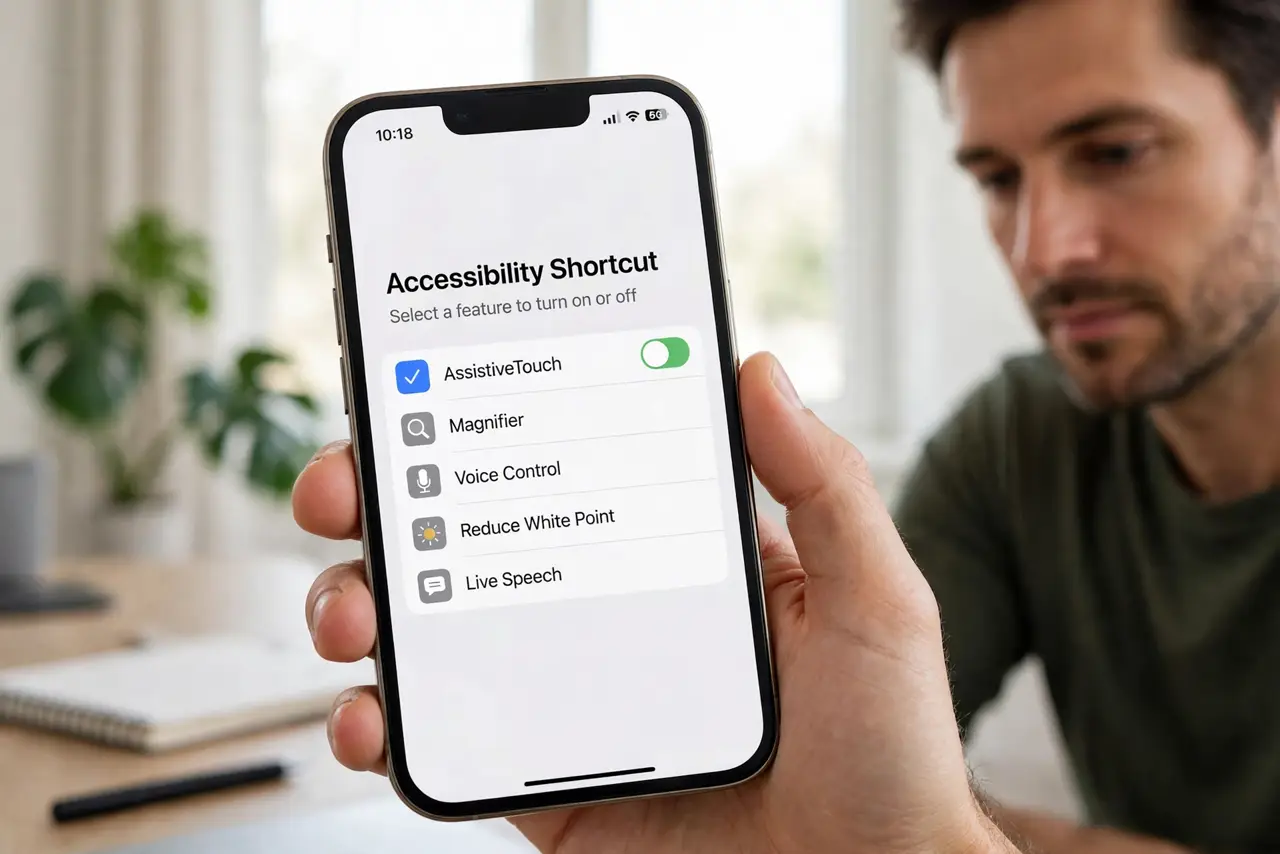
Quick fix: go to Settings, Accessibility, Accessibility Shortcut, and choose your feature — Guided Access, VoiceOver, AssistiveTouch, or Magnifier. Triple-click the side button anytime to trigger it. Pick one favorite for instant trigger, or several to get a chooser menu. It works from the lock screen too.
Follow these steps
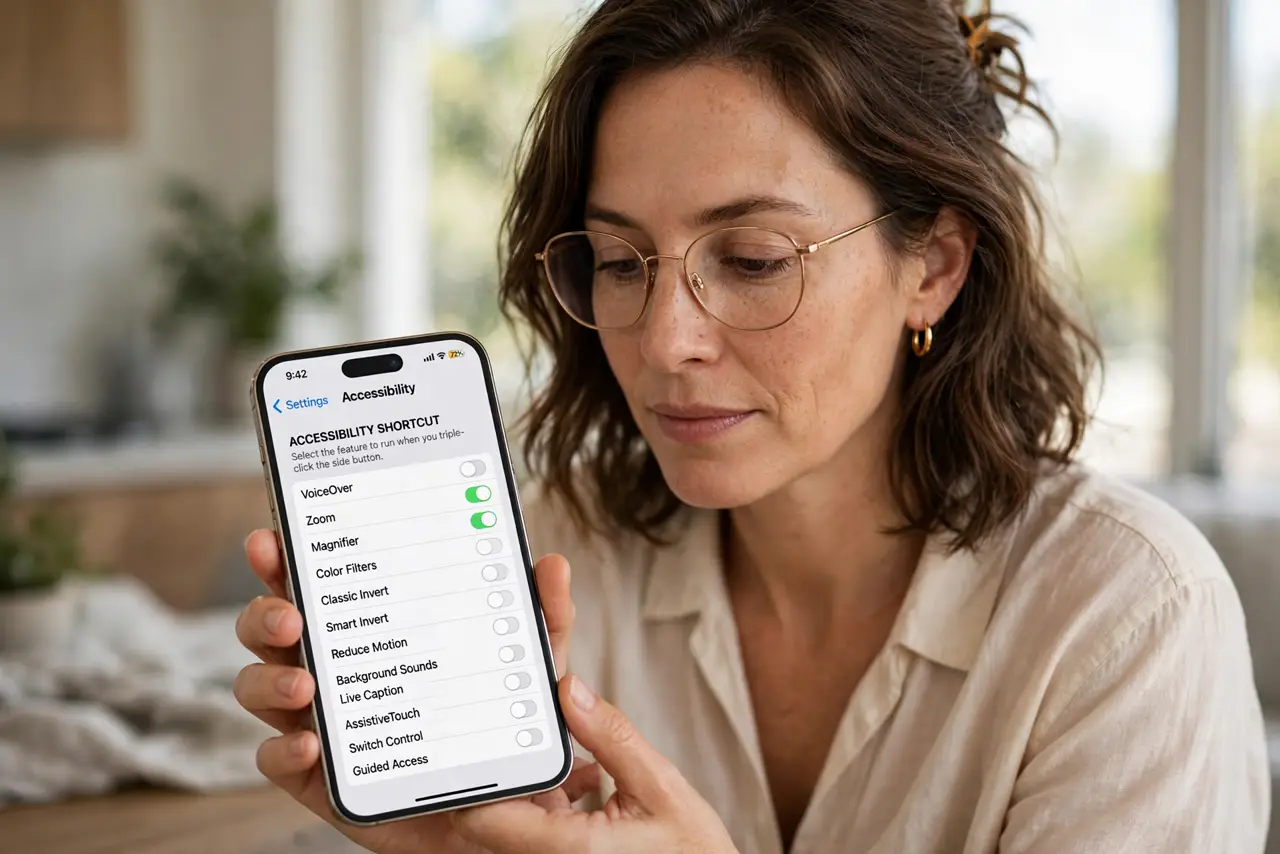
- Open Accessibility Shortcut settings. Go to Settings, Accessibility, scroll to Accessibility Shortcut. The list shows every assignable feature.
- Pick your feature. Choose the one you toggle most: Guided Access for kiosks, VoiceOver for screen reading, Magnifier for fine print. The kiosk guide pairs perfectly with Guided Access.
- Triple-click to trigger. Click the side button three times fast. Your feature activates instantly — from anywhere, including the lock screen.
- Assign several for a menu. Pick multiple features and triple-click shows a chooser. Slightly slower, infinitely flexible.
- Adjust the click speed. If triple-click misfires, adjust the click speed in Accessibility settings. Slower clicks count too.
- Know the full Guided Access setup. The shortcut is the trigger; Guided Access is the feature — see the full setup. Configure both for the complete kiosk flow.
What NOT to do
- Do not assign features you never use. A five-item chooser defeats the instant-access purpose — curate ruthlessly.
- Do not forget it works locked. Anyone holding your phone can triple-click — keep the passcode strong.
- Do not confuse it with Back Tap. Triple-click is the side button; Back Tap is tapping the phone's back — different triggers.
- Do not give up if triple-click feels awkward. Slow the click speed setting until it feels natural.
Frequently asked questions
What is the most useful shortcut?
Guided Access for parents and presenters; VoiceOver for screen-reader users; Magnifier for low vision. Pick your daily driver.
Can Android do this?
Android has its own accessibility shortcut — usually volume-key based. Same idea, different buttons.
Why does triple-click open the wrong thing?
You assigned multiple features and get the chooser, or another feature claimed it. Check the assignment list.