Action Mode Video? Basics
Action Mode is the iPhone's answer to shaky video — extra-strong stabilization for filming while you walk, run, or ride. It crops the frame a little and works some processing magic so the footage looks like it was shot on a gimbal. The catch: it needs good light and only works at certain resolutions. This guide covers when to use it and how to get clean results.
TL;DR / Quick Fix
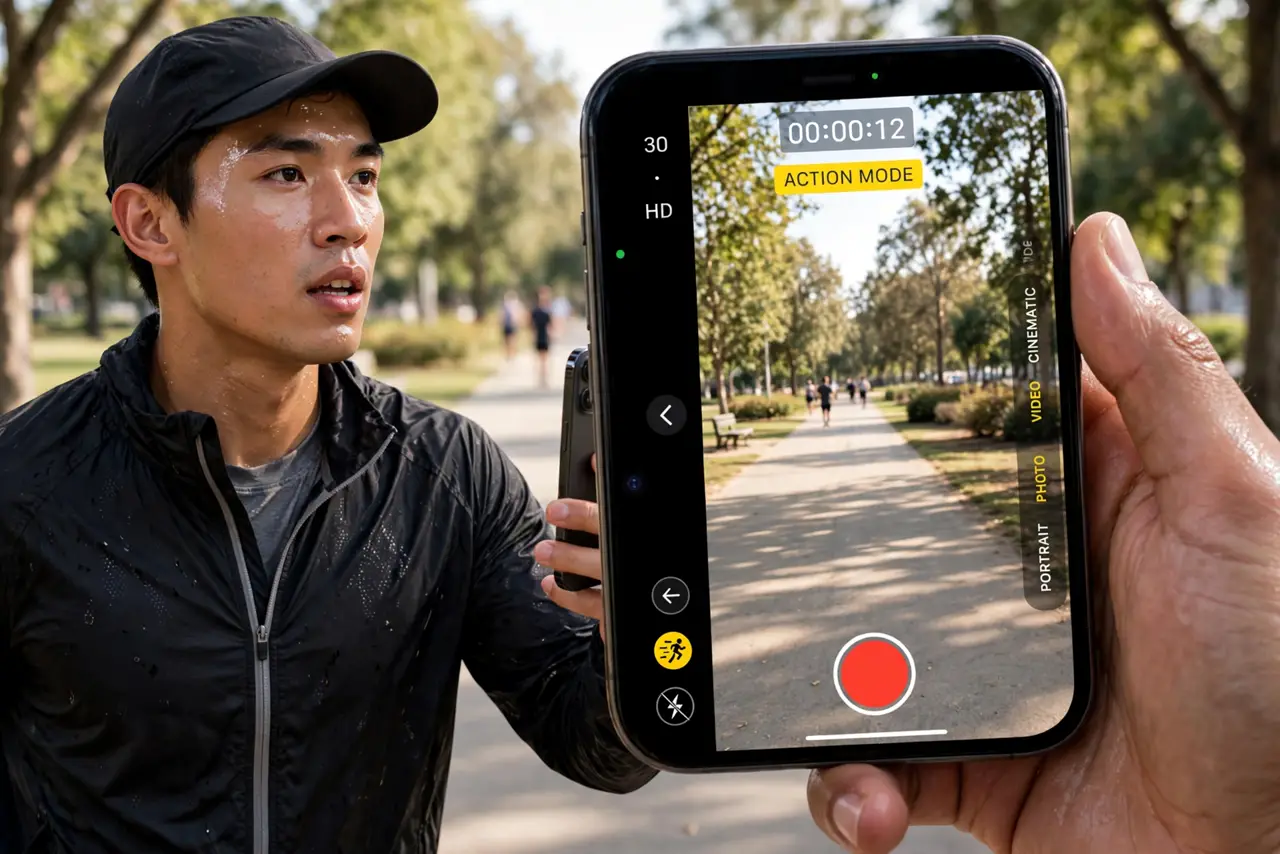
Quick fix: Action Mode steadies shaky iPhone video by cropping the frame and applying stronger stabilization. Turn it on in the Camera app before recording action scenes. It needs good light, so use it outdoors or in bright rooms, and keep the phone steady anyway for best results.
Follow these steps
- Know what Action Mode actually does. Action Mode applies aggressive digital stabilization on top of the normal kind, smoothing out footsteps and bumps. The tradeoff is a cropped frame and slightly lower resolution — you trade edges for steadiness.
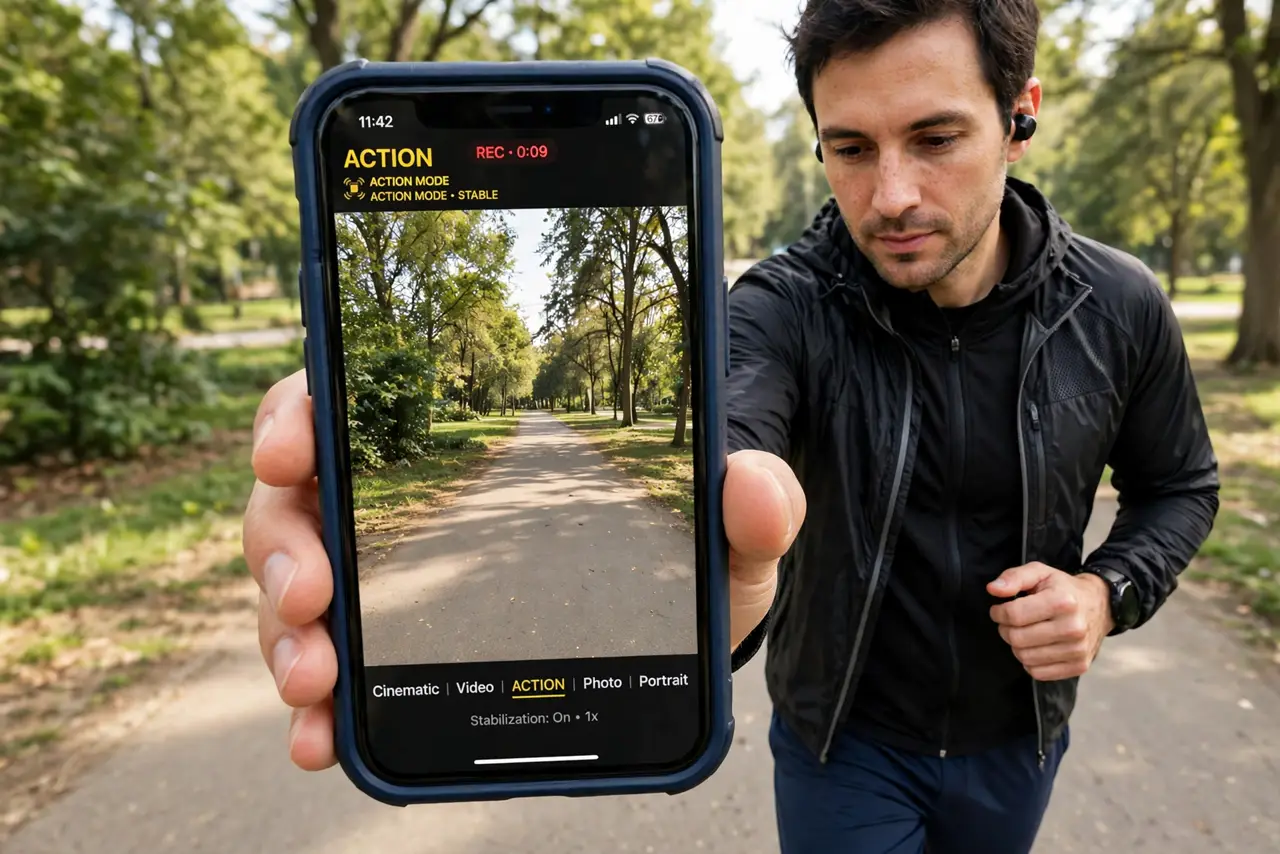
- Turn it on before you record. Open the Camera app, switch to Video, and tap the Action Mode icon (the running figure) so it turns yellow. It stays on for that session; remember to switch it off for calm tripod shots where you want the full frame.
- Feed it good light. Heavy stabilization needs fast shutter speeds, which need light. In dim rooms Action Mode footage gets grainy and smeary — step outside or add light before blaming the phone.
- Walk smoothly anyway. Action Mode forgives a lot but is not a gimbal. Bend your knees, take smooth steps, and hold the phone with two hands — the combination looks dramatically better than relying on software alone.
- Check your resolution settings. Action Mode typically records at a fixed resolution. If you need 4K detail for the project, shoot normal video on a stabilizer instead — Action Mode is for smoothness, not maximum sharpness.
- Use it for the right scenes. Kids' soccer games, bike rides, hiking, chasing pets — anything with motion. For interviews, landscapes, and anything static, regular video gives you a wider, sharper frame.
What NOT to do
- Do not leave Action Mode on for everything. The crop and processing cost you frame width and detail on calm shots that do not need it.
- Do not expect gimbal results in the dark. Low light plus heavy stabilization equals mushy footage — light is not optional.
- Do not judge it on the tiny preview. Watch the footage on a bigger screen before deciding it looks bad; the phone preview undersells stabilization.
- Do not forget it is iPhone-only in this form. Android phones have their own stabilization modes with different names — the concept transfers, the button does not.
Frequently asked questions
Why is my Action Mode video cropped?
The crop is how it works — it uses the extra pixels around the frame as a buffer to counteract shake. Tighter crop equals steadier video; you cannot have both full frame and maximum steadiness.
Can I use Action Mode at night?
Technically yes, but the results are usually poor: noise and motion blur increase because the phone needs longer exposures. Add light or switch to normal video on a support.
Does Action Mode work with the front camera?
It is designed for the rear cameras where the stabilization hardware and processing are strongest. Selfie video uses standard stabilization instead.