Announce Calls? Basics
Announce Calls makes your iPhone speak the caller's name out loud — perfect when your hands are full, you are driving, or the phone is across the room. You can set it to always announce, only with headphones, or only in the car. It is one toggle in Settings, and it changes how reachable you feel. Here is how to set it and when each mode shines.

TL;DR / Quick Fix
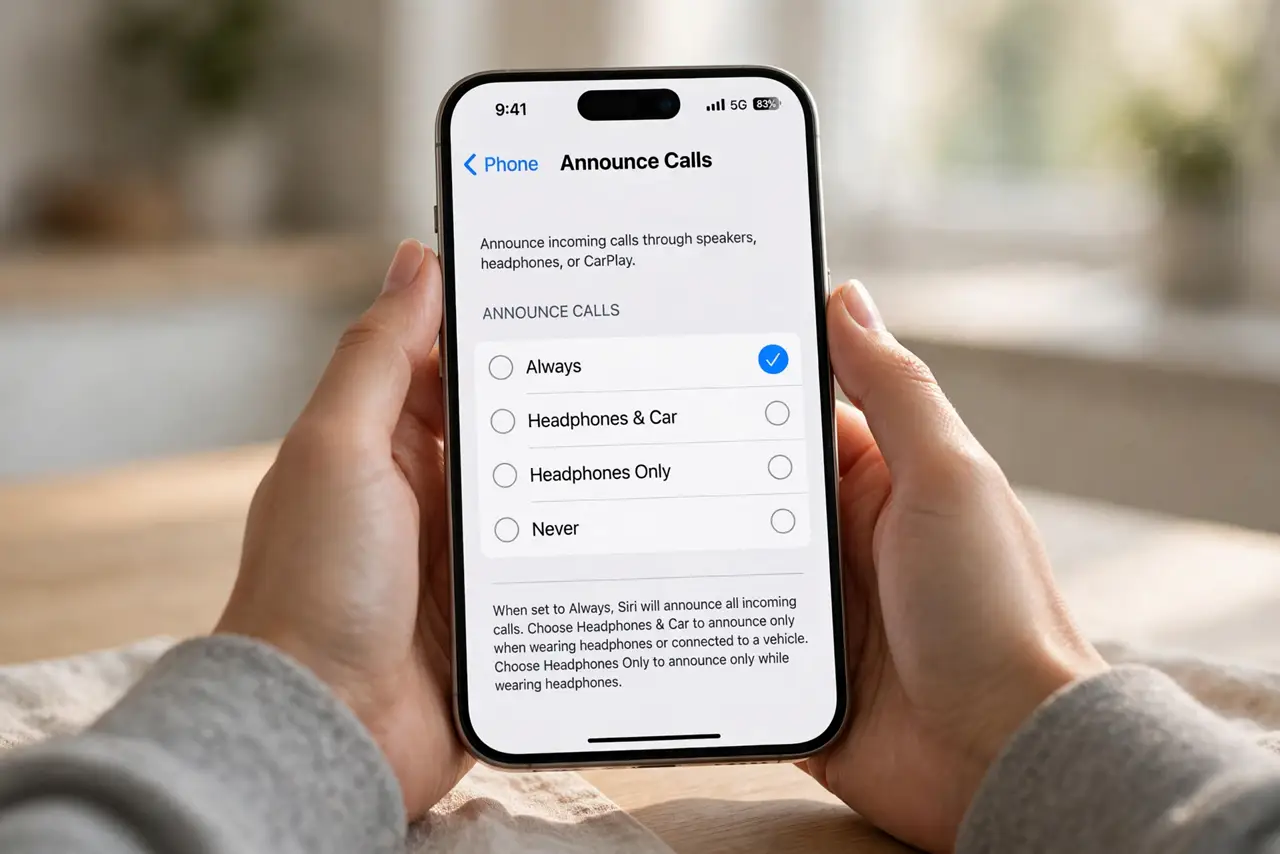
Quick fix: on iPhone open Settings, Phone, Announce Calls, and choose Always, Headphones Only, Headphones and Car, or Never. Headphones and Car is the sweet spot for most people — announcements while driving or wearing earbuds, silence otherwise. Siri speaks the caller's name from your contacts.
Follow these steps
- Find the setting. Open Settings, tap Phone, then Announce Calls. Four options appear: Always, Headphones Only, Headphones and Car, and Never. It is off by default on most iPhones.
- Pick the right mode. Headphones and Car suits most people — announcements exactly when you cannot look at the screen. Always is for accessibility needs or a phone that lives across the room. Never is the default silence.
- Know what gets announced. Siri speaks the contact name for known callers. Unknown numbers are announced as 'unknown caller.' It works for regular calls and FaceTime audio — a handy companion to call forwarding setups where you screen everything.
- Test it with headphones. Put in your earbuds and have someone call you. Siri announces the name and you can answer or decline by voice. If nothing happens, check the mode is not set to Never.
- Combine with driving focus. Announce Calls plus a Driving Focus mode is the safe-driving combo: calls announced, texts silenced. Set it once in Settings, Focus, Driving.
- Turn it off for quiet places. Switch to Never before meetings, theaters, or bedtime. A spoken caller name in a silent meeting is a special kind of embarrassment.
What NOT to do
- Do not use Always in public. Strangers hearing your callers' names is a privacy leak — Headphones and Car avoids it.
- Do not forget it is on before meetings. A loud announcement mid-meeting is avoidable with ten seconds in Settings.
- Do not expect it to name unknown numbers. It says 'unknown caller' — useful, but not magic.
- Do not confuse it with Announce Notifications. That is a separate setting for texts and app alerts, under Siri settings.
Frequently asked questions
Why is my iPhone not announcing calls?
Check Settings, Phone, Announce Calls — it may be set to Never, or to Headphones Only while you have no headphones connected.
Does Announce Calls work with FaceTime?
Yes, for FaceTime audio calls it announces the contact name the same way as regular calls.
Can Android announce callers?
Yes — in the Phone app settings look for Caller ID announcement or similar. The exact name varies by manufacturer.