Declutter with App Library
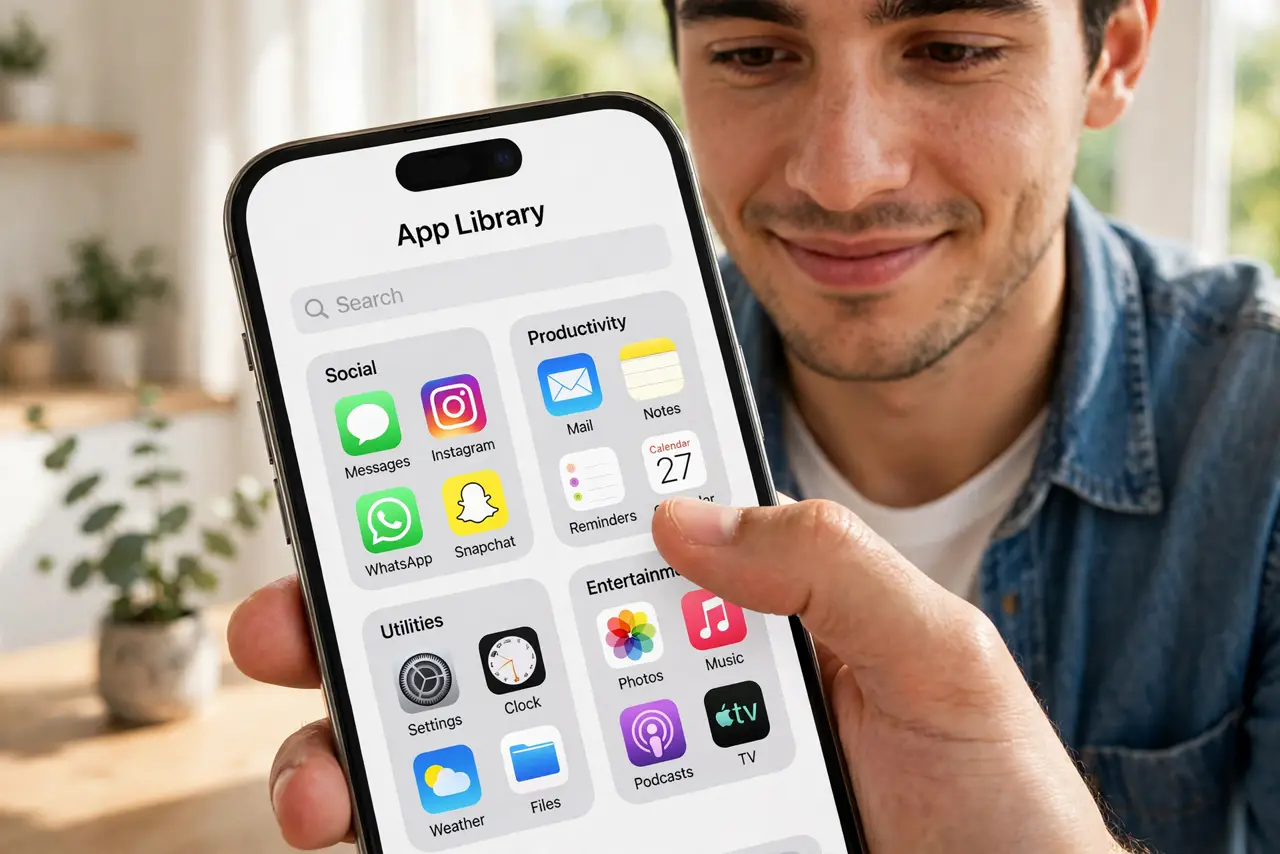
Pages and pages of apps, most opened twice a year — your home screen has become a junk drawer. The App Library already organizes everything into folders; you just need to stop keeping every icon on the home screen. This guide declutters without deleting anything.
TL;DR / Quick Fix
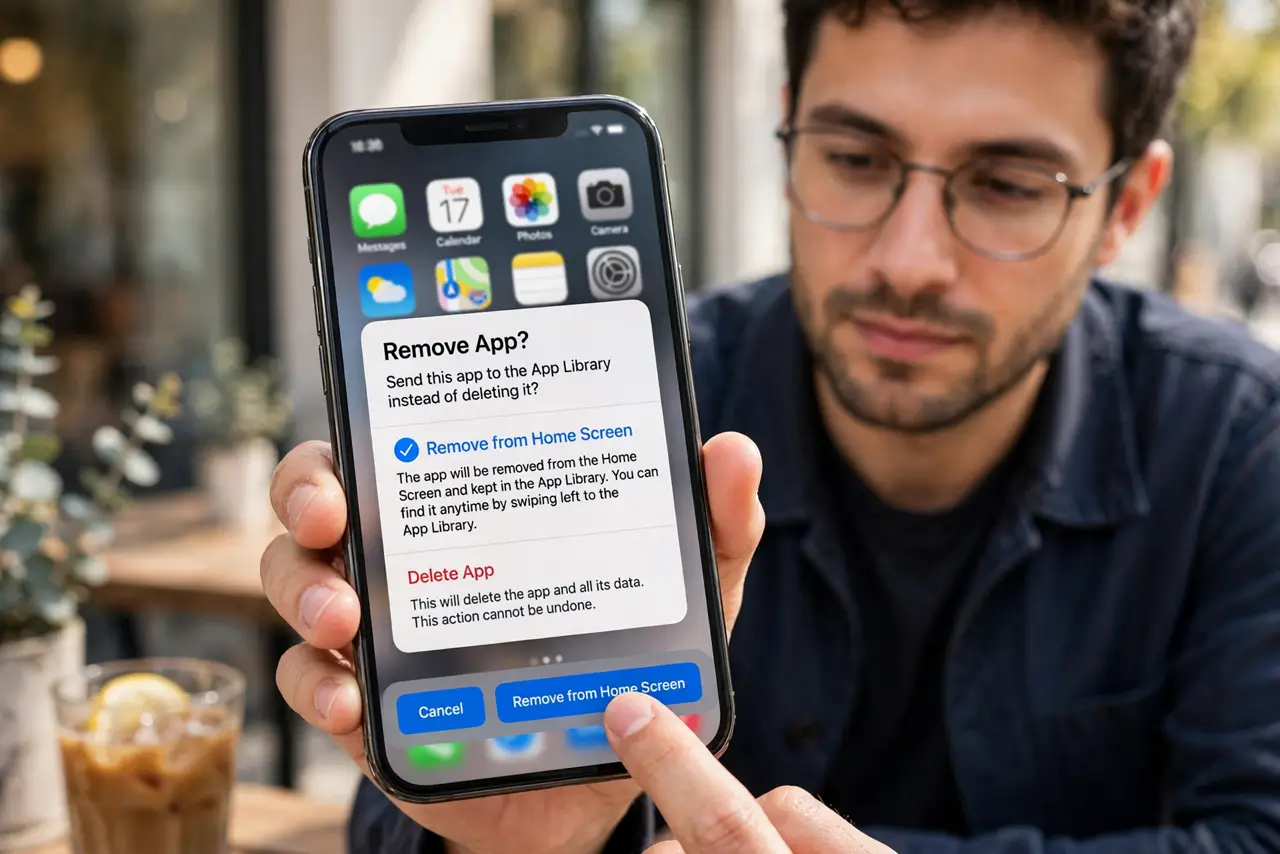
Quick fix: stop drowning in home-screen pages — long-press an app, choose Remove App, then Remove from Home Screen to park it in the App Library. Swipe left past your last page to open the Library, where apps sort into folders. Hide entire pages from the same menu.
Follow these steps
- Send apps to the Library, not the trash. Long-press an app, Remove App, Remove from Home Screen. The app stays installed and searchable — only the icon leaves the home screen.
- Open the Library with a left swipe. Swipe left past your last home page. The Library sorts apps into smart folders automatically; use the search bar at top for instant finds.
- Hide whole pages at once. Long-press the home screen, tap the page dots, and uncheck pages you rarely need. Hidden pages' apps remain in the Library.
- Keep one clean home page. Aim for a single page of daily apps plus widgets. Everything else lives in the Library — if you miss an app, search finds it in a second.
- Let new apps go straight to the Library. In Settings, Home Screen, choose App Library Only for new downloads. New apps stop colonizing your home screen automatically.
- Re-add favorites anytime. Long-press any app in the Library and Add to Home Screen. Nothing is permanent — rearrange freely as your habits change.
What NOT to do
- Do not delete apps to declutter. Removing from Home Screen keeps the app; Delete App removes it and its data.
- Do not keep five pages 'just in case'. If you have not opened it in months, the Library is its home now.
- Do not fight the Library's folders. They are automatic and decent — custom organization energy is better spent on the one home page.
- Do not forget search exists. Pull down on the home screen and type — faster than hunting through folders.
Frequently asked questions
Where did my app go?
It is in the App Library — swipe left past the last page or pull down and search its name.
Can I turn off the App Library?
No, it is permanent. But with new apps routed there and pages hidden, you will barely notice it.
Do hidden pages delete anything?
No — hiding a page only hides its icons. Apps, data, and notifications are untouched.