Approve Kids' Purchases
Kids buying apps freely with the family payment method is how surprise charges happen — a game here, a subscription there, and the organizer's card takes the hit. Ask to Buy fixes it: every purchase or download by a kid triggers an approval request to the parent's phone. Approve with a tap, decline with a tap, and the spending stops being a surprise. It pairs with purchase sharing so the family still shares what is already bought.
TL;DR / Quick Fix
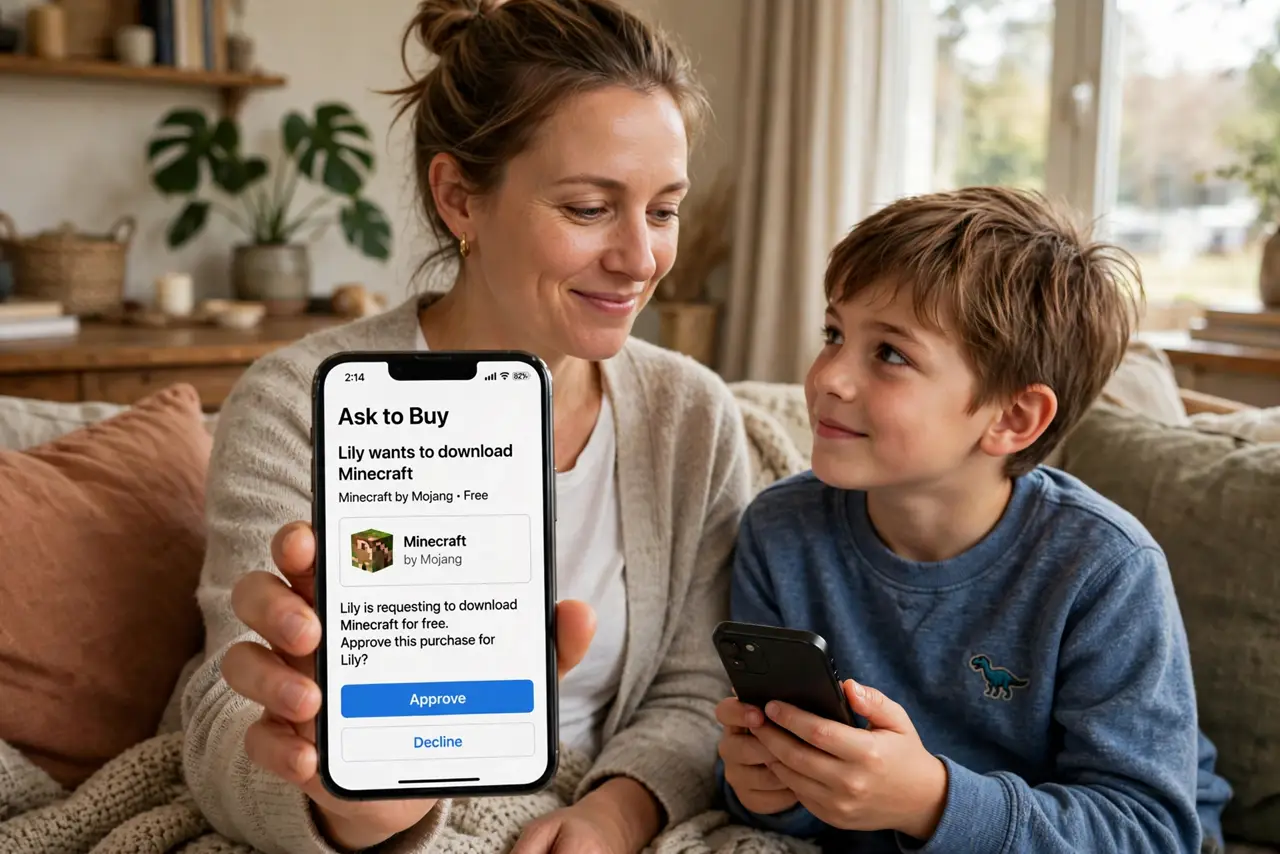
Quick fix: in Family Sharing, turn on Ask to Buy for each kid — their app purchases and downloads then need your tap to approve. You get a notification with the item and price; approve or decline on the spot. It covers free downloads too, so nothing installs uninvited.
Follow these steps
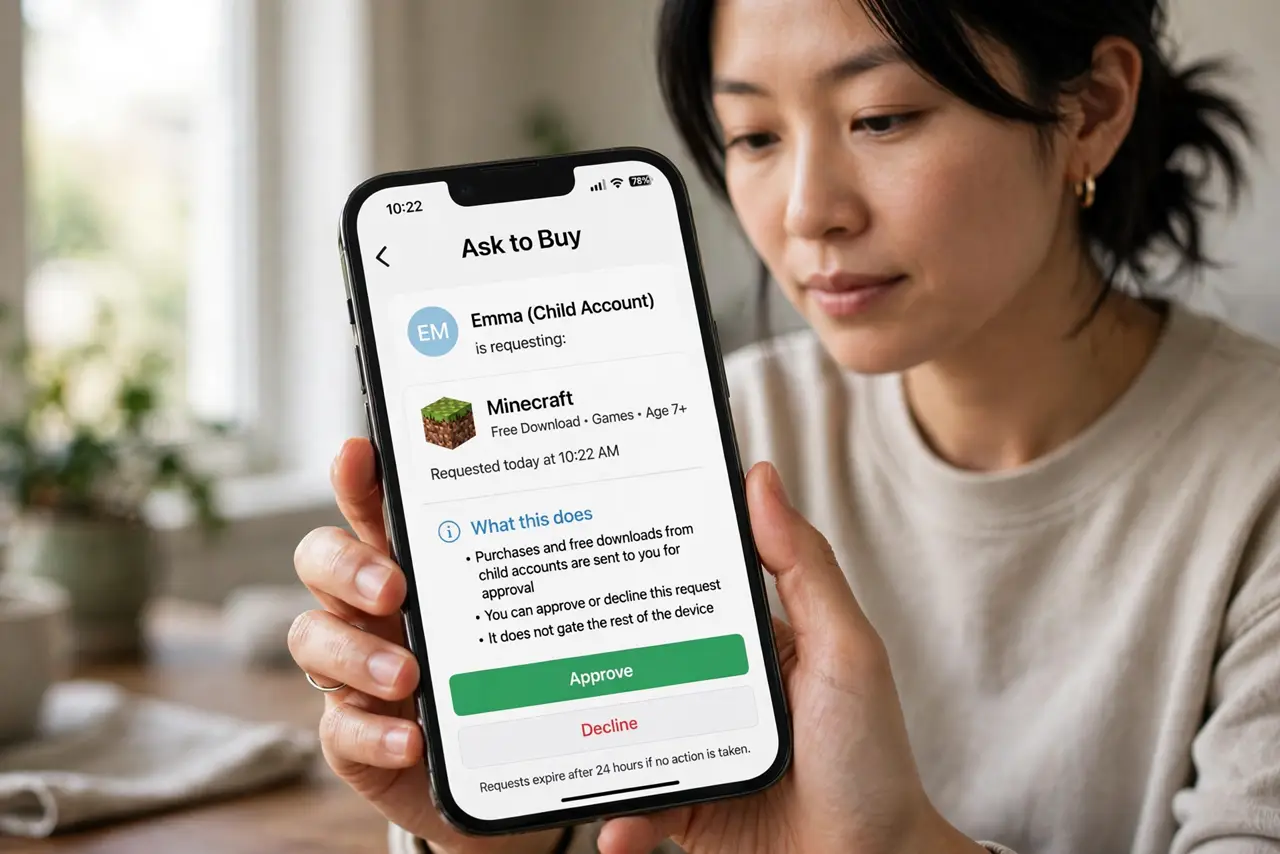
- Understand what it gates. Ask to Buy intercepts purchases and free downloads by child accounts, sending each one to the parent for approval. It does not gate the parent's own buying — just the kids'.
- Turn it on per child. In Family Sharing settings, select the child's name and enable Ask to Buy. It is per-child, so enable it for each kid individually — new children do not inherit it automatically.
- Handle the approval flow. When the kid tries to buy or download, you get a notification showing the item and its price. Approve or decline right from the notification — the kid sees the result on their device.
- Know it covers free apps too. Even free downloads need approval. That surprises some parents, but it is the point: nothing installs on the kid's device without you knowing.
- Set expectations with the kids. Tell them the rule plainly: ask in person for bigger things, request in the store for small ones, and no means no. The feature works best when it is not a surprise either.
- Review as they grow. Older teens may earn looser reins. Revisit the setting yearly — Ask to Buy should mature with the kid, not stay frozen at age eight.
What NOT to do
- Do not enable it and then auto-approve everything. Rubber-stamping teaches kids the gate is theater — actually read the requests.
- Do not forget free downloads need approval too. Kids get confused when a free game pings you; explain it upfront.
- Do not leave it off for the quiet kid. The rule is per-child and manual — check every child's setting, not just the one who already overspent.
- Do not use it as the only control. Pair it with downtime schedules and content restrictions for a complete setup.
Frequently asked questions
What age does Ask to Buy apply to?
It is designed for child accounts. The exact age thresholds vary by region, but the parent controls it per child regardless.
Can both parents approve?
Yes — approval requests go to the organizers and parents in the family group, so either parent can respond.
Does it work for in-app purchases?
Yes. In-app purchases by the child also trigger approval requests, which is where most surprise spending used to hide.