Shoot from Your Watch
Group photos mean one person sprinting from the camera or everyone's arms too short for the selfie. Your Apple Watch is a remote shutter with a live viewfinder — frame on the iPhone, tap on the wrist, everyone stays in the picture. This guide sets up the shot.
TL;DR / Quick Fix
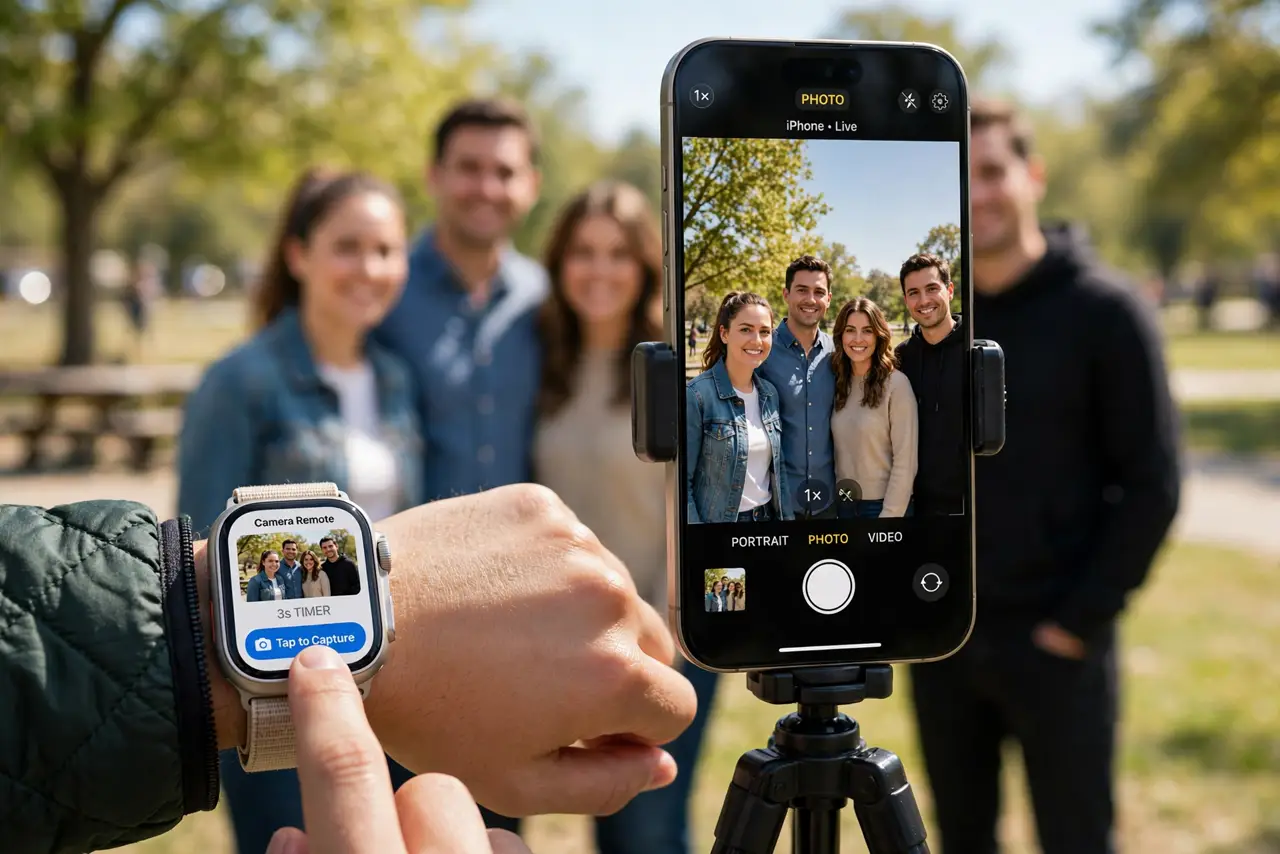
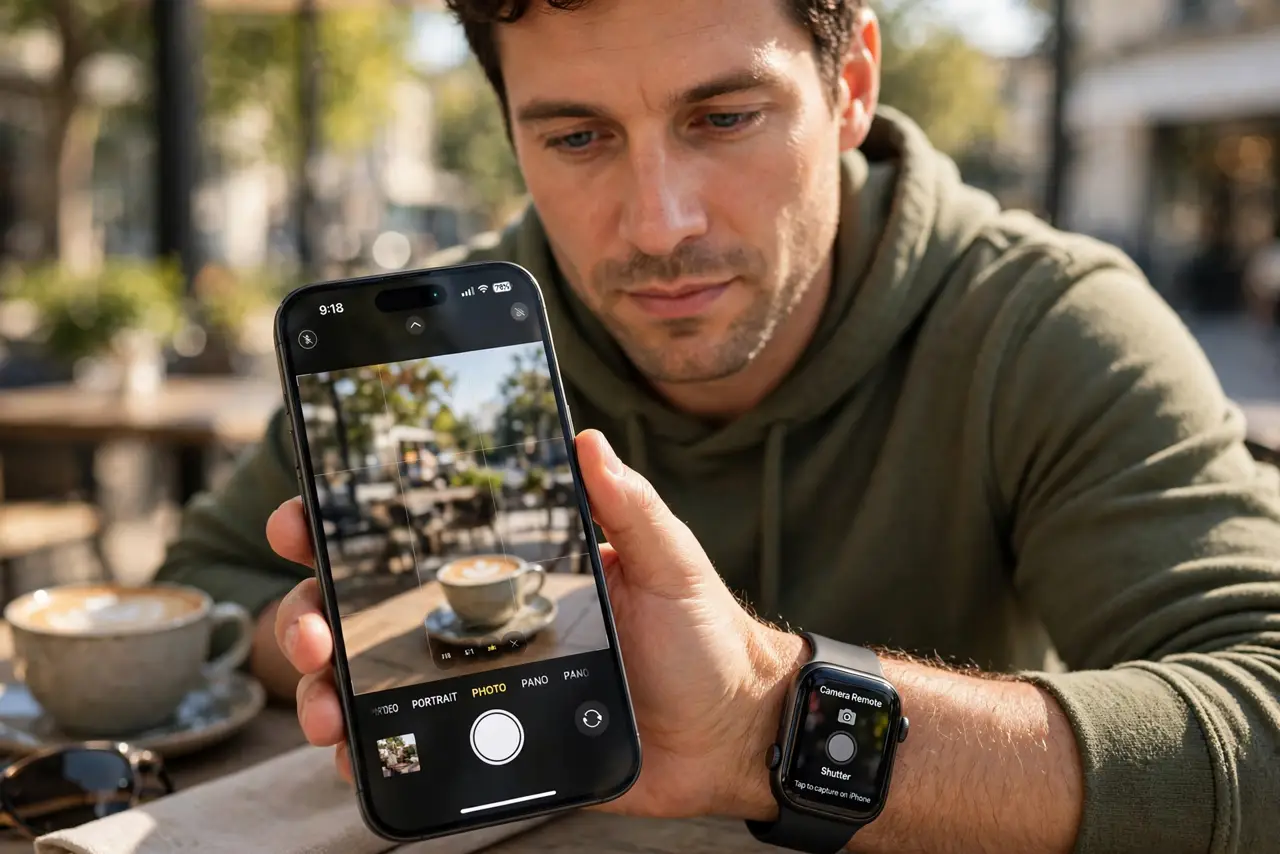
Quick fix: use your Apple Watch as a camera remote — open Camera Remote on the watch, frame the shot on your iPhone, and tap the shutter. Set a 3-second timer for group photos so you can join in. The watch shows a live preview of the iPhone view.
Follow these steps
- Open Camera Remote on the watch. Find the Camera Remote app on your Apple Watch. It wakes the iPhone camera automatically — no setup beyond pairing, which you already have.
- Position the iPhone. Prop the phone on a ledge, tripod, or stack of books facing the group. The watch shows the live view — frame precisely from your wrist.
- Set the timer. Tap the timer button (3 seconds) on the watch. That gives you time to lower your wrist and smile like a normal person.
- Tap the shutter. The big shutter button fires the iPhone camera. Review the shot on the watch — retake without walking back.
- Use flash and HDR controls. The watch app offers flash toggle and HDR. Night group shot? Flash on, timer set, everyone warned.
- Know the range limits. Bluetooth range — tens of meters, less through walls. For extreme distances, a dedicated Bluetooth shutter remote reaches further.
What NOT to do
- Do not balance the phone precariously. A falling phone ruins more than the photo — use a real prop or tripod.
- Do not forget the timer. Zero-delay shutter catches you mid wrist-raise, every time.
- Do not drain the watch first. Camera Remote plus a long shoot taxes the watch battery — charge before the event.
- Do not expect zoom control finesse. Frame with the phone's position; the watch is a shutter, not a full camera app.
Frequently asked questions
Does it work with third-party camera apps?
No — Camera Remote drives the built-in Camera app only.
Can I record video remotely?
Yes — switch to video mode on the iPhone first, then start/stop from the watch.
Why is the preview laggy?
Bluetooth bandwidth — normal at distance. Move closer for a smoother preview.