Remove Objects with Clean Up
A perfect photo, ruined by a stranger's elbow in the corner. The iPhone's Clean Up tool — part of Apple Photos — erases unwanted objects and people with a tap or a brush stroke, filling in the background automatically. No extra app needed.
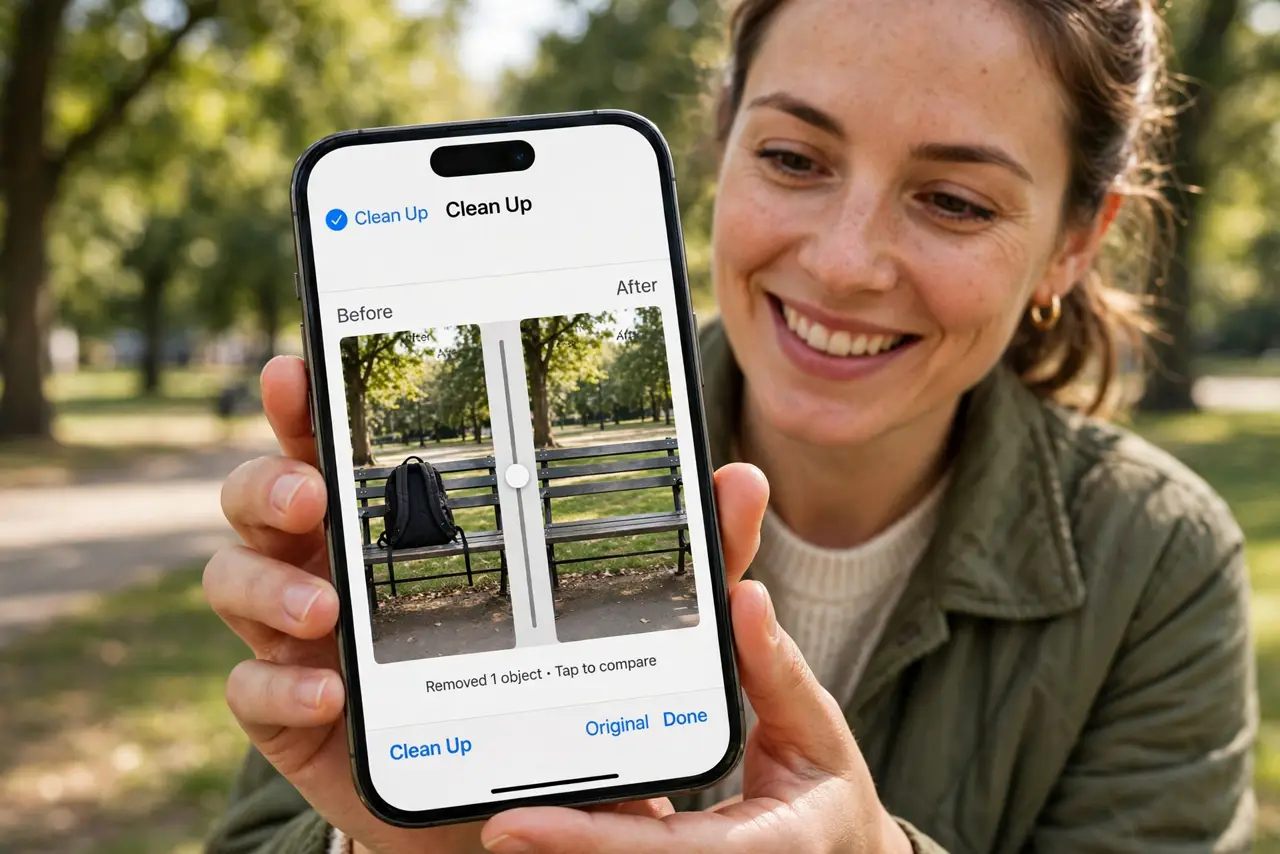
TL;DR / Quick Fix
Quick fix: open the photo in the Photos app, tap Edit, then Clean Up, and tap or brush over the object to remove it. Zoom in for precise edges. It works best on simple backgrounds — busy patterns can leave visible smudges.
Follow these steps
- Check you have the feature. Clean Up needs Apple Intelligence on a supported iPhone — see what Apple Intelligence is if the button is missing.
- Open the photo and tap Edit. Find the photo in the Photos app and tap Edit to enter editing mode.
- Tap the Clean Up button. It looks like an eraser. The phone may auto-detect removable objects and highlight them with a glow.
- Tap or brush the object. Tap a highlighted object to remove it, or brush over anything else with your finger. Zoom in for small or detailed areas.
- Check the result at full size. Pinch to zoom and inspect the filled background. If it smudged, undo and try a smaller brush area.
- Save a copy if it matters. Duplicate the photo before heavy edits. Non-destructive editing usually protects you, but a copy is cheap insurance.

What NOT to do
- Do not expect miracles on complex backgrounds. Faces, text, and busy patterns are where the fill shows its seams.
- Do not remove things to deceive. Cleaning up a photobomber is fine; altering evidence or documents is not.
- Do not forget the original stays. Edits are reversible — but only if you do not delete the photo afterward.
- Do not use it on other people's photos without asking. Editing someone else's image and sharing it needs their okay.
Frequently asked questions
Is Clean Up free?
Yes — it is built into the Photos app on supported iPhones with Apple Intelligence.
Does it work on old photos?
Yes. It works on any photo in your library, not just new ones.
Why is the result blurry in spots?
The AI fills the gap by guessing. On detailed backgrounds the guess shows — try selecting a smaller area.