Share Your Contact Card
You meet someone, and the number exchange becomes a clumsy dictation: 'zero, no — the letter O...' while they mistype it twice. Both iPhone and Android can beam your contact card straight to their phone — name, number, email, all perfect. One tap beats one dictation every time.
TL;DR / Quick Fix
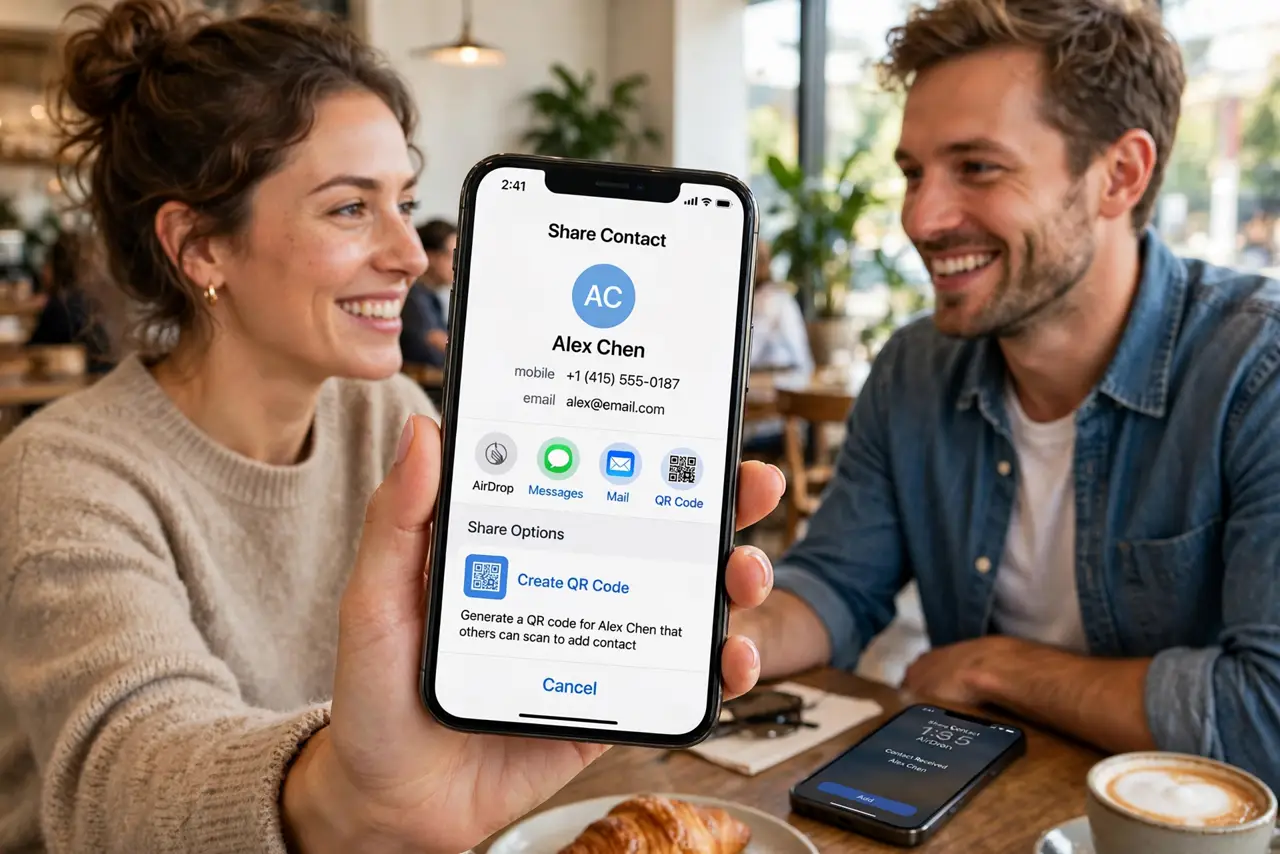
Quick fix: open your own contact in the Contacts app, tap Share, and choose how to send it — AirDrop, message, or a QR code they scan. The recipient gets every field perfectly typed. Set up your My Card once with the details you want to share.
Follow these steps
- Set up your My Card. Open Contacts, find your own card at the top (My Card), and fill in the number, email, and details you are happy to share. This is the card you will beam — keep it to what new acquaintances need.
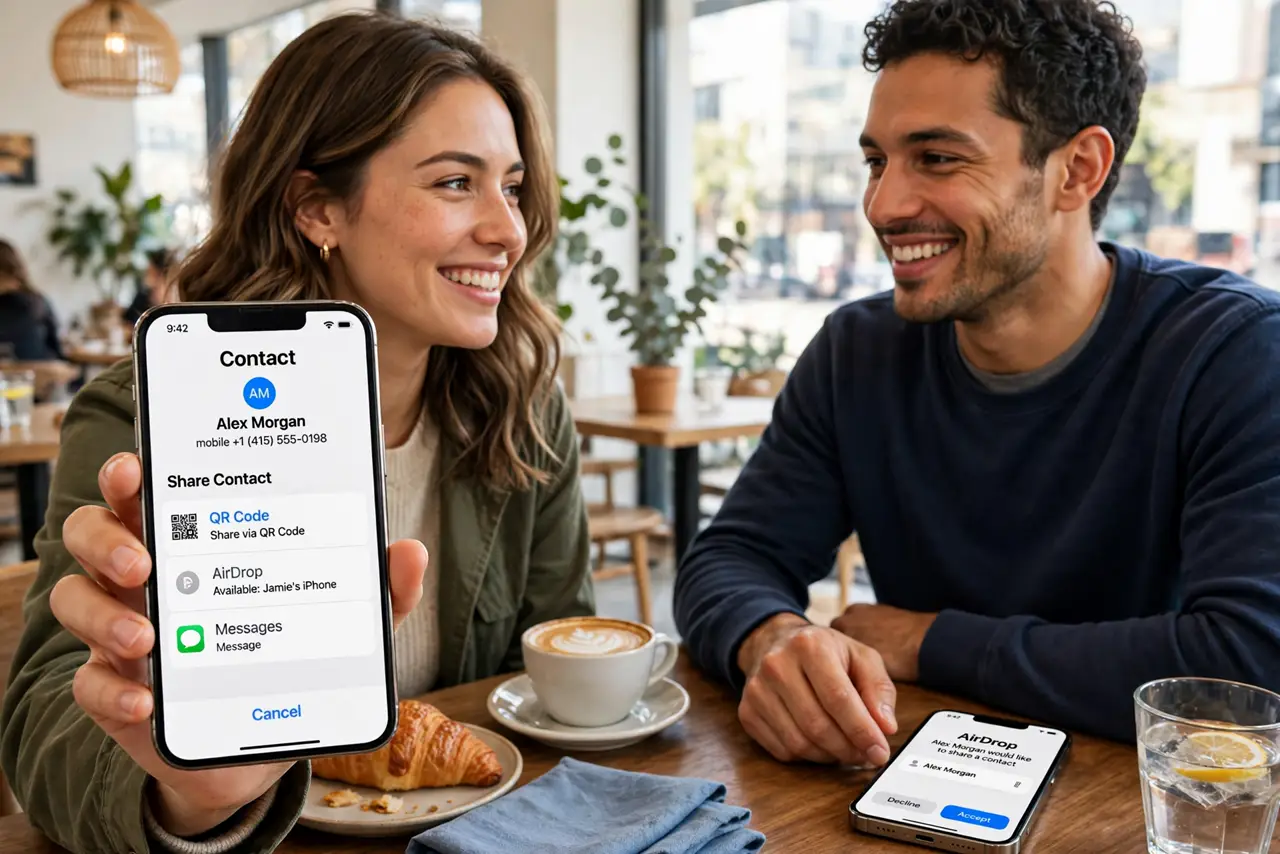
- Share from the Contacts app. Open your card, tap Share Contact, and pick a method. AirDrop is fastest iPhone-to-iPhone; messaging works for everyone; the QR option covers Android friends on the spot.
- Use NameDrop for iPhones. Hold two iPhones near each other to trigger NameDrop and swap contact cards instantly. It is the fastest method when both people have recent iPhones — no menus at all.
- Use a QR code for mixed phones. When the other person has Android, the QR code option is the universal method. They scan it with their camera and your card imports perfectly — no typing, no errors.
- Choose what to include. The share sheet lets you pick which fields go out. Send the full card to friends, a trimmed work-only version to professional contacts — you control every field.
- Save cards you receive. When someone shares with you, review the fields before saving. One tap imports everything into your contacts, correctly spelled and formatted.
What NOT to do
- Do not dictate your number aloud. Dictation produces typos; a shared card is perfect every time.
- Do not share your full card with strangers. Trim sensitive fields — home address stays off the networking version.
- Do not forget to update My Card. A new number on an old card sends people to a dead line — update it the day it changes.
- Do not AirDrop to everyone nearby. Use the share sheet's specific contact target, not open AirDrop to all.
Frequently asked questions
What is NameDrop?
Apple's tap-to-share: hold two iPhones close and contact cards swap automatically. Both people confirm before anything sends.
Can I share my card with an Android phone?
Yes — via QR code or by messaging the card as a file. The QR method is instant and needs no apps.
The QR code will not scan. Now what?
Brighten your screen and clean their camera lens. If it still fails, message the card instead — the file imports the same way.