Contact Posters Not Showing on Calls? Fix It
You set up a Contact Poster — photo, name style, the works — but callers still see the old plain caller ID. Posters need the right sharing settings on both ends, and they only appear in specific situations. This guide gets your poster actually showing up, instead of decorating only your own phone.
TL;DR / Quick Fix
Quick fix: check that Share Name and Photo is on and set to Contacts Only or Always Ask in your contact card settings. Posters only show for people who have you saved with your Apple ID number. Both phones need a recent iOS — update if the poster's still invisible.
Follow these steps
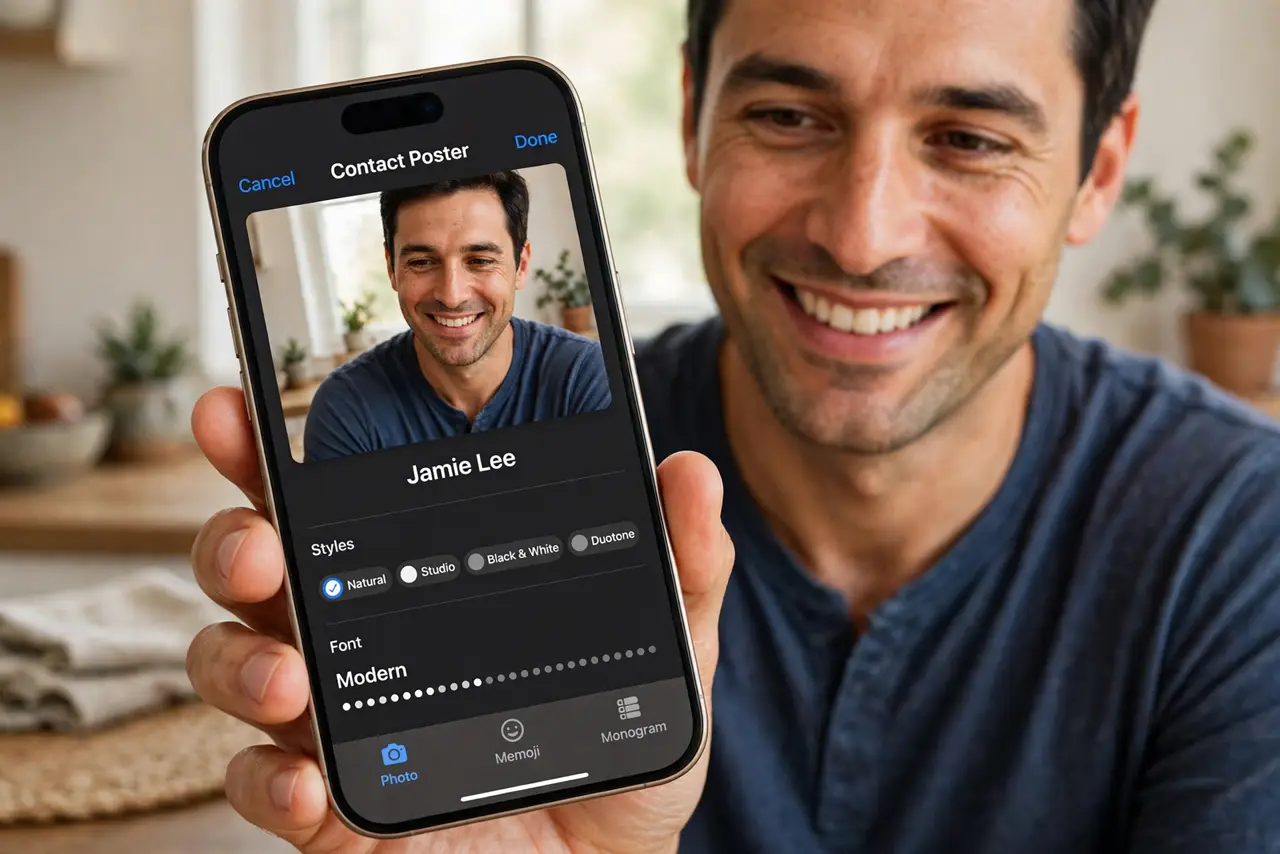
- Open your contact card. In the Contacts app, open My Card at the top. The poster lives here, and so do its sharing settings.
- Verify the poster is finished. Tap the poster to edit it and confirm it is saved — photo chosen, name styled, Done tapped. An unfinished draft never shares.
- Turn on Share Name and Photo. Enable sharing and choose Contacts Only or Always Ask. With sharing off, nobody ever sees the poster.
- Confirm the number matches your Apple ID. Posters attach to the phone number on your Apple ID. If callers have a different number saved for you, the poster will not appear.
- Check the other person's iOS version. Contact Posters need recent iOS on both ends. If the caller runs an old version, they see plain caller ID no matter what you set.
- Test with a willing contact. Call a friend who has you saved and ask what they see. Real-world testing beats guessing about settings.
What NOT to do
- Do not expect posters on every call. They show in specific cases — saved contacts with compatible iPhones — not universally.
- Do not share your poster with Everyone unless you mean it. Your photo and styled name go to every caller, including strangers.
- Do not assume a missing poster means yours is broken. The caller's phone version and how they saved you matter just as much.
- Do not keep re-creating the poster hoping it appears. One finished poster plus correct sharing beats five drafts.
Frequently asked questions
Why isn't my Contact Poster showing?
Sharing is off, the poster is an unfinished draft, the caller saved a different number for you, or their iPhone runs an old iOS.
Who can see my Contact Poster?
Whoever you allow in Share Name and Photo — Contacts Only or Everyone — provided they have a compatible iPhone and your Apple ID number saved.
Can I use different posters for different people?
Not per contact — you have one poster. You control who sees it through the sharing setting.