Block Adult Content for Kids
Kids stumbling onto adult sites and explicit content is a matter of when, not if — one curious search, one shared link, one mistyped address. Content restrictions on the iPhone can block adult websites, filter explicit media, and limit app downloads by age rating. They are not perfect, but they turn an open door into a locked one. Combine with downtime schedules and communication safety for layered protection.
TL;DR / Quick Fix
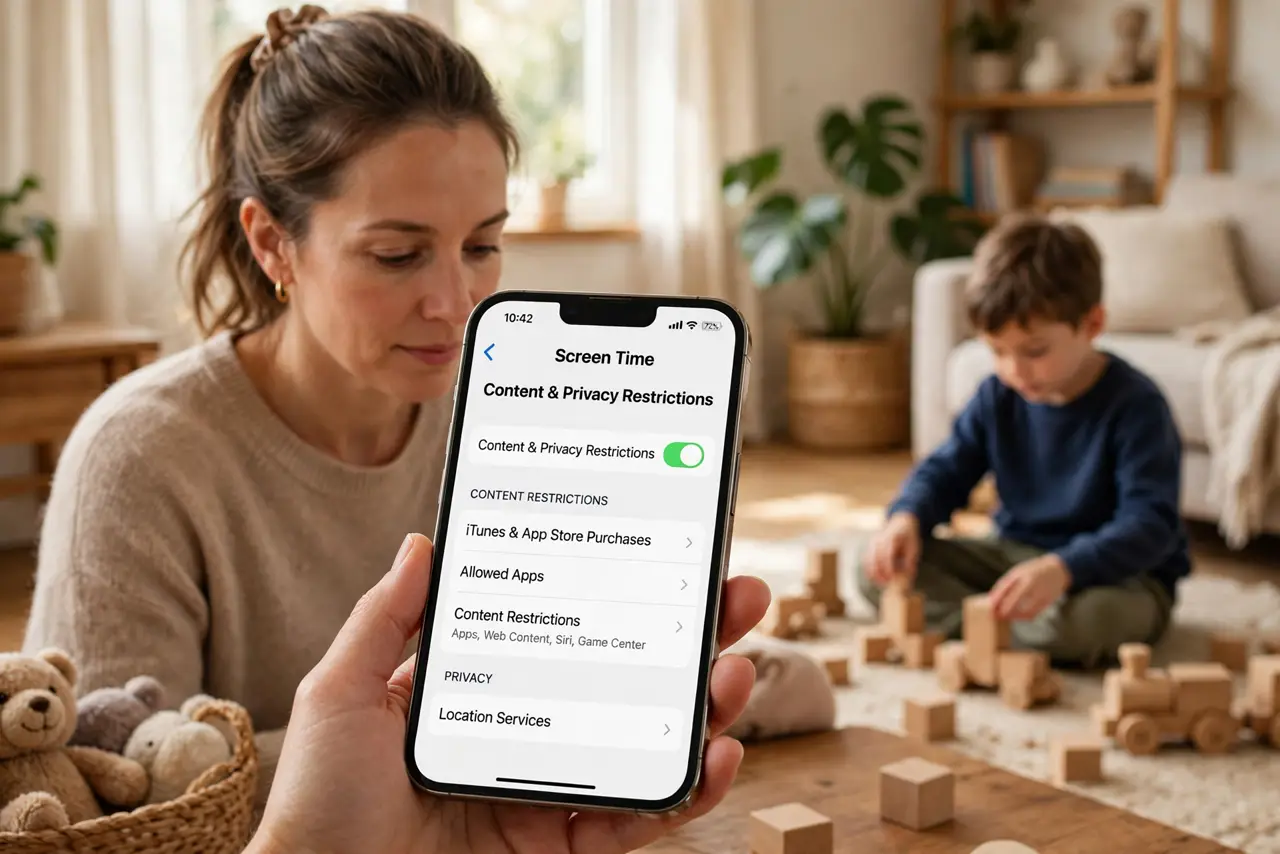
Quick fix: in Screen Time, turn on Content and Privacy Restrictions and set web content to limit adult websites, cap app downloads by age rating, and filter explicit media. It is per-device, so repeat it on every iPhone and iPad the child uses.
Follow these steps
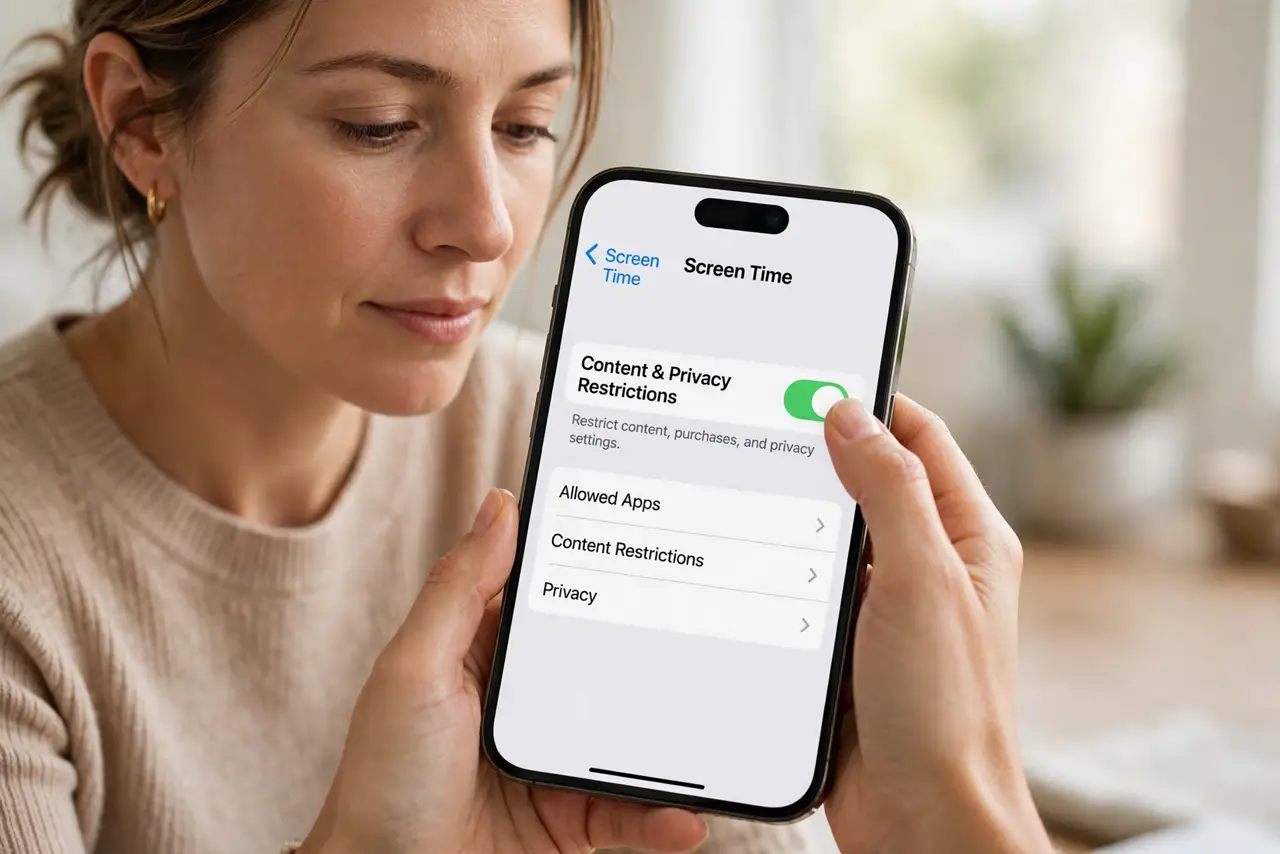
- Open Content and Privacy Restrictions. On the child's iPhone, go to Settings, Screen Time, then Content and Privacy Restrictions, and turn the main switch on. Everything else builds on this toggle.
- Limit adult websites. Under Web Content, choose Limit Adult Websites. Safari then blocks known adult sites automatically — the single most impactful setting here.
- Cap apps by age rating. Under Allowed Apps and App Store settings, restrict app downloads and purchases by age rating. A seven-year-old does not need 17+ apps, whatever the icon promises.
- Filter explicit media. Restrict explicit music, podcasts, and books in the media settings. Filters apply across Apple's apps consistently once set.
- Repeat on every device. Restrictions are per-device, not per-child. Every iPhone and iPad the child touches needs the same setup — one unprotected device defeats the rest.
- Talk about it. Explain what is blocked and why, in age-appropriate terms. A child who understands the reason cooperates; one who finds a secret filter looks for workarounds.
What NOT to do
- Do not set restrictions secretly. Discovered secret controls destroy trust and motivate circumvention — openness works better.
- Do not assume the filter is perfect. New sites appear daily; restrictions reduce exposure dramatically but cannot promise zero.
- Do not forget new devices. Every new iPhone or iPad starts unrestricted — make setup part of unboxing.
- Do not rely on filters alone. The conversation about what to do when something slips through matters more than any setting.
Frequently asked questions
Can kids bypass these restrictions?
Determined teens can find ways around most filters, which is why the conversation matters as much as the setting. For younger kids, the restrictions are highly effective.
Do restrictions block YouTube?
You can restrict the YouTube app by age rating or remove it and use the filtered web version. Video platforms need their own in-app restricted modes too.
Will this affect the parent's phone?
No — restrictions apply per device. Set them on the child's devices; your own phone stays exactly as it is.