Get Cycling Directions
Driving directions will route your bike onto a highway; walking directions ignore bike lanes entirely. Both Apple Maps and Google Maps have a dedicated cycling mode with bike-friendly routing, elevation info, and lane guidance — if you know where the button hides. Here is how to ride with it.
TL;DR / Quick Fix
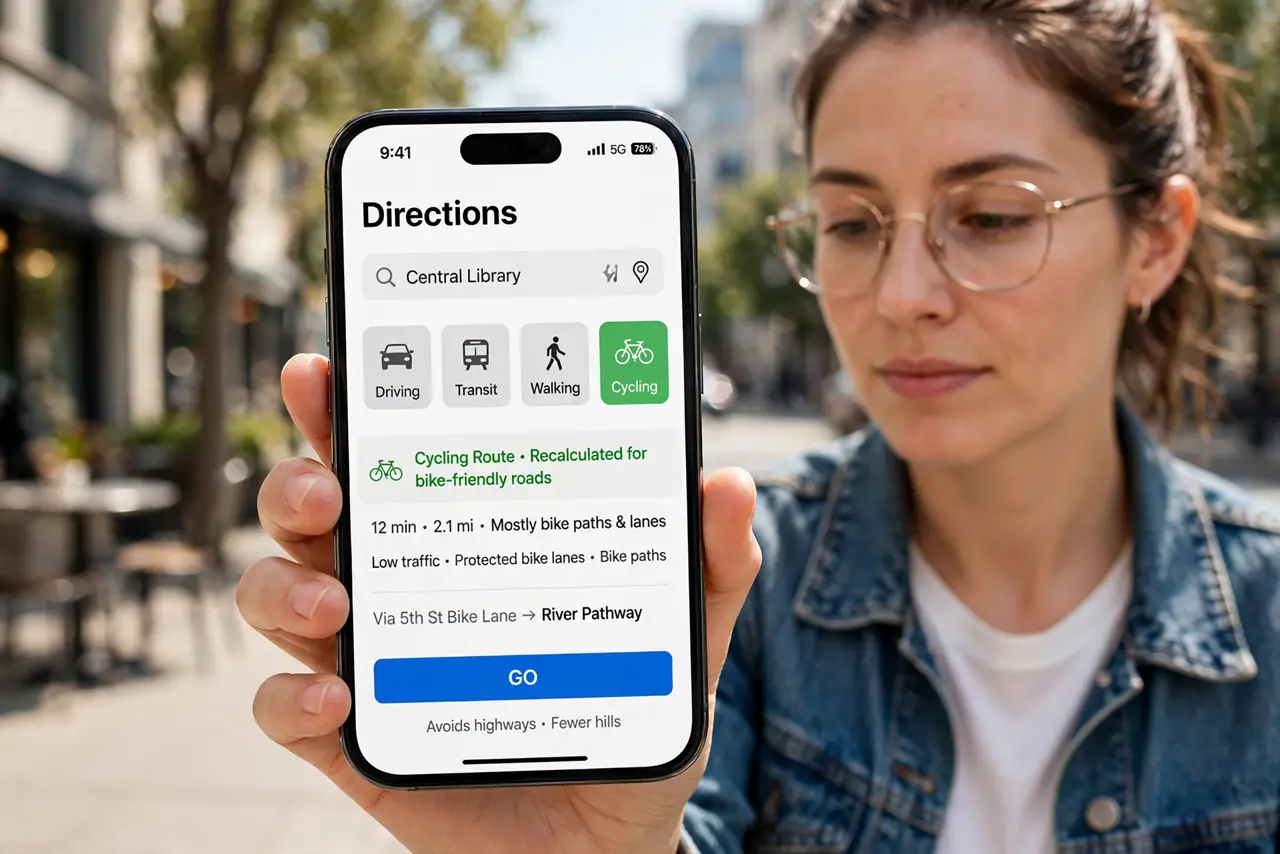
Quick fix: in Apple Maps or Google Maps, enter your destination and tap the bicycle icon to switch to cycling directions. Routes favor bike lanes and paths and show elevation. Availability varies by city — where it's missing, the app falls back to other modes.
Follow these steps
- Pick cycling mode. Enter your destination, then tap the transport icons and choose the bicycle. The route recalculates for bike-friendly roads, lanes, and paths instead of car routing.
- Check elevation before you commit. Cycling directions show the elevation profile — that 'short cut' might be a brutal hill. Glance at the profile and pick the flatter option when it matters.
- Preview the route type. Look for how much of the route uses bike lanes, paths, or shared roads. A route that's 90% busy road isn't really a bike route — try alternates.
- Download the area offline. Rural rides lose signal. Save offline maps for the area beforehand so navigation keeps working without data.
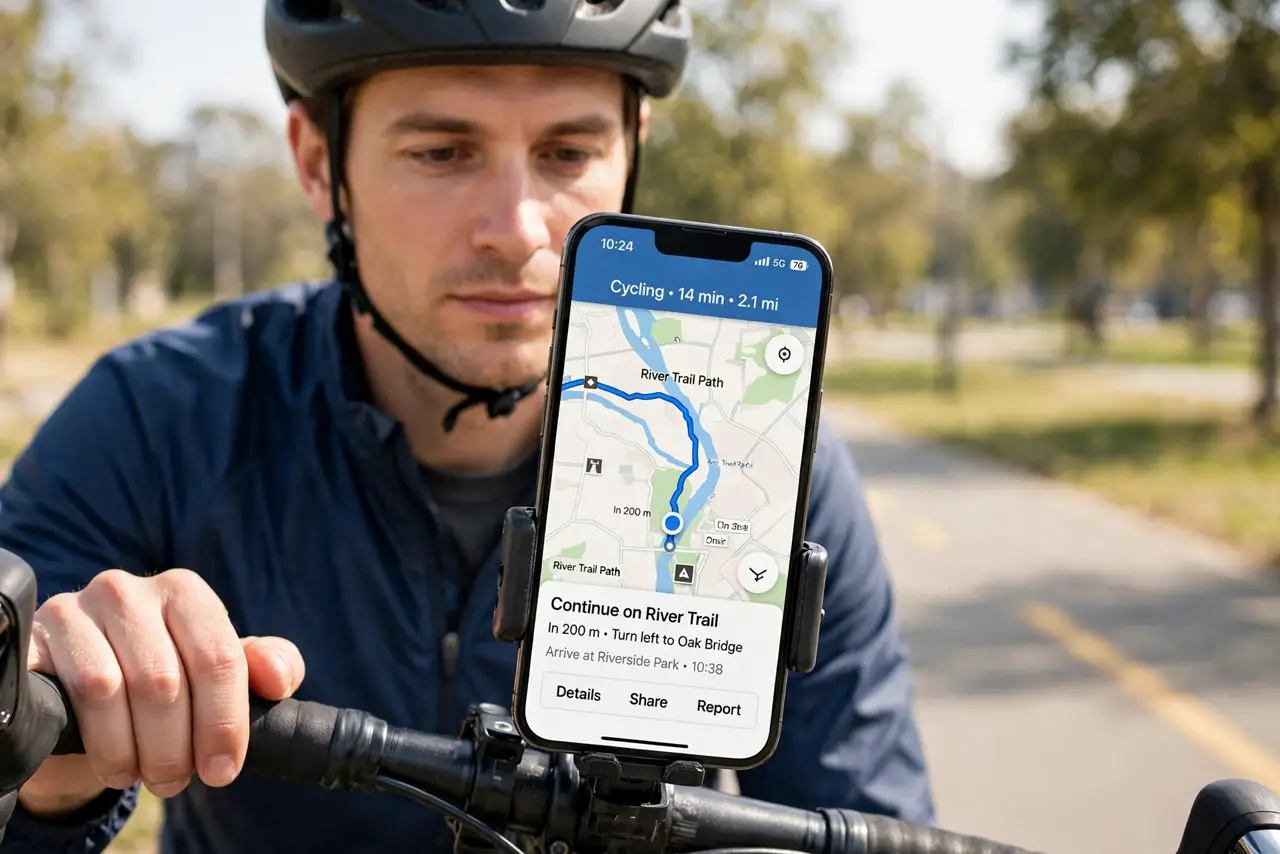
- Mount the phone safely. A handlebar mount beats a pocket — you need glances, not fumbling. Enable voice guidance so you barely look at the screen.
- Report bad bike routing. Sent onto a highway or a staircase? Report the map issue in the app. Bike data improves from rider reports faster than from anything else.
What NOT to do
- Do not follow cycling directions blindly. Map data misses closures, construction, and genuinely dangerous stretches — your eyes overrule the app.
- Do not ride while staring at the phone. Voice prompts exist so you can watch the road; a handlebar glance is for confirmation only.
- Do not assume bike lanes are current. New lanes appear faster than map updates; a missing lane on the map may exist in reality — and vice versa.
- Do not drain your battery mid-ride. Navigation plus screen-on eats power; a portable battery or battery-saver mode saves the return trip.
Frequently asked questions
Why don't I see a bike icon?
Cycling directions aren't available in every region. Where unsupported, the icon simply doesn't appear — check for app updates, but availability is the usual reason.
Does cycling mode avoid hills?
It shows elevation but doesn't strictly avoid hills. Use the profile to choose between route options yourself.
Can I plan a round trip?
Add multiple stops to build a loop. Both apps support multi-stop routes — handy for planning the ride out and back.