Two eSIMs? Basics
Modern iPhones can hold several eSIMs at once and keep two active — handy for a work line plus a personal line, or your home number plus a travel plan. The catch is that your carrier must support eSIM, and the phone juggles data, calls, and iMessage between the two lines in ways that confuse people. This guide explains the setup and the everyday rules.
TL;DR / Quick Fix
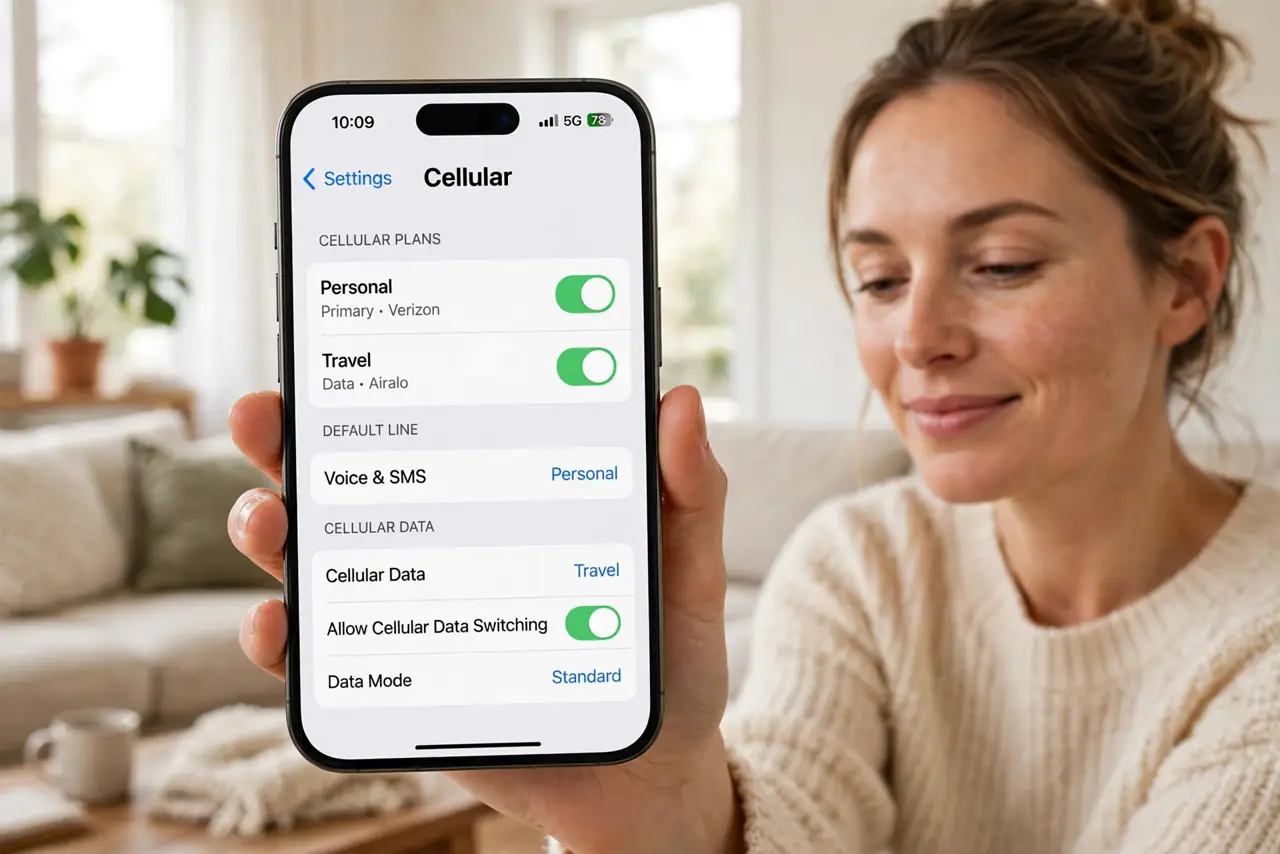
Quick fix: recent iPhones support multiple eSIMs with two active at once — add the second in Settings, then Cellular, then Add eSIM with your carrier's QR code. Label each line (Personal, Work) clearly. Pick one line for cellular data; calls and texts ring on both.
Follow these steps
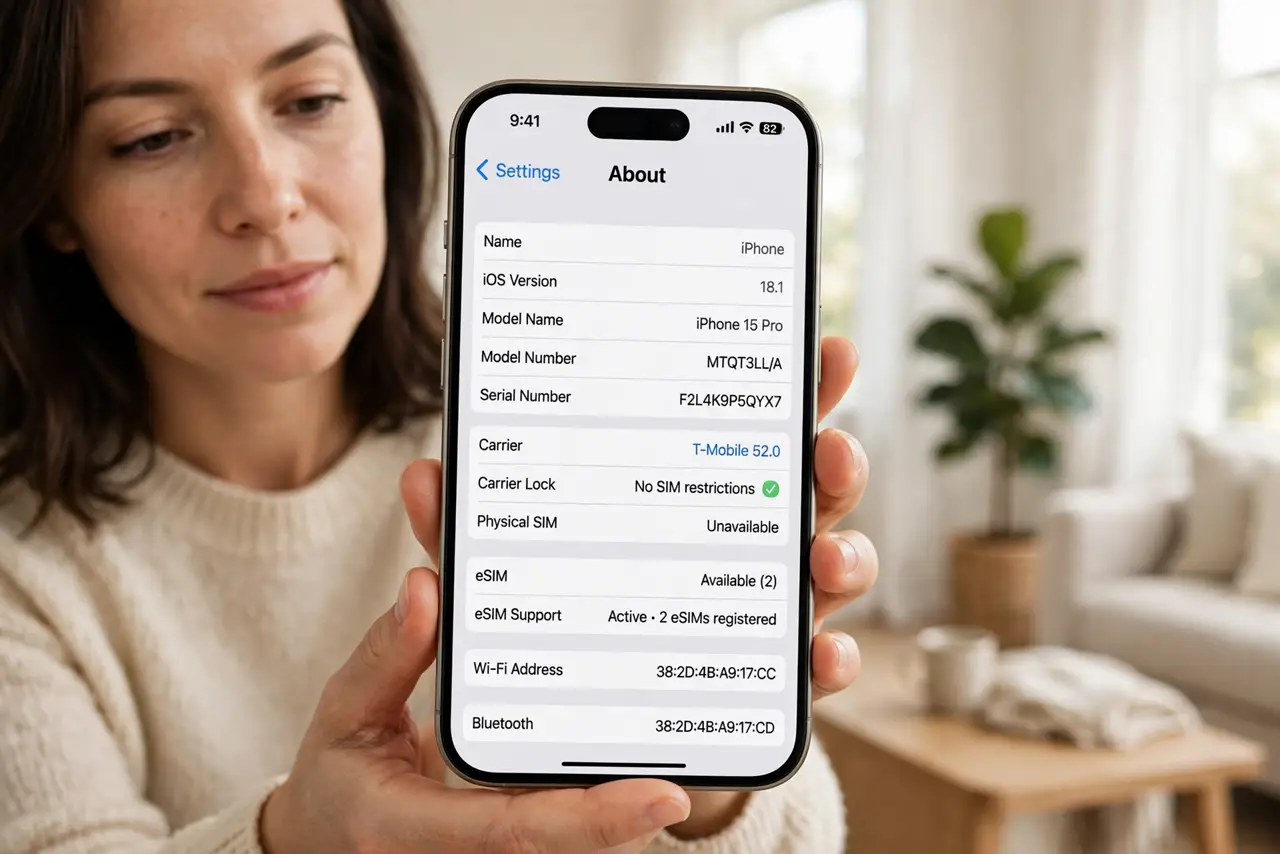
- Confirm your iPhone and carrier support eSIM. iPhone XS and later support eSIM, and newer US models are eSIM-only. Your carrier must offer eSIM activation — most major carriers do, but smaller ones may not yet.
- Add the second eSIM. Go to Settings, then Cellular, then Add eSIM, and follow your carrier's method — usually scanning a QR code or using their app. The phone walks you through it in a couple of minutes.
- Label your lines clearly. During setup the iPhone asks you to label each line — Personal, Work, Travel. Do this carefully: clear labels are the difference between confidence and chaos when choosing a line later.
- Choose your default line for data. Only one line carries cellular data at a time. In Cellular settings, set Cellular Data to the line with the better plan, and turn on Allow Cellular Data Switching if you want the phone to fail over automatically.
- Understand how calls and texts work. Both lines can receive calls and texts; the phone asks which line to use when you call someone new. iMessage and FaceTime can be tied to one or both numbers — check the settings so replies come from the number you expect.
- Know the limits before traveling. Two active eSIMs plus a stored one is typical, but the exact count varies by model. For trips, a travel eSIM as the second line is the classic setup — home number stays reachable while data runs on the local plan.
What NOT to do
- Do not delete your old eSIM before the new one works. Keep the working line active until the replacement is tested with a real call.
- Do not assume both lines use data simultaneously. One line carries data at a time — the other is calls and texts only.
- Do not ignore which line iMessage uses. Replies from the wrong number confuse contacts — set your default sender deliberately.
- Do not buy a travel eSIM without checking band support. The eSIM only helps if your iPhone supports the destination's network bands.
Frequently asked questions
Can I use two eSIMs and a physical SIM together?
Most iPhones allow two active lines total — any mix of eSIM and physical SIM depending on the model. Newer US iPhones dropped the physical slot entirely.
Will both numbers ring for incoming calls?
Yes — calls to either number ring the phone, and you see which line the call is on before answering.
Does dual eSIM drain the battery faster?
Slightly, since the phone maintains two network registrations. The difference is small for most people — data switching has a bigger effect.