Add Emergency Contacts
When seconds matter, nobody should be scrolling your contacts guessing who to call. Emergency contacts on iPhone do triple duty: they appear on your Medical ID, they get notified if you trigger Emergency SOS, and Siri can call them by relationship hands-free. Here is the complete setup.
TL;DR / Quick Fix
Quick fix: open the Health app > Medical ID > Edit and add emergency contacts — they appear to first responders and get notified if you trigger Emergency SOS. Also add them in Contacts with the relationship label so Siri can call them hands-free. Tell them they're listed.
Follow these steps
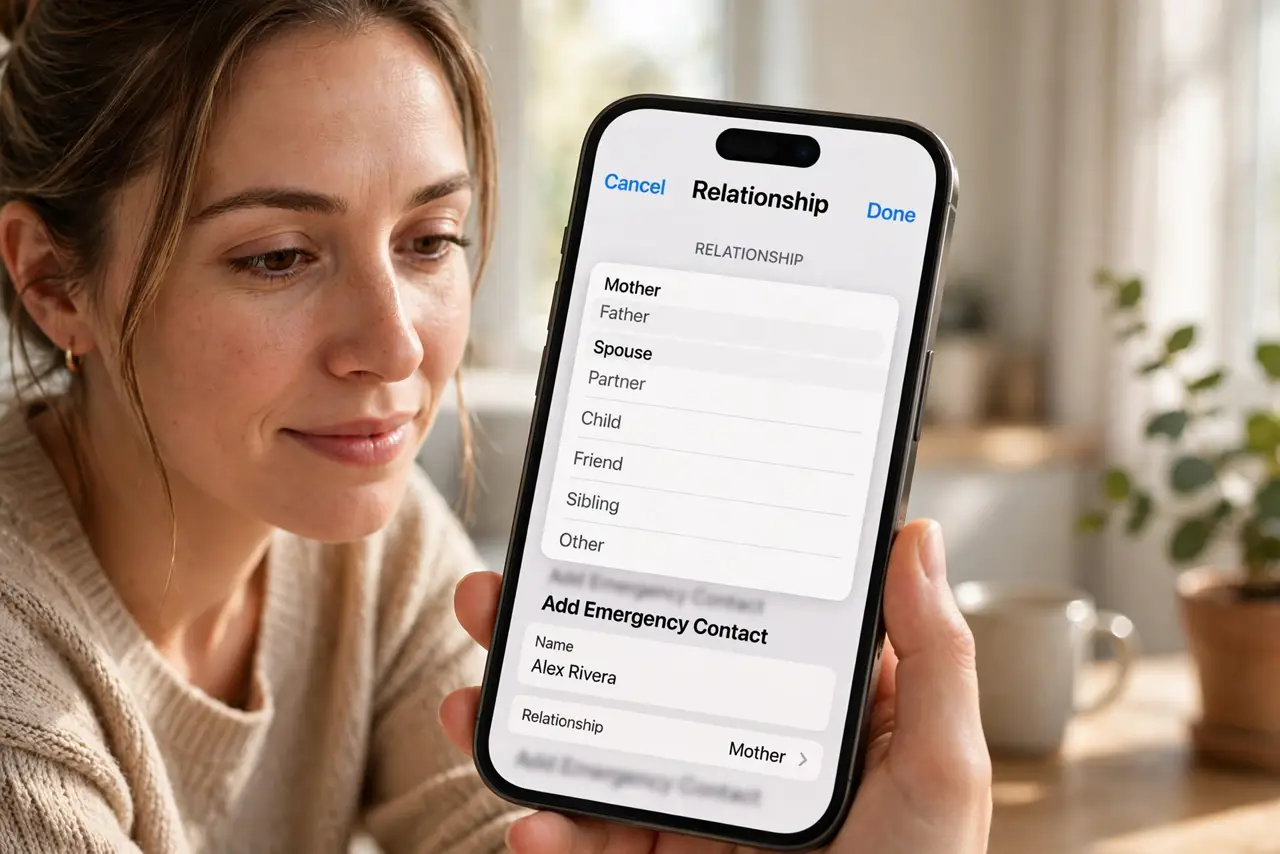
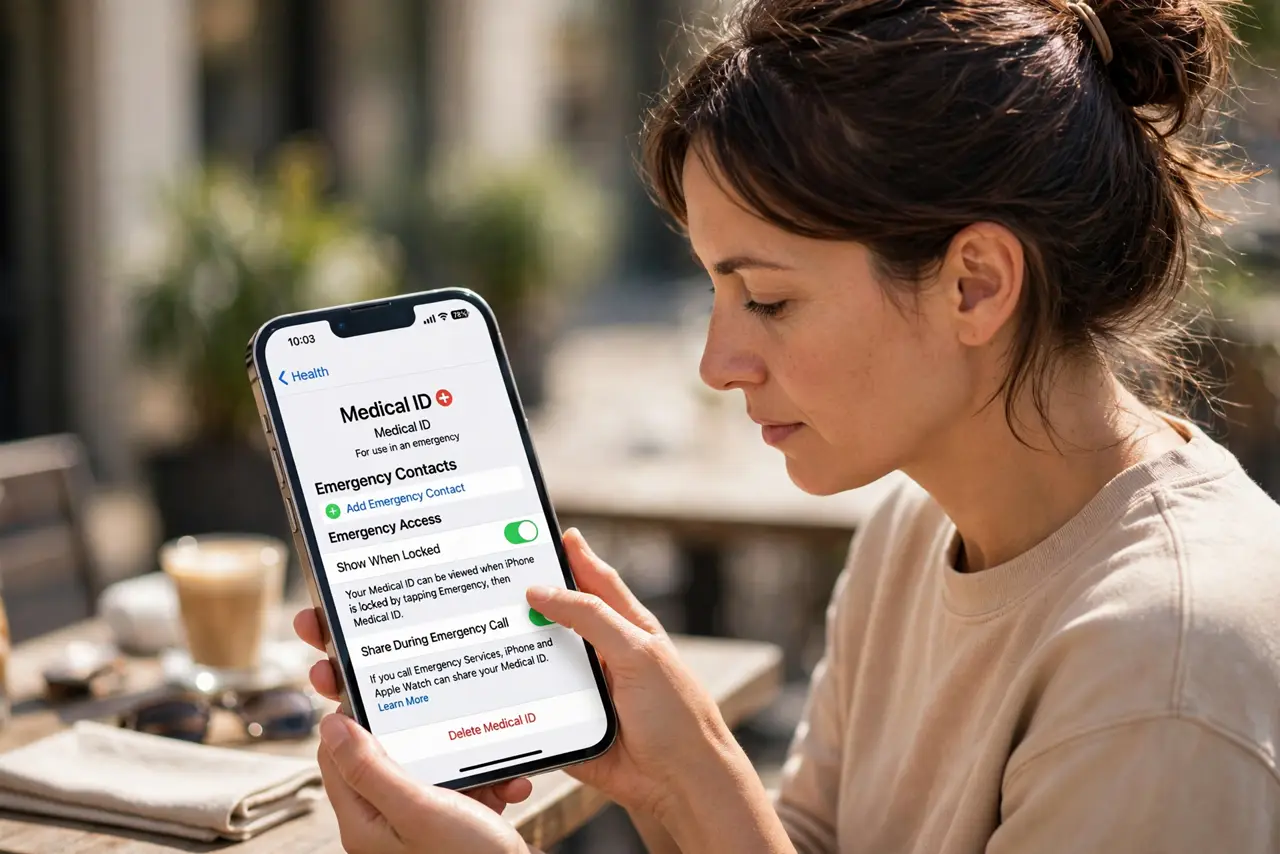
- Add them in Medical ID. Health app > profile > Medical ID > Edit > Add Emergency Contact. Choose the person and their relationship to you.
- Label relationships in Contacts. Edit the contact and set the relationship field — mother, spouse, brother. This lets Siri understand 'call my wife' instantly.
- Understand the SOS notification. If you trigger Emergency SOS, these contacts get a text with your location, plus updates if you move. They are your automatic alert chain.
- Tell them they are listed. Nobody wants a 2 a.m. 'your contact triggered SOS' text with zero context. A thirty-second conversation prevents panic.
- Keep the list short. Two or three reliable people beat eight acquaintances. Reliability at 3 a.m. is the only criterion.
- Update after life changes. New partner, moved parent, fallen-out friend — the list should match your actual life. Review it with your Medical ID yearly.
What NOT to do
- Do not list someone without telling them. A surprise SOS alert to an ex is a special kind of disaster.
- Do not add eight contacts 'to be safe'. Alert fatigue is real — two responsive people outperform a crowd.
- Do not skip the relationship labels. Without them, Siri cannot resolve 'call my emergency contact' hands-free.
- Do not assume they see your location always. Contacts get location only during an SOS event — not a tracking feed.
Frequently asked questions
What happens when I trigger Emergency SOS?
The iPhone calls emergency services and texts your emergency contacts your location, with updates if your location changes.
Can Siri call my emergency contact?
Yes — with relationship labels set, 'Hey Siri, call my emergency contact' works hands-free, even from the lock screen.
Do emergency contacts need iPhones?
No — the SOS alert arrives as a plain text message with a maps link, readable on any phone.