Lock iPhone to One App
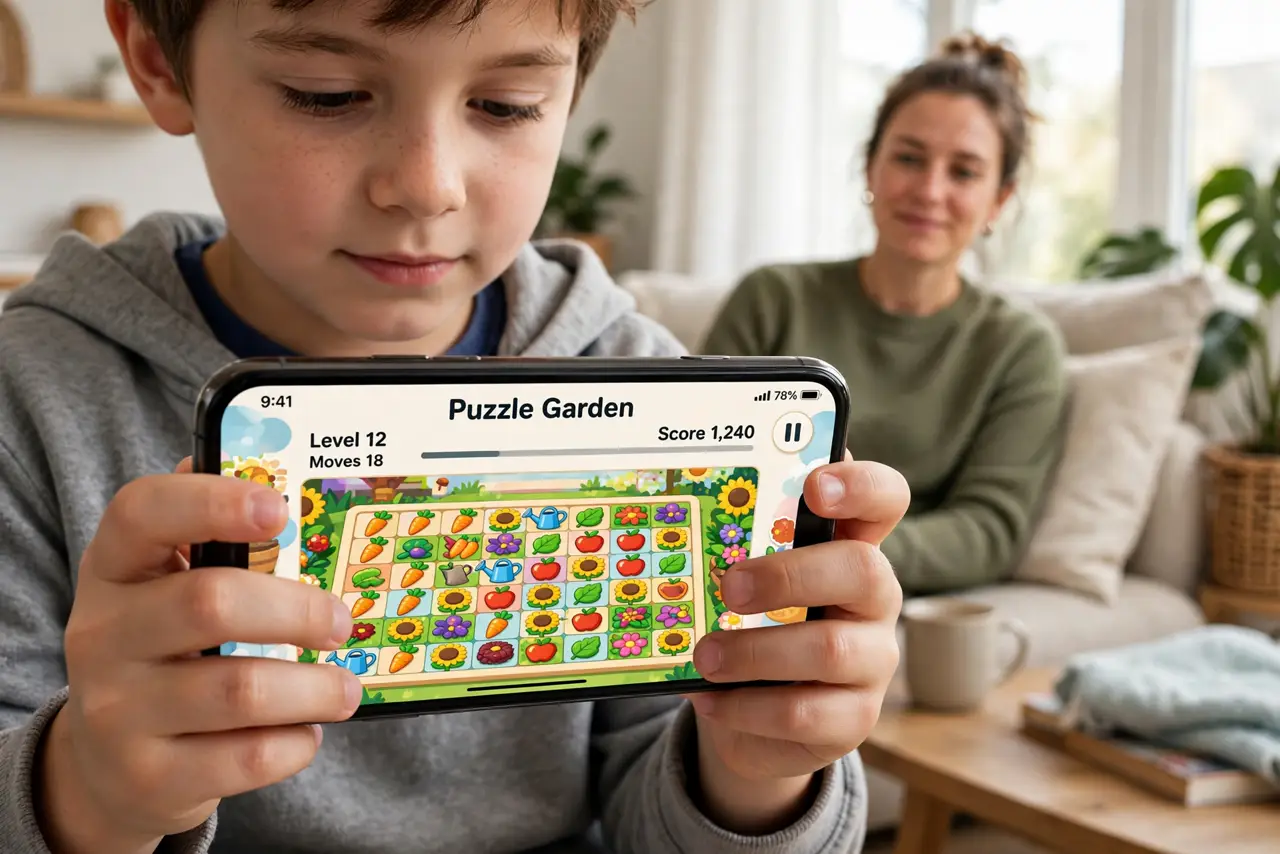
Hand a kid your iPhone for a game and minutes later they are in your messages, your photos, or buying something — kids wander. Guided Access locks the iPhone to a single app: the Home button and gestures stop working until you enter your passcode. It is the digital equivalent of handing them one toy instead of the whole toy box. For longer kid sessions, add a downtime schedule.
TL;DR / Quick Fix
Quick fix: turn on Guided Access in Accessibility settings, open the app, triple-click the side button, and start the session — the iPhone is now locked to that app. You can even circle areas of the screen to disable, like ad banners or buy buttons.
Follow these steps
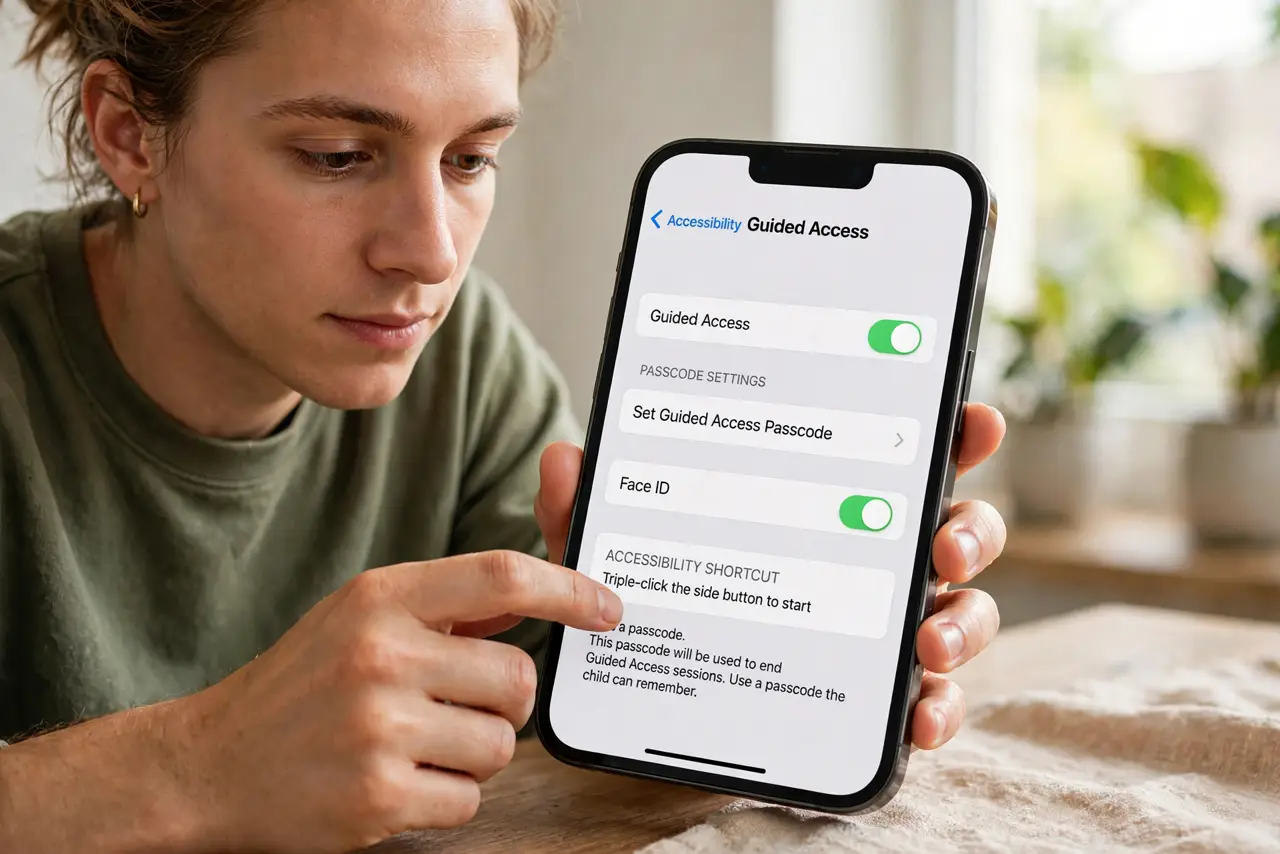
- Turn it on in Accessibility. Open Settings, Accessibility, then Guided Access, and enable it. Set a passcode — this is what ends sessions, so make it one the kid does not know.
- Start a session. Open the app you want to lock to, then triple-click the side button (or Home button on older iPhones) and tap Start. The iPhone is now fenced into that app.
- Disable tricky screen areas. Before starting, you can circle parts of the screen to deactivate — the ad banner, the in-app purchase button, the settings gear. This is the killer feature for kid-proofing games.
- Set a time limit. The options let you cap the session length, with a warning before time runs out. The phone locks itself when time expires — no negotiation needed.
- End with the passcode. Triple-click again and enter your passcode to end the session. Without the code, there is no exit — which is exactly the point.
- Use it beyond kids. Guided Access shines anywhere focus matters: kiosks, demos, letting a friend try one app, or keeping yourself out of distracting apps during work.
What NOT to do
- Do not start a session without setting the passcode first. No passcode means no clean exit — set it in Accessibility before the first use.
- Do not forget it is per-session. Guided Access locks one app launch; closing and reopening the app needs a fresh triple-click.
- Do not rely on it as the only kid control. It is a session tool — pair it with purchase approvals and downtime for real boundaries.
- Do not use an obvious passcode. Kids watch and remember — the exit code must be genuinely secret.
Frequently asked questions
What is the Android equivalent?
Android's app pinning does the same job: lock the phone to one app until the PIN is entered.
Can the kid still receive calls?
Incoming calls can interrupt depending on settings — for a pure kid session, enable Do Not Disturb first.
Does it work in any app?
Yes — any app can be the locked one. Games are the classic use, but videos, drawing apps, and readers all work.