iPhone Health Steps Stop Counting? Fix It
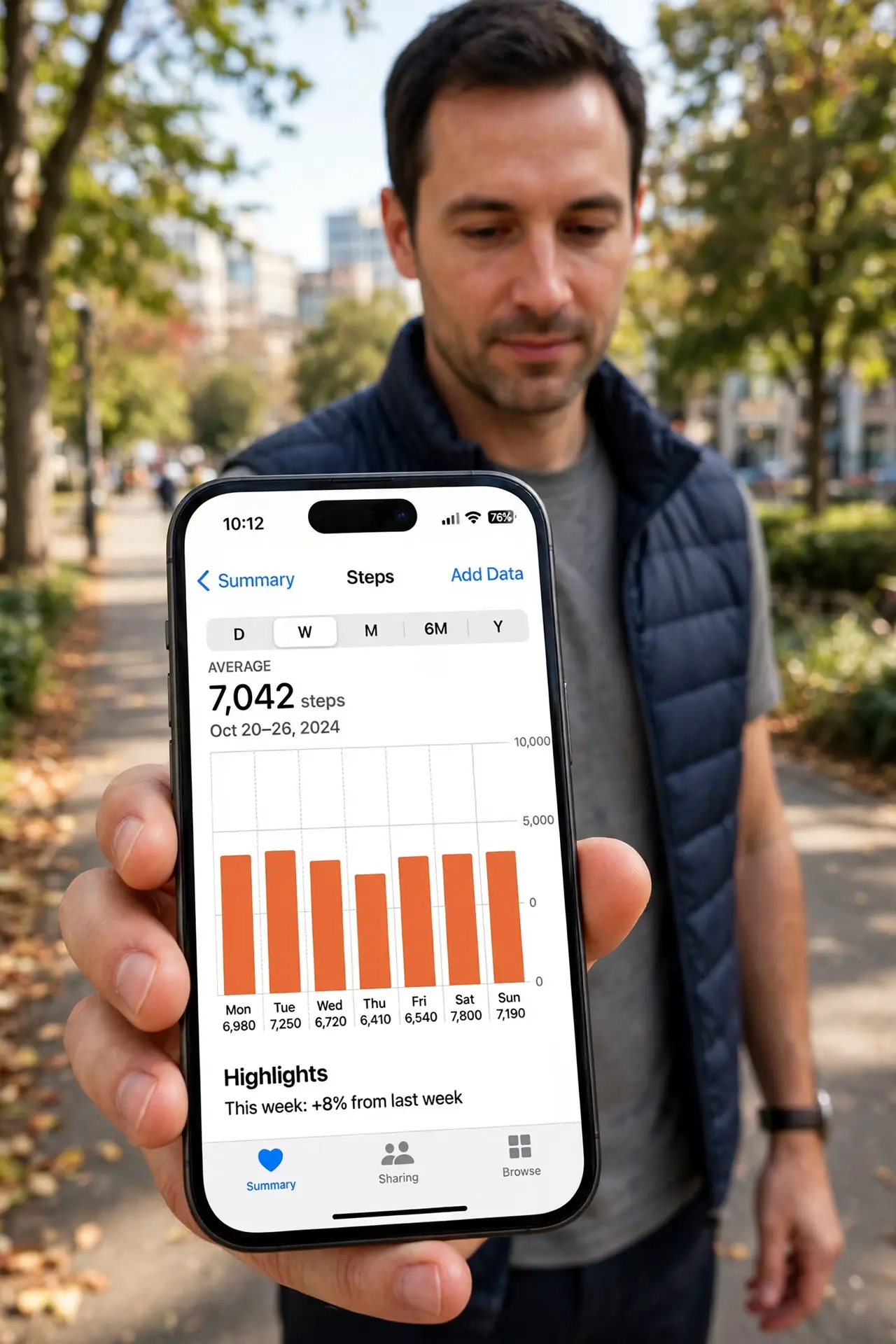
Your step count froze or dropped to near zero, even though you walked plenty. Step counting needs motion permission, Fitness Tracking on, and the phone actually on you. The wearable twin is an Apple Watch that will not pair, since watch steps fill the same Health record.
TL;DR / Quick Fix
Quick fix: confirm Fitness Tracking is on, allow motion access for Health, carry the phone in a pocket, check the Steps data source, restart the phone, and check Low Power Mode. If it still fails, note exactly when it happens, then try again slowly once.
Follow these steps
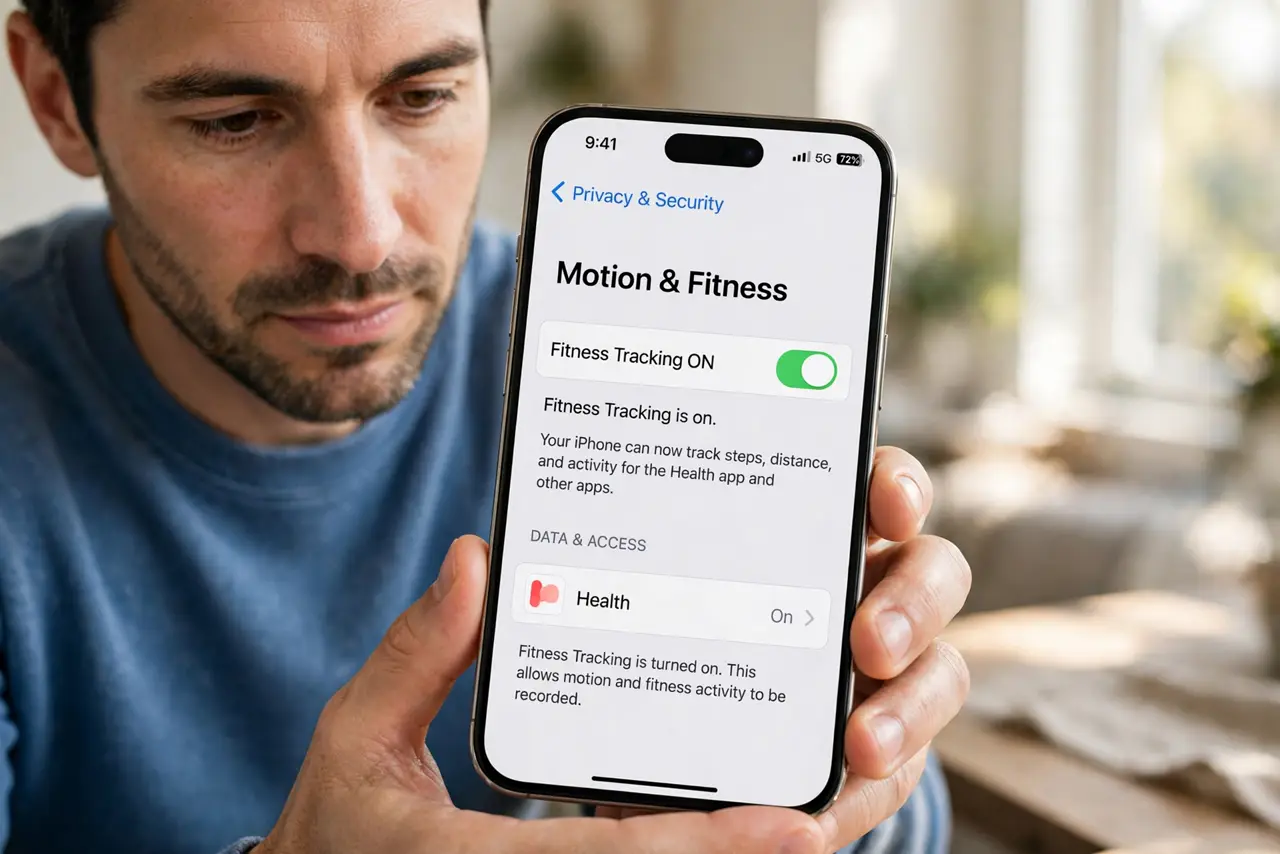
- Confirm Fitness Tracking is on. Open Settings, then Privacy and Security, then Motion and Fitness, and make sure Fitness Tracking is on. Without it, the phone does not count steps at all.
- Allow motion access for Health. In the same screen, confirm Health is allowed under Motion and Fitness. A revoked permission stops step counting silently.
- Carry the phone in a pocket. Carry the phone in a trouser or jacket pocket while walking. A phone left on a desk, in a bag that barely moves, or in a car will not count your steps.
- Check the Steps data source. Open Health, then Browse, then Activity, then Steps, and check data sources. Another device or app may be overriding the phone count with its own data.
- Restart the phone. Restart the iPhone and walk a short test route. A stuck motion service after an update sometimes needs a restart to resume counting.
- Check Low Power Mode and updates. Turn off Low Power Mode for a test day, and check Settings, then General, then Software Update. Power saving and stale iOS can both pause motion tracking.
What NOT to do
- Do not shake the phone to test steps. Shaking proves little, while a real short walk with the phone in your pocket is the true test.
- Do not install a step counter app as a first step. The built-in Health app counts steps, so fix its permission first.
- Do not expect steps when the phone is not on you. A phone on a desk cannot count walking, no matter the settings.
- Do not delete Health data to fix counting. Deleting history removes your record without fixing the permission that stopped it.
Frequently asked questions
Why did my steps stop suddenly?
Usually Fitness Tracking or motion permission turned off, or an update paused the service. Check both.
Does the phone need to be in my pocket?
It needs to move with you. A pocket works best, while a still bag or desk does not count.
Can my watch count steps instead?
Yes, if paired and syncing. Watch steps appear in Health alongside phone steps.