Update iPhone Safely
Update day arrives, everyone online is talking about the new iOS, and your iPhone says the update is ready. Rushing it on a lunch break is how people end up with a dead phone at 3 percent or apps that misbehave for a week. A calm thirty minutes of prep — backup, power, Wi-Fi — turns update day into a non-event. If you ever flirt with early software, read the beta risks first.
TL;DR / Quick Fix
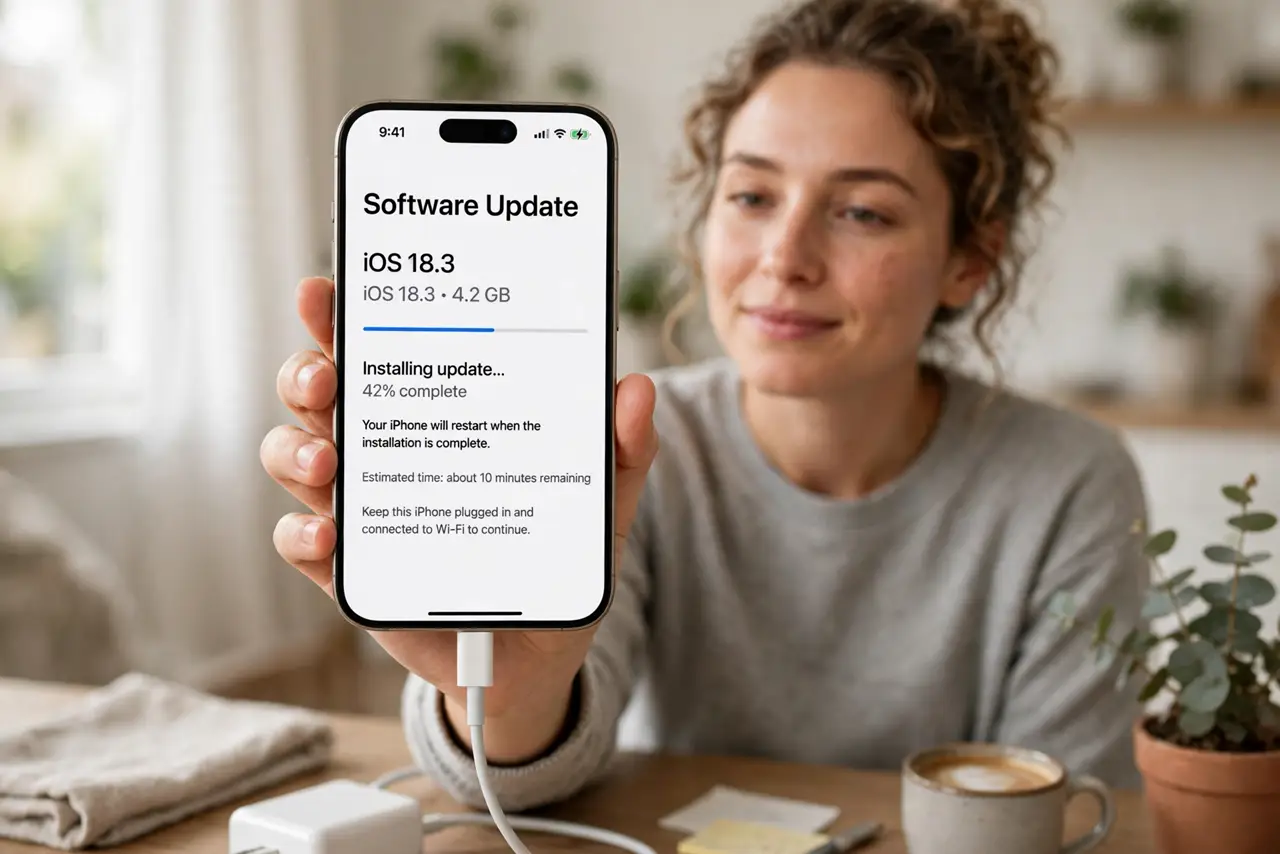
Quick fix: back up your iPhone, plug it into power, and start the update when you do not need the phone for an hour. Install on Wi-Fi, leave it alone during the progress bar, and check that apps still work before you leave home.
Follow these steps
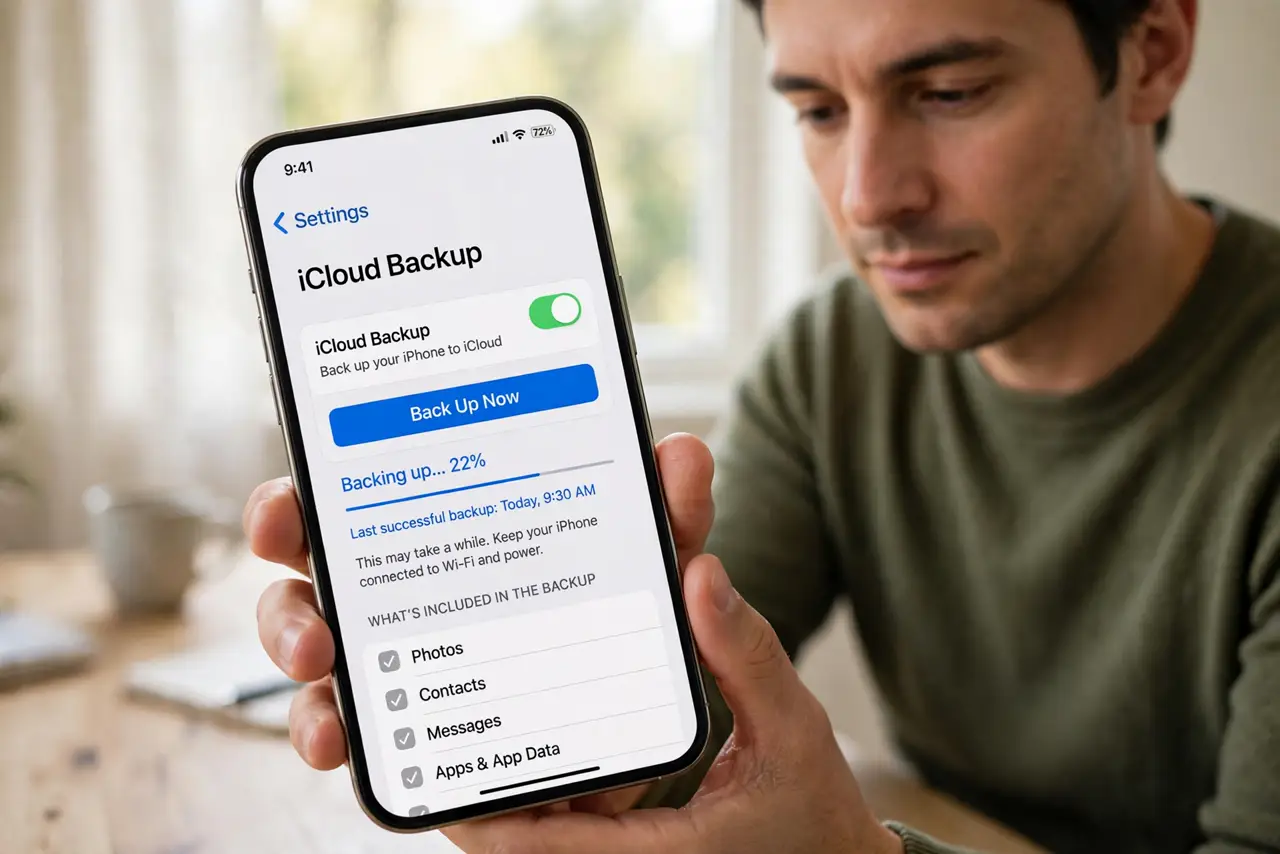
- Back up the iPhone first. Run an iCloud or computer backup before touching the update. If anything goes wrong mid-install, the backup is the difference between a scare and a disaster.
- Plug into power and Wi-Fi. Updates refuse to install on low battery, and a dead phone mid-update is the classic nightmare. Charger in, strong Wi-Fi on, then start.
- Start the update when you are free. Major iOS updates take 20 to 45 minutes with restarts. Begin when you will not need calls, maps, or two-factor codes for a while.
- Do not touch it during the progress bar. The black screen with the Apple logo and progress bar is the delicate phase. Leave the phone alone — no unplugging, no force-restarting.
- Check your essential apps after. Open banking, messaging, and work apps once the phone is back. Most work fine, but catching a broken one at home beats discovering it at the store.
- Give the battery a day to settle. The first day after an update, the phone re-indexes everything and the battery drains faster. This is normal and settles within 24 to 48 hours.
What NOT to do
- Do not update on cellular data. iOS updates are gigabytes — you will burn through a data plan and the download may stall.
- Do not start an update at 10 percent battery. If the phone dies mid-install, recovery gets complicated fast.
- Do not panic at the first-day battery drain. Post-update indexing always costs extra power for a day or so.
- Do not install on the very first hour of release if you depend on the phone. Waiting a day lets early bugs surface online first.
Frequently asked questions
Should I update on day one or wait?
Day one is fine for most people if you back up first. If your phone is critical for work, waiting a few days for early bug reports is the calmer choice.
Will the update delete my photos?
No — updates preserve your data. The backup is insurance against the rare failed install, not an expected outcome.
Why is my iPhone hot after updating?
Post-update indexing and app updates run hard for a few hours. It cools down on its own; only worry if it persists for days.