Turning a Live Photo Still Makes It Blurry
You pick a sharper frame from a Live Photo, make it the still, and the result still looks soft. The chosen frame, the original motion, or the export is usually behind the blur.
TL;DR / Quick Fix
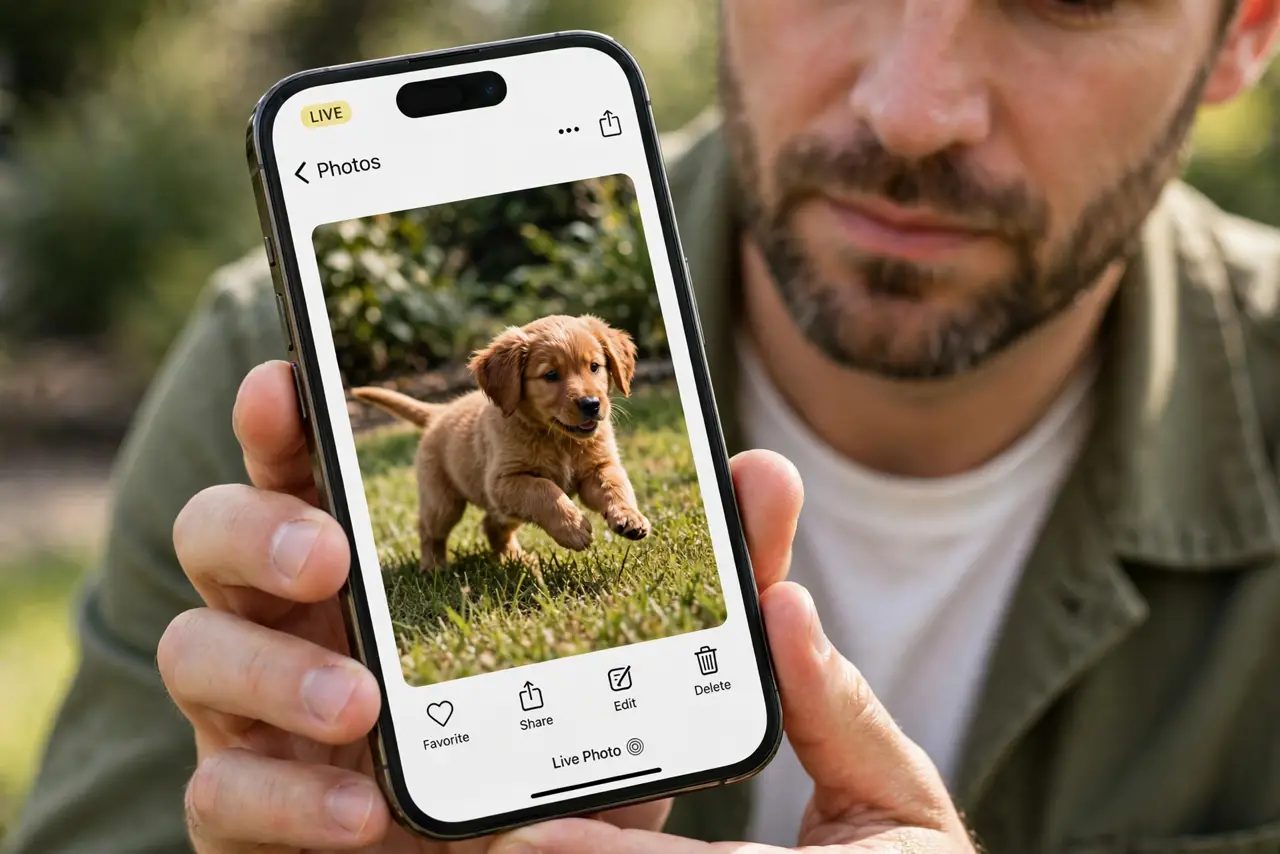
Quick fix: open the Live Photo, scrub to the sharpest frame, and set that frame as the key photo before making it a still. Then duplicate the photo first, so the original Live Photo stays safe and keep the original Live Photo safe as backup.
Follow these steps
- Pick the sharpest frame as key photo. Open the Live Photo, scrub through its frames, and set the sharpest one as the key photo. The still you make comes from the key frame, so a blurry key frame means a blurry still.
- Duplicate before you convert. Duplicate the Live Photo first, then convert the copy to a still. Duplicating keeps the original Live Photo intact if the still disappoints you.
- Check the original motion. If every frame is soft, the subject moved during the capture. No frame choice can sharpen motion blur that runs through the whole Live Photo.
- Hold still for the next Live Photo. For future shots, hold the iPhone steady for a second after tapping the shutter. Live Photos capture before and after the tap, so movement after the tap still blurs frames.
- Export at full quality. When you share the still, choose full quality instead of a compressed share. A heavily compressed export can look blurry even when the chosen frame is sharp.
- Compare the still with the key frame. Open the still beside the Live Photo's key frame. If they match, the frame was the limit, and a different frame — or a fresh photo — is the real fix.

What NOT to do
- Do not convert the only copy of a Live Photo. Duplicate it first, so a disappointing still never costs you the original motion photo.
- Do not expect a still to beat the sharpest frame. The still can only be as sharp as the frame you chose, so pick the frame with care.
- Do not judge sharpness on a tiny preview. Zoom into the still at full size, since a preview can hide softness that a full view reveals.
- Do not keep retaking the same moving shot. If the subject keeps moving, switch Live Photo off for that shot and take a plain photo instead.
Frequently asked questions
Why is my Live Photo still blurry?
Because the key frame you converted from was soft, or motion blur runs through every frame of the capture.
Does converting delete the Live Photo?
Only if you convert the original. Duplicating first keeps the Live Photo safe while you work on the copy.
How do I get sharper Live Photos?
Hold the iPhone steady for a second after tapping the shutter, so the frames after the tap stay sharp.